
Permissions
macOS
Daimon needs two permissions, both under System Settings › Privacy & Security:
| Permission | Used for | Organs concerned |
|---|---|---|
| Screen Recording | Seeing the screen | Vue (Sight) |
| Accessibility | Reading the structure of windows and acting | Touché (Touch) and Mains (Hands) |
The setup walkthrough (panel › Relancer l'installation… (Re-run setup…)) guides you through both permissions.
In each pane, the switch on the Daimon row must be on:
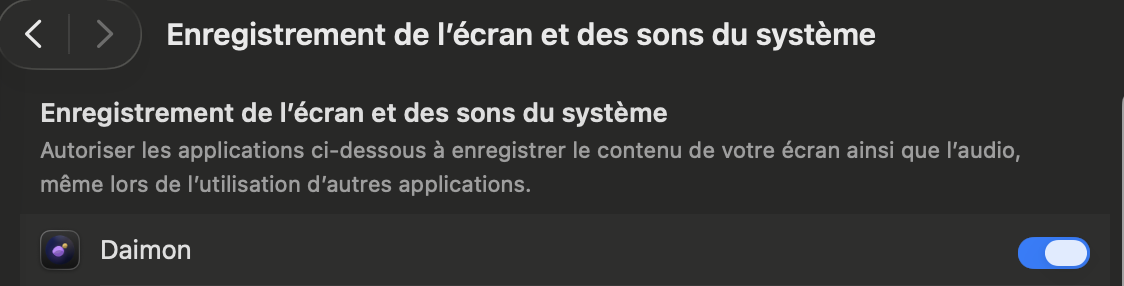
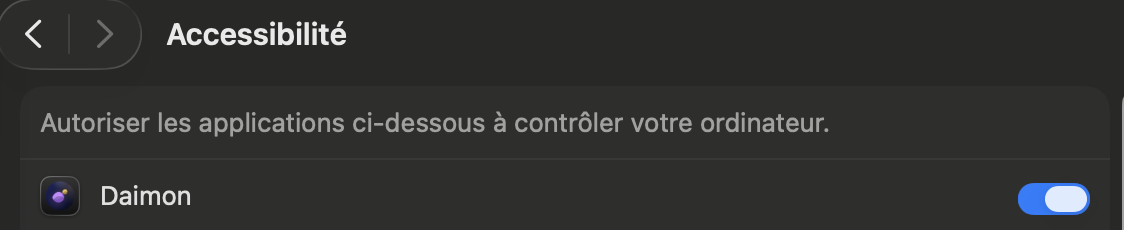
These screenshots are cropped to the Daimon row, and they show the French interface: your panes also list the other applications you have allowed.
The responsible process
macOS ties these permissions to the application that launches Daimon: your AI client (its desktop app, your terminal, your editor). So it is that application you must grant them to, not Daimon itself.
If a tool fails, ask your AI to call daimon_doctor: it names the responsible application (key responsible_app) and says, for each permission, whether it is granted.
Without Accessibility
Without the Accessibility permission, some Mains tools report no error and have no effect. See troubleshooting.
Windows
No system permission needs to be granted (public README).