
Connect your agents
For an AI assistant to read and add to your memory, it must know Kessho's MCP server, kessho-mcp. Kessho declares it itself in the assistants installed on your machine, in one click. This page shows how, and exactly what Kessho writes into them.
Supported assistants
Kessho declares its server in these ten clients:
| Client | Configuration file modified |
|---|---|
| Claude Code | ~/.claude.json |
| Claude Desktop | ~/Library/Application Support/Claude/claude_desktop_config.json (macOS) |
| Codex | ~/.codex/config.toml |
| Gemini CLI | ~/.gemini/settings.json |
| Mistral Vibe | ~/.vibe/config.toml |
| GitHub Copilot CLI | ~/.copilot/mcp-config.json |
| Antigravity | ~/.gemini/config/mcp_config.json |
| Antigravity (application) | ~/.gemini/antigravity/mcp_config.json |
| Antigravity (CLI) | ~/.gemini/antigravity-cli/mcp_config.json |
| opencode | ~/.config/opencode/opencode.json |
A client that is not installed shows as "Not detected": Kessho writes no declaration into it. However, Auto-inject also tidies up old Antigravity and Gemini leftovers (the old memory-kit extension and its enablement entries in ~/.gemini/), with a backup before each change.
What Kessho writes
- An entry named
kessho, pointing to thekessho-mcpprogram, looked for next to the application and then in thePATH. It carries no argument: the server finds your memory on its own. - A backup first: before changing a file, Kessho keeps a copy next to it, named
<file>.bak.<timestamp>. If the backup fails, nothing is written. - No permission granted: Kessho adds nothing to your assistants' allow lists.
- No program launched to declare the server: Kessho writes to the file, and that is all.
- Declarations inherited from an old server are removed from the file along the way, and the screen says so ("Legacy declarations removed").
Declare Kessho to your assistants
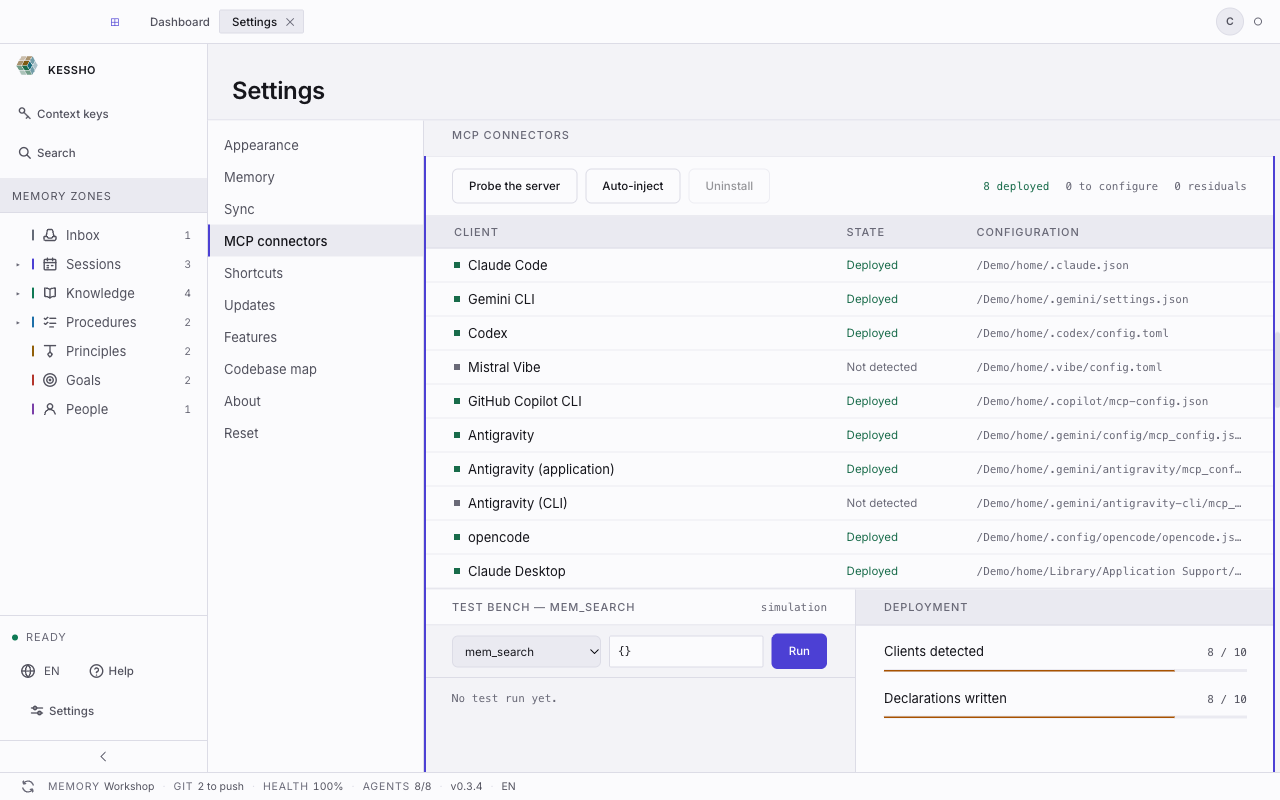
- Open Settings, then the MCP connectors section.
- The table lists each client with its State and its Configuration file. Above it, counters sum up: "8 deployed", "0 to configure", "0 residual".
- Click Auto-inject. It acts on all detected clients at once: there is no client-by-client deployment.
- Every detected client moves to Deployed. The Deployment panel on the right gives the two counts: Clients detected and Declarations written.
During the first launch wizard, the Connectors step does the same with the Declare Kessho to my assistants button.
If macOS shows "macOS is running a temporary copy", move Kessho into the Applications folder using Finder (drag and drop, not copy), then relaunch it. Otherwise Kessho would write into your tools a path that disappears when the app closes.
Reading a client's state
| Label | What it means |
|---|---|
| Deployed | The client is detected and Kessho is declared in its configuration. |
| To configure | The client is installed, but Kessho is not declared in it yet. Click Auto-inject. |
| Not detected | The client is not installed on this machine. This is not a failure. |
| Residual | The client has left this machine; its declaration is still written. |
| Deployment failed | The write failed. Hover over the state: the reason appears. |
Without opening the settings, you also see the essentials elsewhere: the status bar at the bottom shows AGENTS 6/8 (the number of detected clients that carry Kessho, out of the number of detected clients), and the home screen shows the Machine state card with Open settings.
Check that the server answers
Click Probe the server. Kessho starts its own server and measures its answer:
- "Server reachable · 42 ms": all is well;
- "Server silent": it started but did not answer in time;
- "Binary not found": the declared program does not exist or could not be started;
- "Probe failed": the check itself failed.
The probe tests Kessho's server, not your assistants: it says nothing about whether a client uses it.
Try a tool safely
At the bottom left, the Test bench (labelled "simulation") lets you see what a tool call looks like.
- Pick a tool in the list. Tools that write are marked "writes"; tools not yet available are marked "not implemented" (and cannot be selected).
- Adjust the JSON payload if needed.
- Click Run.
The bench runs nothing: it checks that your JSON is valid and echoes it back. No memory data is read or written. The full list of tools is in the MCP reference.
Removing Kessho from a client
- In the table, click the client's row (a second click deselects it).
- Click Uninstall. The button is only active for a Deployed or Residual client.
- Read the confirmation: "Removes the Kessho entry from … No permission is changed."
- Click Confirm removal, or Cancel.
Only Kessho's entry is removed, and a backup is taken if the file changes. If the removal fails, the screen names the client concerned.
The old server
If an old Kessho server is still on your disk, the Deployment panel flags it ("Previous server still installed"): no client launches it any more. The Remove this binary button deletes it after confirmation, and a copy is kept before deletion.
What next?
Once your assistants are connected, you talk to your memory through them: see With an agent.