
Sync
Your memory is an ordinary git repository. Kessho syncs it, with the git installed on your computer, to the remote you choose, and never forces anything. An indicator also tells you when the memory has just changed.
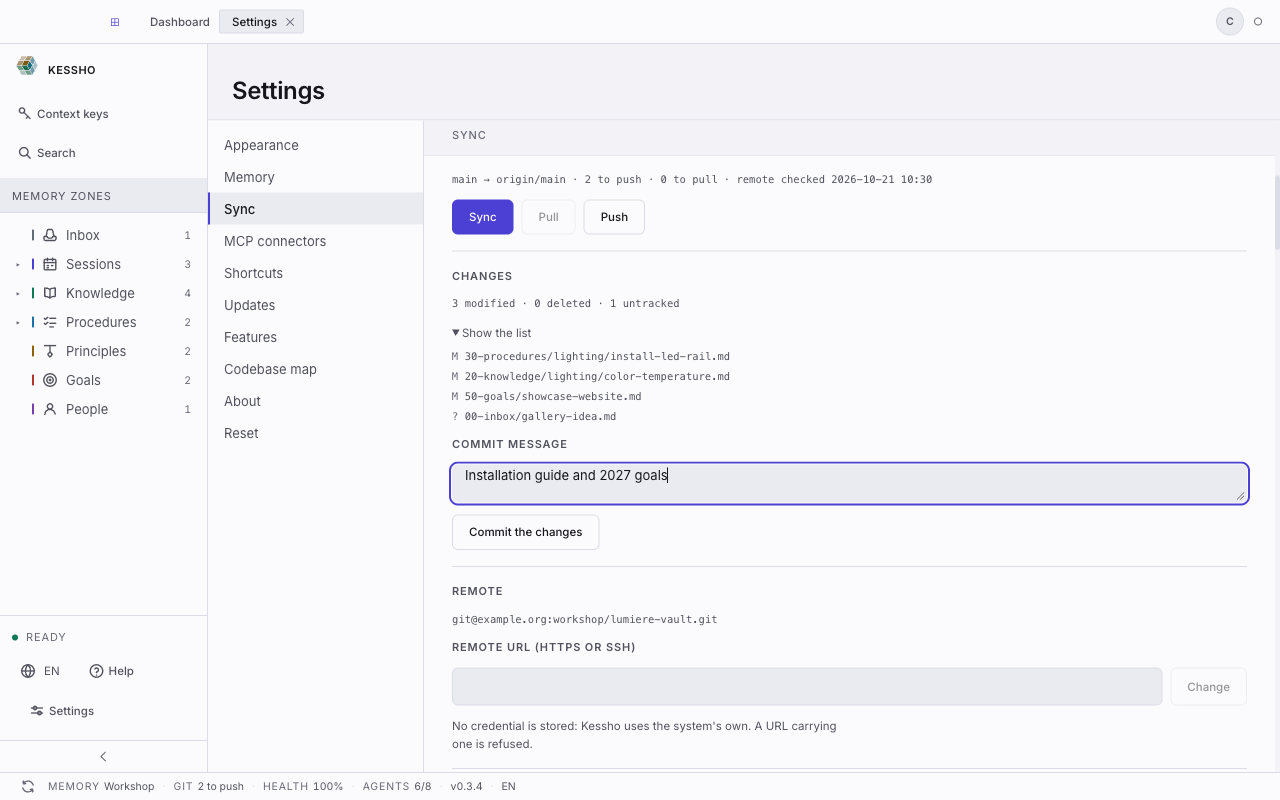
What you see
Syncing is driven from two places: the status bar, for one click, and Settings > Sync, for the detail.
- In the status bar, at the bottom of the window:
- the Sync the memory button, far left (tooltip: "Sync: commit, pull, push");
- the git field, which tells you where the repository stands: up to date, N to push, N to pull, N uncommitted, conflict or operation in progress. The tooltip gives the full state line.
- In Settings > Sync:
- The state line: the branch and what it tracks, then how far behind and ahead it is, for example "main → origin/main · 2 to push · 0 to pull · remote checked 10:30". The time is when the remote was last checked.
- The three actions: Sync, Pull, Push.
- Changes: the number of modified, deleted and untracked files ("3 modified · 0 deleted · 1 untracked"), the Show the list disclosure, the Commit message field and the Commit the changes button.
- Remote: the address of the remote repository, and the Remote URL (https or ssh) field.
- Automation: the "Agents commit and sync automatically" checkbox.
- Commit messages: one line per origin (One click, Automation, Manual, AI agent) with the chosen template and its Preview, then My templates and the New template button.
- Warnings, when there is something to say.
- The freshness indicator, top right, next to your avatar: a dot that lights up when the memory changes.
If the memory is not a repository yet, the section says: "This memory is not a git repository. Initialising it creates no commit and connects no remote." If git is not installed, it shows "git not found" with the command to install it. The rest of Kessho works without git.
What you can do
Sync in one click
Click Sync the memory in the status bar. Kessho does three things, in this order:
- it commits what changed, under the message composed by the One click origin's template, by default "vault backup: YYYY-MM-DD HH:mm:ss" (nothing is committed if there is nothing new);
- it pulls what is new on the remote;
- it pushes your commits.
Nothing is stashed and nothing is forced. When it finishes, the git field updates; a screen reader hears "Memory synced.".
If something blocks it, the bar shows "failed:" followed by one word (conflict, offline, authentication, dirty tree, busy, timeout, identity, markers). Hover it to read the full reason. If the backup commit happened before the failure, the message says so: it was made locally.
The button is greyed out, with the reason in its tooltip, when no remote is connected ("No remote: connect one below.") or a git operation is already running.
Commit your changes by hand
In Changes:
- Click Show the list to read the files involved.
- Write a Commit message.
- Click Commit the changes, then Confirm at the question "Commit N changes with this message?". Cancel drops it.
The field is pre-filled by the Manual origin's template (by default "vault backup: YYYY-MM-DD HH:mm:ss"): you can edit it, and once you type in it Kessho no longer replaces it. The button stays greyed out while the message is empty. The message cannot exceed 1,000 characters. Your commit name and email must be filled in your profile (the circle with your initial, top right).
Pull or push
- Pull fetches what is new on the remote and applies it. It is greyed out while changes are uncommitted: "Uncommitted changes prevent pulling: commit them first."
- Push sends your commits. It is greyed out when there is nothing to push.
- Sync pulls, then pushes.
Kessho never pulls on its own: the state line shows "N to pull", and you decide.
Connect a remote
In Remote, paste the repository's address into Remote URL (https or ssh) and click Connect (the button reads Change once a remote is connected). The accepted forms are https://host/path, ssh://host/path and user@host:path.
No credential is stored: Kessho uses your system's own. An address that carries one is refused.
Initialise the repository
If your memory is not a repository yet, click Initialise the repository. It creates no commit and connects no remote.
Let your agents sync
The Automation checkbox ("Agents commit and sync automatically") is ticked by default. When it is ticked, each tool of your AI agents that writes to the memory commits only what it touched, then pushes. Your uncommitted changes never leave with it. Untick the box to take control back.
The first line of these commits' message is set in Compose your commit messages.
To ask an agent to sync, see Sync the memory. The matching tools are described in the MCP reference.
Compose your commit messages
In Commit messages (Settings > Sync, visible when the memory is a git repository), each commit origin composes its message from a template: one of the supplied templates, or your own. The template sets the first line of the message. As long as you do not touch it, nothing changes: each origin keeps its usual message.
The four origins
| Origin | What the template sets | Default template |
|---|---|---|
| One click | The message of the commit made by the Sync the memory button. | Timestamped: vault backup: {date} {heure_s}, that is "vault backup: 2026-10-21 14:05:09". |
| Automation | Only the first line of the commit that one of your AI agents' tools makes after writing. The body, which lists the files, and the Kessho-Outil, Kessho-Embarque and Kessho-Repris lines always stay. | Kessho · tool: kessho({outil}): {objet} {demande}, for example "kessho(mem_note): Architecture". |
| Manual | The pre-filled content of the Commit message field; you can edit it before committing. | Timestamped |
| AI agent | The message of a commit the agent makes through mem_git_commit. The agent's message is always kept: the agent's template can only surround it (it must contain {message}, otherwise it is ignored with a warning), and an empty message is always refused. | Agent's message: {message}, the message exactly as the agent wrote it. |
The message of a conflict resolution is never affected: Kessho composes it itself.
A subject composed by a template is cut at 72 characters (with "…") for every template except Kessho · tool and Agent's message, which are never cut; the AI agent origin is never subject to it. When a subject is cut, Kessho reports it.
If the chosen template no longer renders, Kessho uses the origin's default template and says so: the Preview shows "The saved template is missing or invalid: the default template is used." For the One click origin, the commit goes ahead with the default template and the status bar shows a non-blocking warning, "default template used". The sync only stops before any commit if no usable message could be composed; the failure then appears in the status bar.
Choose a template
- On the origin's line, click the template's name: a menu opens, with Supplied templates and My templates.
- Pick one: it is saved at once, and the line's Preview updates.
- To go back to the origin's default template, click Restore default (the button only appears once you have changed it).
The six supplied templates
| Name | Template | Example |
|---|---|---|
| Timestamped | vault backup: {date} {heure_s} | vault backup: 2026-10-21 14:05:09 |
| Journal | {date} {heure} · {utilisateur|—} | 2026-10-21 14:05 · Ben |
| Conventional Commits | chore(vault): {action|mise à jour} {n_total|plusieurs} note(s) | chore(vault): modification 4 note(s) |
| Agent trace | [{origine}] {outil} — {objet} | [automatisme] mem_note — Architecture |
| Kessho · tool | kessho({outil}): {objet} {demande} | kessho(mem_note): Architecture (apply) |
| Agent's message | {message} | correction de la note |
No supplied template uses a sensitive variable (see the warning below).
A template's syntax
{variable}is replaced by its value when the commit is made.{variable|default}gives fallback text when the variable is empty. The fallback text cannot contain a brace.{{writes an opening brace,}}a closing brace.- A template fits on a single line and is at most 500 characters; the resulting message can be neither empty nor longer than 1,000 characters.
- An unknown variable, an unpaired brace or a control character is refused with a message that says what, and where when it is a position: a typo never reaches the history. The editor then lists the valid variables.
- A variable with no value gives its fallback, otherwise nothing: a commit does not fail over a missing counter.
The variables
They are grouped by family in the editor, where a click on a variable inserts it at the cursor. When a variable has no value for the origin you are previewing, the editor says so: it will stay empty unless you give a fallback.
| Family | Variable | What it gives | Example |
|---|---|---|---|
| Time | {date} | Today's date | 2026-10-21 |
| Time | {heure} | Time, without seconds | 14:05 |
| Time | {heure_s} | Time, with seconds | 14:05:09 |
| Time | {iso} | Full date and time (ISO 8601), with the time zone | 2026-10-21T14:05:09+02:00 |
| Time | {semaine} | Week number | 43 |
| Time | {fuseau} | Local time offset | +02:00 |
| Volume | {n_modifies} | Number of modified notes (not for automation) | 3 |
| Volume | {n_ajoutes} | Number of added notes (not for automation) | 1 |
| Volume | {n_supprimes} | Number of deleted notes (not for automation) | 0 |
| Volume | {n_total} | Total number of notes touched (not for automation) | 4 |
| Context | {utilisateur} | Your name, as signed in the Profile | Ben |
| Context | {appareil} (sensitive) | Name of this computer | MacBook-de-Ben |
| Context | {memoire} | Name of the memory (its folder) | SecondBrain |
| Context | {branche} | Current git branch | main |
| Context | {version} | Kessho version | 0.3.1 |
| Origin | {origine} | Origin of the commit | un-clic |
| Origin | {outil} | Tool that wrote (automation only) | mem_note |
| Origin | {objet} | What was written, for example a note's title (automation only) | Architecture |
| Origin | {message} | Message typed in (only has a real value for the agent; the manual preview shows an example) | correction de la note |
| Origin | {demande} | Mode of the tool's request (automation only) | (apply) |
| Action | {action} | Kind of change: addition, modification, deletion (not for automation; empty when there is no change) | modification |
| Content | {zones} (sensitive) | Memory zones touched | 10-episodes, 20-knowledge |
| Content | {projets} (sensitive) | Projects touched | kessho, atelier |
| Content | {fichiers} (sensitive) | Notes touched (the first ones, then the rest as +N) | a.md, b.md +3 |
{origine} is un-clic, automatisme, manuel or agent.
Warning: what the sensitive variables write
The content variables ({zones}, {projets}, {fichiers}) and {appareil} reveal what your memory contains or the name of your computer. The composed message is written into the git history, then pushed to the remote repository you chose: once it is there, it stays. No supplied template contains them, and Kessho never puts them in a template you did not write. In the editor they are folded under Sensitive variables, and as soon as your template uses one, a privacy note names it.
Create, edit, delete a personal template
- New template (or New template… in an origin's menu) opens the editor. Give a Template name (1 to 40 characters) and write the Template. You can keep 20 at most.
- The Preview updates live, with the same engine as the commit. Pick the previewed origin under Preview for origin: the preview renders like that origin's commit.
- While the template is refused, Save template stays greyed out and the error message says why. A template created from an origin's line is chosen for that origin at once.
- Edit reopens a template from My templates. If you leave the editor with changes, Kessho asks "Discard the changes to this template?".
- Delete template asks for confirmation and names the origins that use it: they go back to their default template.
Understand a refusal
The messages say what to do. The most common ones:
- Conflict: the pull is cancelled and nothing changed. The files involved are named: merge them by hand, commit, then sync.
- Push refused: the remote moved ahead. Pull first. Nothing is ever forced.
- Offline: the remote cannot be reached. Nothing changed, try again later.
- Authentication refused: Kessho uses your system's credentials. For GitHub over https, run "gh auth login"; otherwise switch the remote to SSH.
- Operation in progress or repository busy: another git process is working on the memory. Wait a moment.
Under Warnings, Kessho also tells you when conflict markers have been committed in a file, when it resumed an interrupted operation, or when the Obsidian Git plugin is syncing the same memory (two automations get in each other's way: set its intervals to 0). Kessho never changes Obsidian's configuration.
Know when the memory changed
The freshness indicator, top right, lights up when the memory changes, for example when an agent has just written. Click it to open its panel.
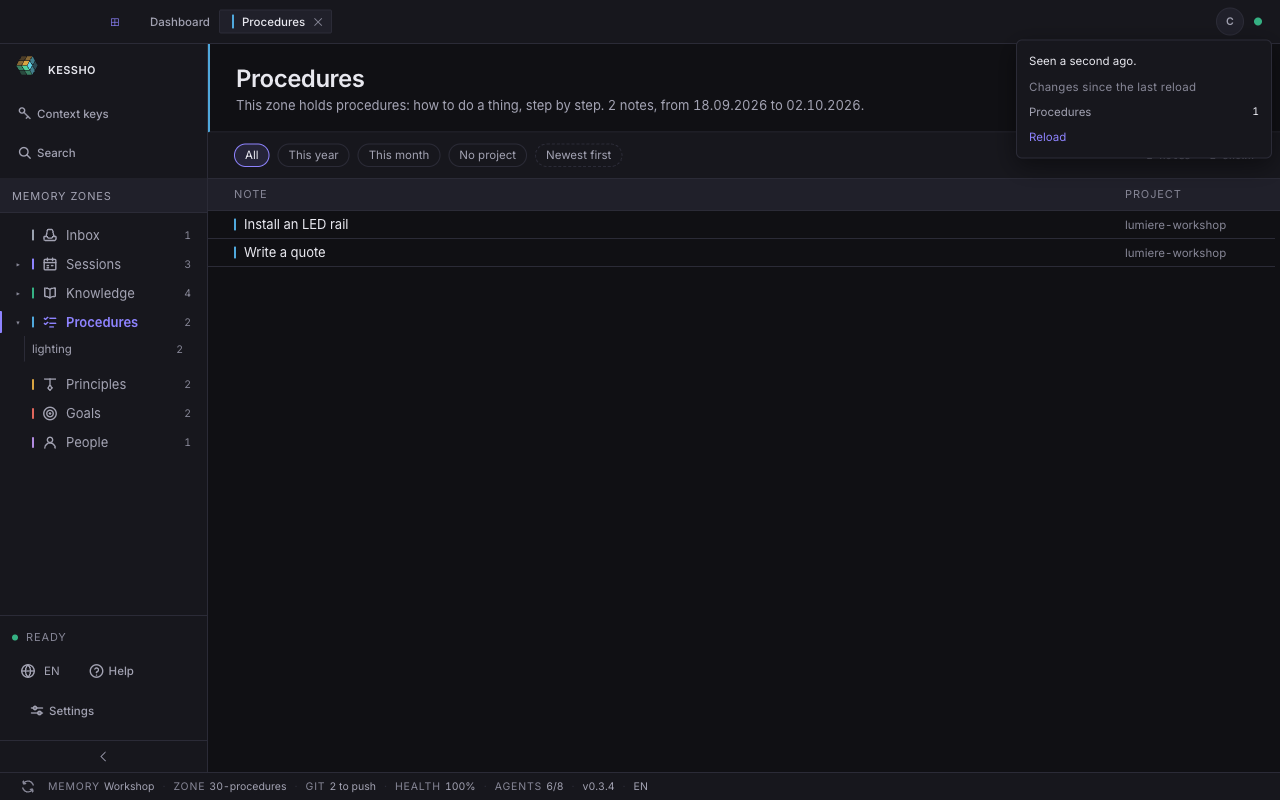
- The first line says since when: "Seen a second ago." With no change since opening: "No change since opening." If the reading fails: "The memory state could not be read."
- Changes since the last reload lists the zones that moved, with the number of changes: "Procedures 1". The number counts changes, not the zone's size: adding a note then removing it makes two.
- When a note changed without any zone changing size, the panel says so: "A note changed, without any zone changing size."
- Reload refreshes what the screen shows and resets the count.