
First launch
On first launch, Kessho does not yet know you or your memory. Instead of the home screen, it opens a five-step wizard: who you are, where the memory lives, what it contains, which AI assistants know about it, then a summary.
On the left, a dark panel keeps the brand and the list of steps: Identity, Location, Reconnaissance, Connectors, Summary. On the right, the current step, announced at the top ("Step 2 of 5").
The steps
1. Your profile
- Type your name in Name or Handle. This is how the assistant will address you.
- If you like, add an Email. It is optional; if filled in, it must look like an address, otherwise the screen shows "This cannot be an address".
- Click Continue to the memory location. The button stays greyed out while the name is empty or the email typed is not plausible.
2. The memory location
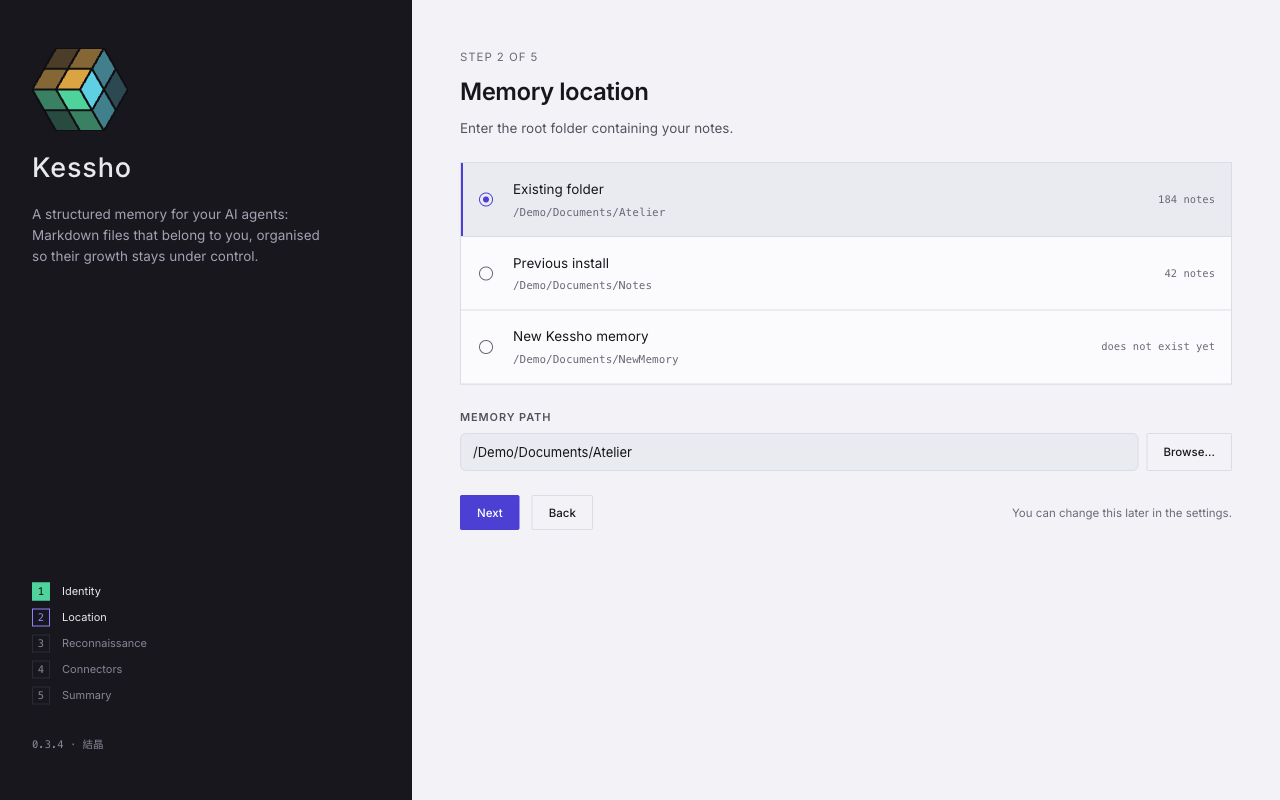
Kessho suggests locations it found on your machine, each with its number of notes ("does not exist yet" instead, for a new memory):
- New Kessho memory: a folder to be created, marked "does not exist yet";
- Existing folder: a folder of notes already there, for example an Obsidian folder;
- Previous install: the folder of a previous installation, detected on your machine.
A suggestion marked "read-only" refuses writes on this machine: you are better off picking another one.
- Click the suggestion that suits you. The Memory Path field fills in.
- Or type a path in that field, or click Browse… to pick a folder.
- Click Next. The button stays greyed out while the path is empty. Back returns to the previous step.
To understand these choices, see Choose your memory. The screen reminds you: "You can change this later in the settings."
3. Reconnaissance
Kessho walks the folder to show you what it holds. Nothing is saved, and nothing stops you from moving on.
- Click Walk the folder.
- A bar moves forward, with a count such as "12 / 184 files read" and the elapsed time. If some files cause trouble, the first warnings (five at most) appear below.
- Click Next when the reading is done. You can also click Skip this step without walking anything.
4. Connectors
Your assistants can query your memory — provided they know about it. Nothing is written until you ask for it.
- Click Declare Kessho to my assistants.
- Kessho lists the assistants it knows, each followed by "declared" or "not detected" (not installed on this machine: that is not a failure).
- Click Next, or Skip this step to do it later.
This step does the same thing as the Auto-inject button in the settings. The details are in Connect your agents.
5. The summary
The "Confirmation & finalization" screen repeats your choices: User and Memory Location.
- Check both values. Edit goes back.
- Click Launch Kessho. The configuration is saved ("Saving…") and the application opens.
If saving fails, the message "Error while saving the configuration" appears and you stay on the screen.
What is required
| Step | Can you skip it? |
|---|---|
| Identity | No: a name is needed. |
| Location | No: a path is needed. |
| Reconnaissance | Yes, with Skip this step. |
| Connectors | Yes, with Skip this step. |
| Summary | No: it is the step that saves. |
Running the wizard again
To go through it again, open Settings, section Reset, then Relaunch Onboarding Wizard. The configuration is cleared; the memory and its contents are left untouched. The button acts immediately, without asking for confirmation. See Settings.
What next?
Once the wizard is closed, the application opens. Meet the Home screen.