
Home
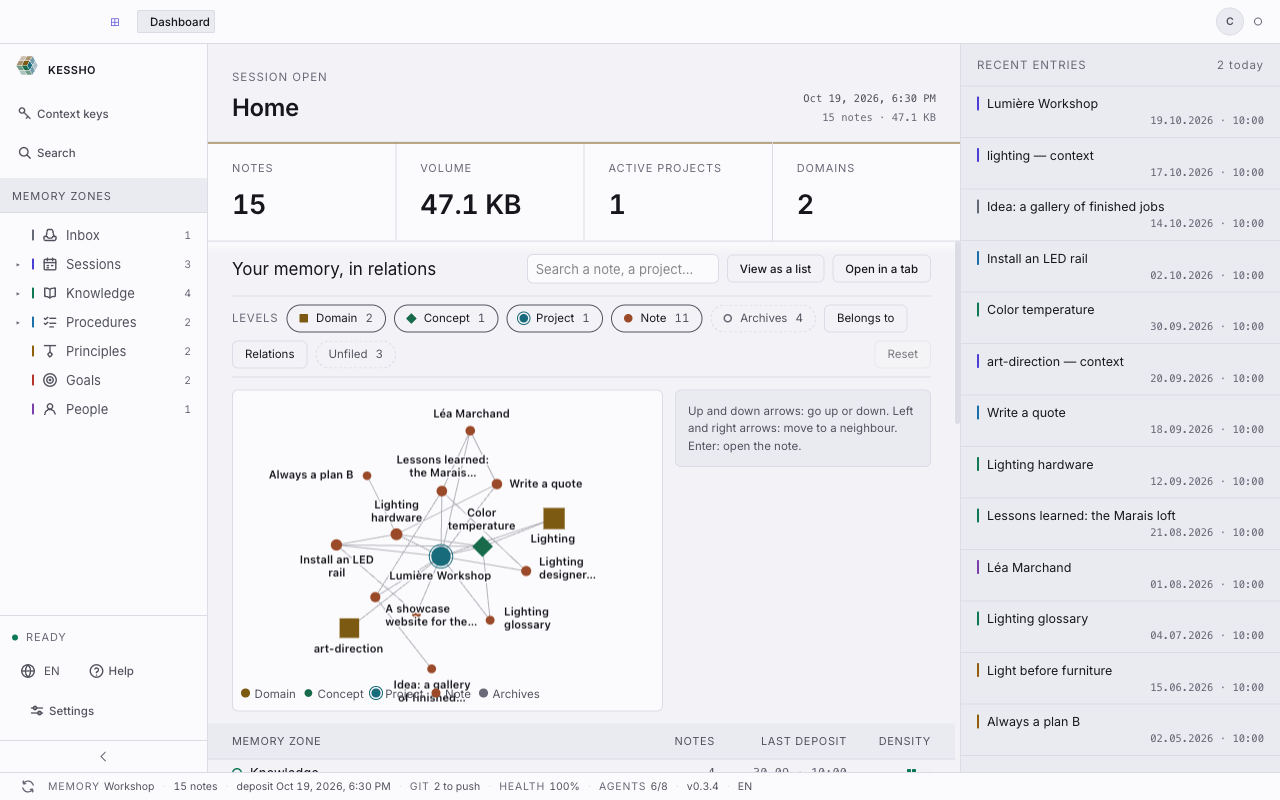
Home is Kessho's starting screen. It answers one question: where does my memory stand? You see how big it is, how its notes link up, where they live and what has just come in.
What you see
Home opens in the first tab, Dashboard, and reads from top to bottom, with a column on the right.
- Header: "Session open", then the Home title. On the right, the date of the last deposit and the summary "13 notes · 47.1 KB".
- Measures band: four figures — Notes, Volume, Active projects, Domains. A dash "—" stands in for a figure that could not be measured.
- Your memory, in relations: the memory graph, with its search field ("Search a note, a project…"), the View as a list and Open in a tab buttons, the level filters (Domain, Concept, Project, Note, Archives) and a Reset button. The details are in Graph.
- Zone table: one row per zone, with four columns — Memory zone, Notes, Last deposit, Density. The fullest zones come first; the "(out of zone)" row is always last. See Zones.
- Recent entries (right-hand column): the sixteen most recent notes, with their date, and today's count ("2 today"). A memory with nothing filed shows "Nothing filed yet".
- Memory Statistics (further down, with the Refresh button): cards, including the Active Projects Detected, shown as tags.
- Memory Health Score: a percentage, the number of findings ("findings across N files") and how they split between what the application repairs, what to hand to an agent and what is only reported.
- Machine state (at the very bottom): how many connectors are configured ("6 of 8 connectors configured"), the version, and the Open settings button.
Above the screen, a banner may appear: "Migration available" (a previous installation is detected, see Choose your memory) or "macOS is running a temporary copy" (see Connect your agents).
Around the home screen
- Sidebar: Context keys and Search at the top; below, Memory zones with the number of notes in each zone; at the bottom, the language selector, Help and Settings.
- Tab bar: home is always the first tab; zones, notes and settings open in the next ones. At the top right, your profile badge and the freshness indicator (see Zones).
- Status bar (at the bottom): the memory's name, its number of notes, the date of the last deposit, the GIT state, the HEALTH score, the AGENTS count and the version.
What you can do
Open a recent note
In Recent entries, click a row: the note opens in a tab. To read and edit a note, see Atom and editor.
Explore the graph
In Your memory, in relations, click Open in a tab to give it the whole screen, or View as a list to read the notes as a list rather than a drawing. See Graph.
Refresh the figures
In Memory Statistics, click Refresh. The section reads the folder again (the button shows "Scanning…" while it reads).
Check health and repair
The Memory Health Score spots defects: a broken link, an orphan note, an unreadable frontmatter, a missing zone index…
- Click Prepare the repair. The button is greyed out if there is nothing the application can repair by itself.
- Kessho computes a plan ("Computing the plan…") and sums it up: "N findings repaired by N fixes across N files". Show the files unfolds the list.
- Click Apply the N fixes, or Cancel. Nothing is written before that click.
- The result appears ("N findings repaired.") and the scan runs again.
If the memory changes between the preview and your click, Kessho refuses to apply an outdated plan ("The plan changed since it was shown: nothing was written") and offers Review the plan.
What the application does not repair is counted apart: "N tasks for an agent". The Copy the instruction button copies the sentence to give your agent.
Pick up where you left off: the context keys
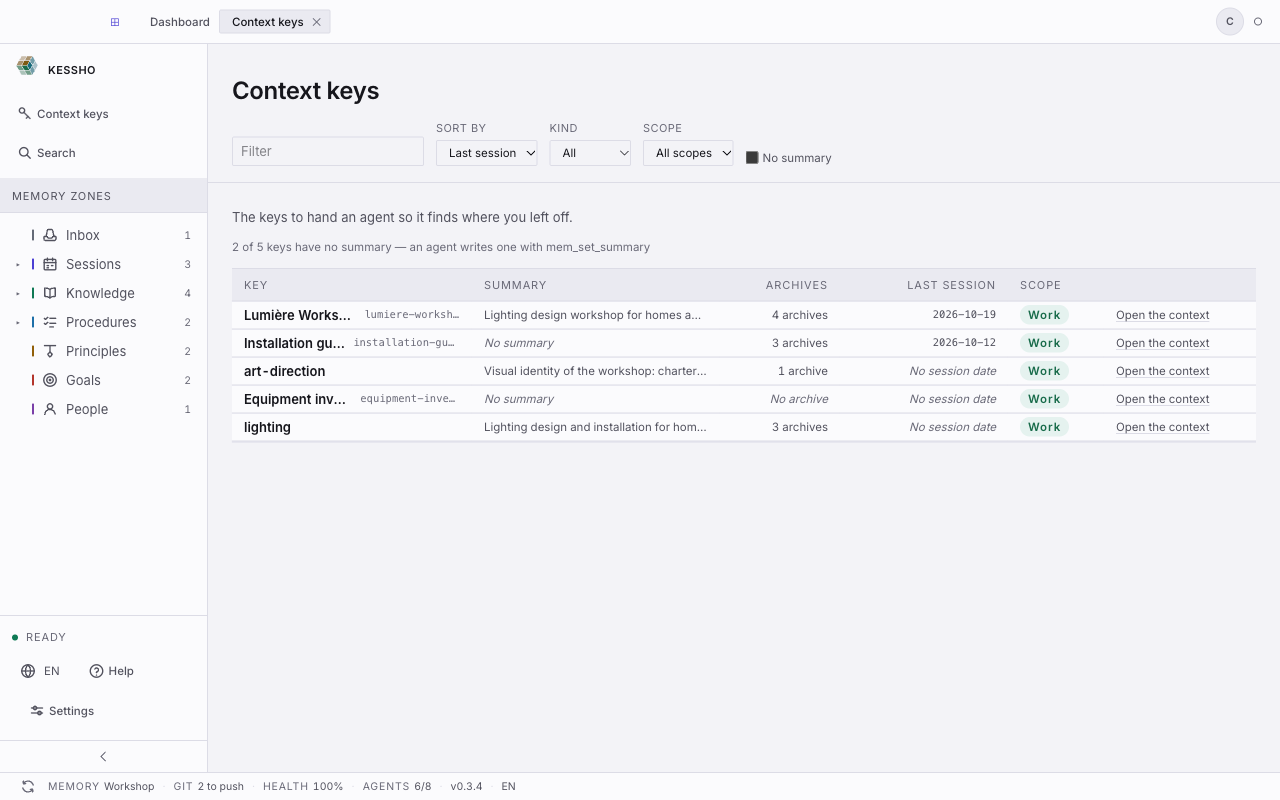
- In the sidebar, click Context keys. The screen opens in a tab.
- Each row of the table is a project or a domain: its title and identifier (what you give an agent), its summary, the number of archives, the date of the last session and the scope (Work or Personal). A summary that is too long is cut off: hover it to read it in full.
- Narrow the list: the Filter field, Sort by (Last session, Volume, A → Z), Kind (All, Projects, Domains), Scope (All scopes, Work, Personal), and the No summary checkbox.
- Click a row's title to open the project in its own tab, or Open the context to read its context file.
A row without a summary shows "No summary"; a count at the top of the screen says how many are missing (an agent writes one with mem_set_summary). A context that cannot be read carries the alert "Unreadable context — its frontmatter does not parse".
See where the connectors stand
In Machine state, click Open settings: you land in the settings, where you can connect your agents.