
Zones
The memory's notes are filed in zones, which say what a note is for. Each zone has its own screen: a list you can filter, sort and open, with what you need to create, rename, move or remove a note.
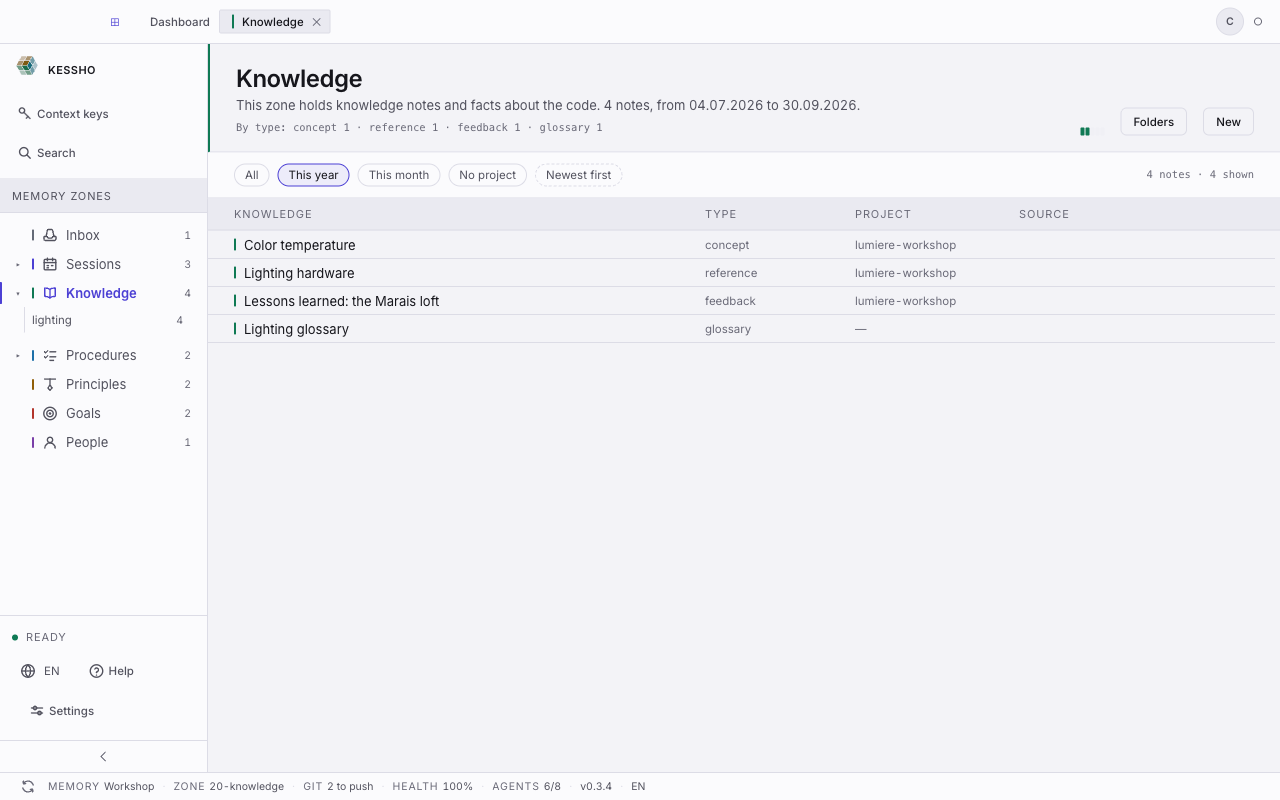
What you see
The nine zones
| Zone | Folder | What it holds |
|---|---|---|
| Inbox | 00-inbox | Quick captures, waiting to be filed. |
| Sessions | 10-episodes | Session archives, project by project. |
| Knowledge | 20-knowledge | Knowledge notes and facts about the code. |
| Procedures | 30-procedures | How to do a thing, step by step. |
| Principles | 40-principles | Principles, with their force: red line, heuristic, preference or action rule. |
| Goals | 50-goals | Goals, with their horizon and deadline. |
| People | 60-people | People cards. |
| Cognition | 70-cognition | What bears on how you work and think. |
| System | 99-meta | Templates and the memory's service files. |
In the sidebar
- Zones are listed under Memory zones, each with a colour bar and the number of notes it holds (subfolders included).
- A small chevron unfolds a zone's subfolders, each with its own count. A zone with no subfolder has no chevron.
- When they exist, Cognition and System are tucked behind the Advanced row, folded by default.
On a zone screen
- Header: the zone's name (followed by the subfolder if you opened one), its description and the number of notes with the date range ("4 notes, from 04.07.2026 to 30.09.2026"). On the right, a small density gauge (the zone's share of the memory) and the Folders and New buttons.
- Filters: pills All, This year, This month, No project, and With links when the zone has citations. When the zone's notes are dated, a sort pill Newest first / Oldest first. On the right: "4 notes · 4 shown".
- List: one row per note, with a title on the left and columns that depend on the zone (see below). A dash "—" marks a missing value.
- An empty zone shows "Empty zone" and says what it holds. A filter that rules everything out shows "No note matches this filter".
Each zone's columns
| Zone | Columns | Good to know |
|---|---|---|
| Sessions | Two sub-groups, Projects and Domains: a rail on the left, then the chosen project's or domain's screen | The rail gives each project's number of notes, or each domain's number of members. The project screen shows its domains, its figures (Notes, Archives, Zones, Last session), its history and its archives. The domain screen is described below, in The domain. |
| Knowledge | Knowledge, Type, Project, Source | A line "By type: concept 1 · reference 1…" sums up the zone. An "accepted" tag marks accepted notes. |
| Principles | A Projects rail, then Principle, Project, Strength | Strength is Red line, Heuristic, Preference or Action rule; otherwise "force not declared". |
| Goals | Goal, Project, Status, Deadline | Goals are grouped by Short term, Medium term, Long term (or "Horizon not declared"). Status: "open", "in progress", "reached", "abandoned". |
| System | Sheet, Project, Citations | The column reads "cited by 3 notes". |
| Inbox, Procedures, People, Cognition | Note, Project |
What you can do
Open a zone
In the sidebar, click a zone's name, or one of its subfolders after unfolding it. The zone opens in a tab.
Filter and sort
In the row of pills, click This year, This month, No project or With links to keep only the matching notes; All brings them all back. The count on the right says how many notes are shown out of the total. The sort pill flips the order: most recent deposits first, or oldest first.
In Sessions, notes are arranged by the age of their deposit: Fresh deposit (30 days or less), Settled (up to a year) and Sealed (older).
Open a note
Click its title: the note opens in a tab. To read and edit it, see Atom and editor.
Create a note or a folder
- In the zone header, click New, then Note or Folder.
- For a note, fill in Title, optionally File name (otherwise it is derived from the title), Scope (Work, Personal or Both) and, when templates exist, Template.
- Click Create. The note or folder is created in the zone (or subfolder) you are looking at.
Rename or move a note
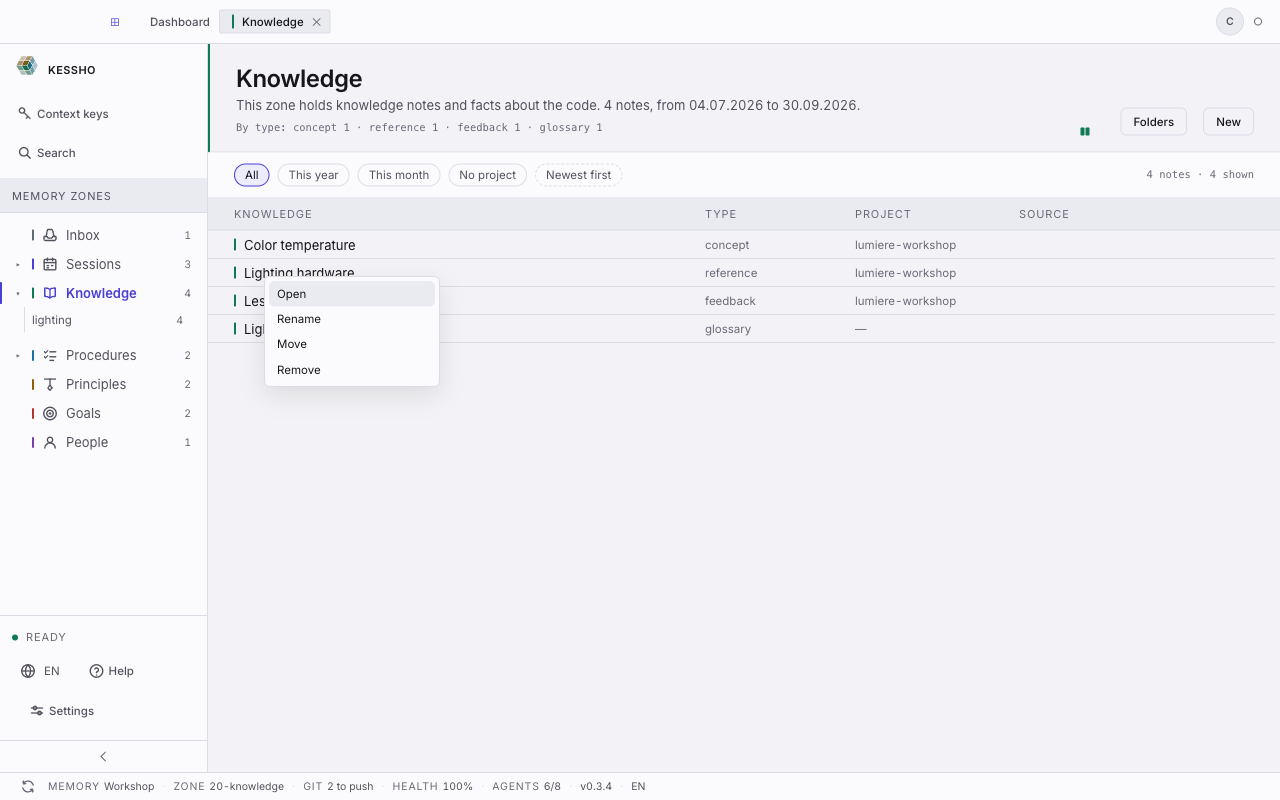
- Right-click the note's row: the menu offers Open, Rename, Move and Remove.
- Rename: change the Title and the File name (or tick "Keep the current file name"), then Confirm. Move: choose the Destination, then Move.
- Kessho first shows "What the operation will do": the files that will be updated, link by link. Click Apply to confirm, or Cancel.
- A "Result of the last operation" banner says what was done and offers Undo: files and links go back to their previous state.
Remove a note
- Right-click the note, then Remove. You can add a Reason (optional).
- The note goes to the memory's trash (
.trash), with a message saying where it came from. It can be put back. - If other notes cite it, Kessho lists them under Cited by and the button becomes Remove anyway.
Manage folders
Click Folders in the header: the list of the zone's subfolders appears, each with Rename, Move and Delete. A folder marked "managed by Kessho" cannot be changed here. Deleting a folder puts it in the trash with all its content; it can be put back.
See what an agent has just changed
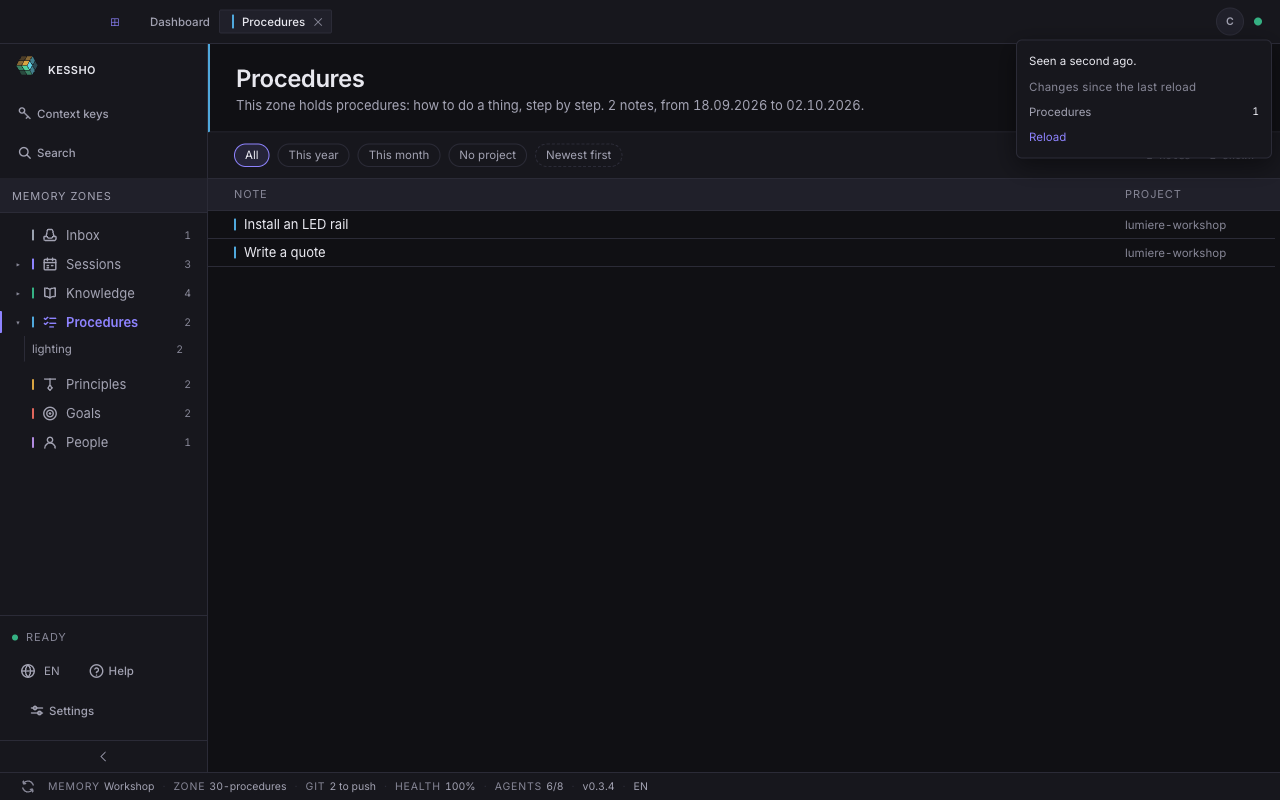
When an agent writes to the memory while the application is open, the freshness indicator lights up. It is the small dot at the top right, next to your profile.
- Click the dot. The panel says how long ago: "Seen a second ago." With nothing new, it says "No change since opening."
- Under "Changes since the last reload", each zone touched is listed with its number of changes. If a note changed without any zone changing size, the panel says so too.
- Click Reload to reload the current screen: the lists then show the new state.
The indicator counts changes, not a size: adding then removing a note makes two.
The domain
A domain is a cross-cutting scope of work: lighting, art direction, DevOps… It is not a parent folder. A project is not filed inside a domain: it carries it, and the same project can carry several domains. The domain brings together the projects that carry it, its own sessions and the knowledge attached to it.
Domains open from Sessions, Domains sub-group: the rail lists the memory's domains, each with its number of members (attached projects and notes), and the screen on the right shows the chosen domain.
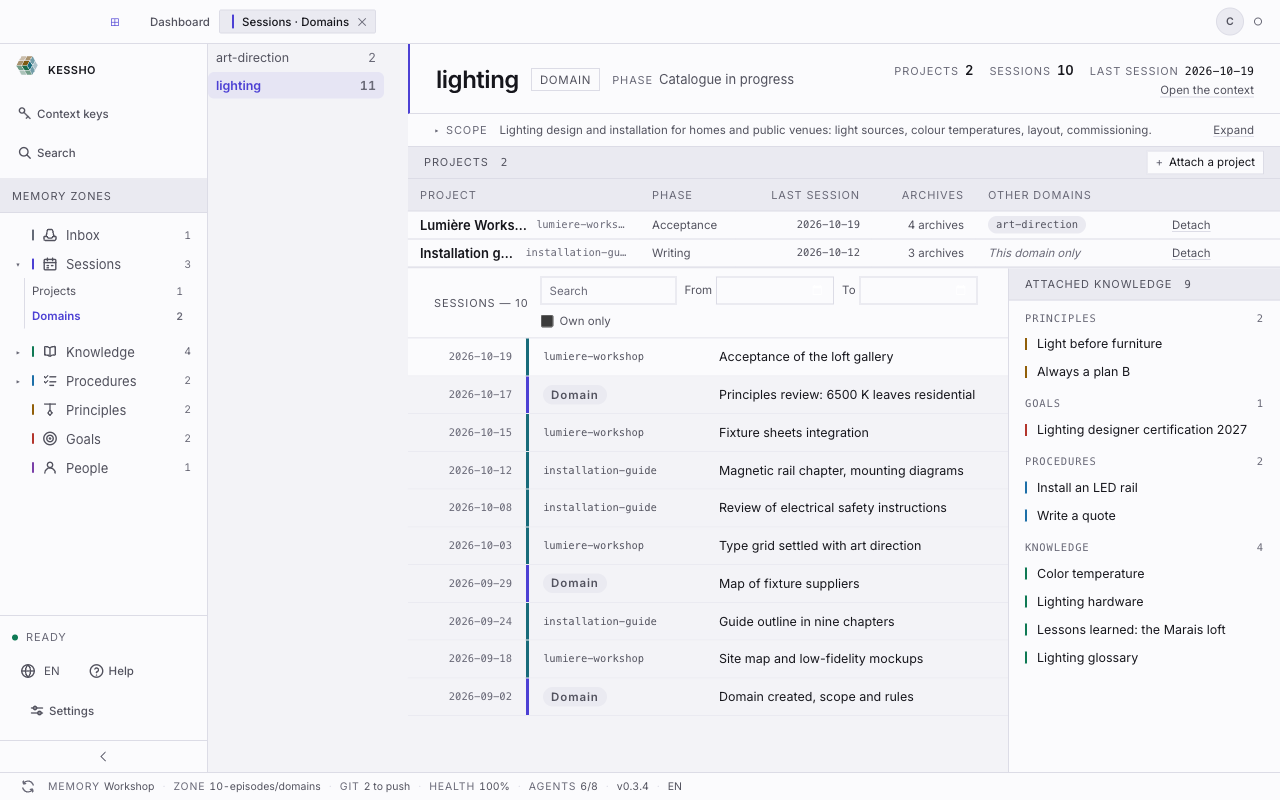
A domain's screen
- Header: the domain's name, the Domain badge, its Phase (read from its
context.md) and three figures: Projects, Sessions, Last session. The Open the context link opens itscontext.md. - Scope: the domain's text, folded to one line by default. Expand shows all of it.
- Projects: one row per attached project, with its Phase, its Last session, its number of archives and its Other domains. An other-domain label opens that domain; "This domain only" says the project carries no other. Clicking a project's name opens its screen.
- Sessions: the thread of sessions from the domain and its projects, most recent first. A session of the domain itself carries the Domain label; a project session carries the project's identifier. The Search field and the From / To dates filter the thread; the Own only box keeps only the domain's sessions, and the screen says how many project sessions it sets aside.
- Attached knowledge: on the right, the notes attached to the domain, grouped by kind (principles, goals, procedures, knowledge). Clicking a note opens it.
Each part is read on its own: if one cannot be read, it says so in its place and the others stay on screen.
Attach and detach a project
- To attach a project, click Attach a project above the table. A list opens, with a Search a project field; projects already attached stay listed, greyed out.
- Choose a project: it joins the table, and its sessions join the thread.
- To detach a project, click Detach at the end of its row. Kessho asks for confirmation under the row and recalls that only the project's
context.mdis rewritten: its archives stay intact and leave the thread. Confirm with Detach.
After each action, the screen reads the domain again: the table, the thread and the rail's count show what was written.
Domains from a project's screen
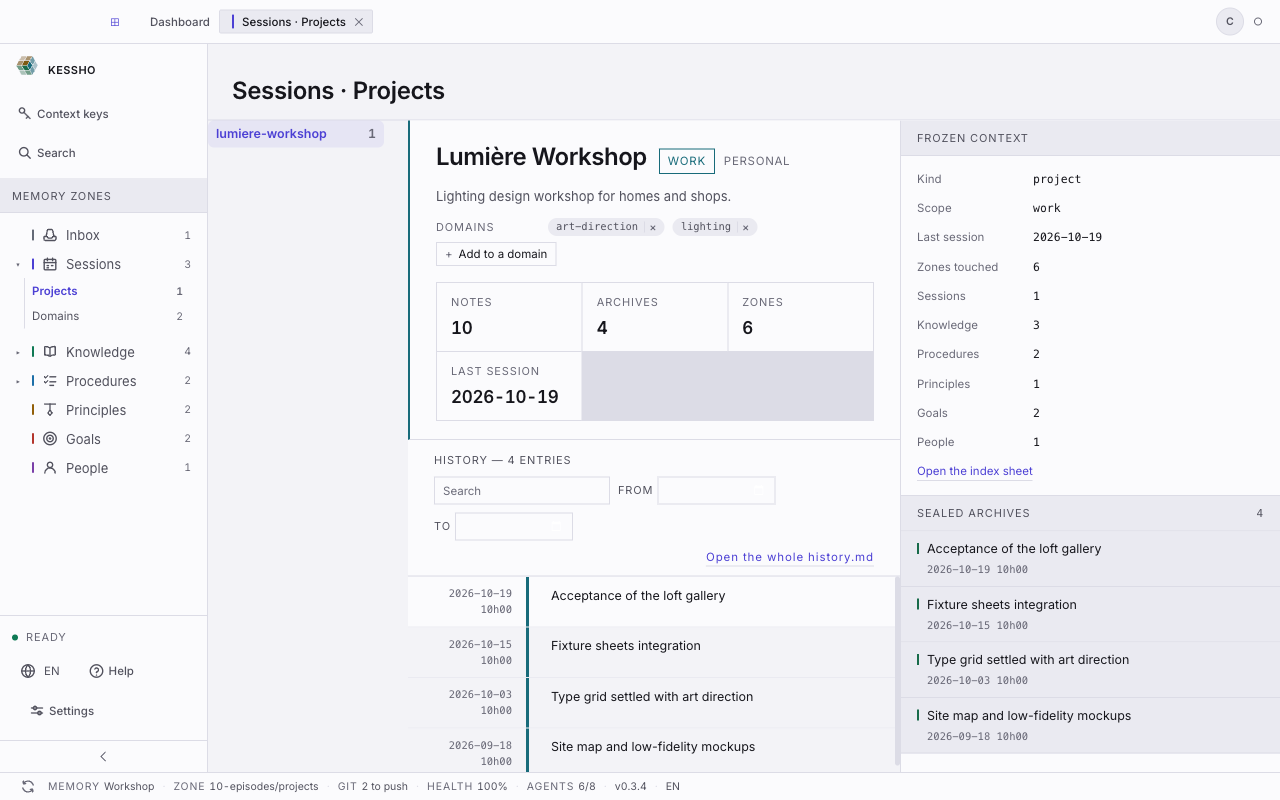
In Sessions, Projects sub-group, a project's screen carries a Domains row under its description. The project's domains are listed in alphabetical order: none is "main".
- Clicking a domain's label opens that domain's screen.
- A label's cross removes the project from that domain, after confirmation.
- Add to a domain lists the memory's domains, with a Search a domain field; those the project already carries are marked "Already attached".
- A domain named in the project but with no folder in the memory stays on display, without a link.
What Kessho writes
Attaching, detaching, adding or removing a domain rewrites one thing only: the domain: key of the project's context.md. No archive is rewritten, no file moves, and the domain itself is not changed. If the write fails, Kessho says so and nothing was changed.