
Atom and editor
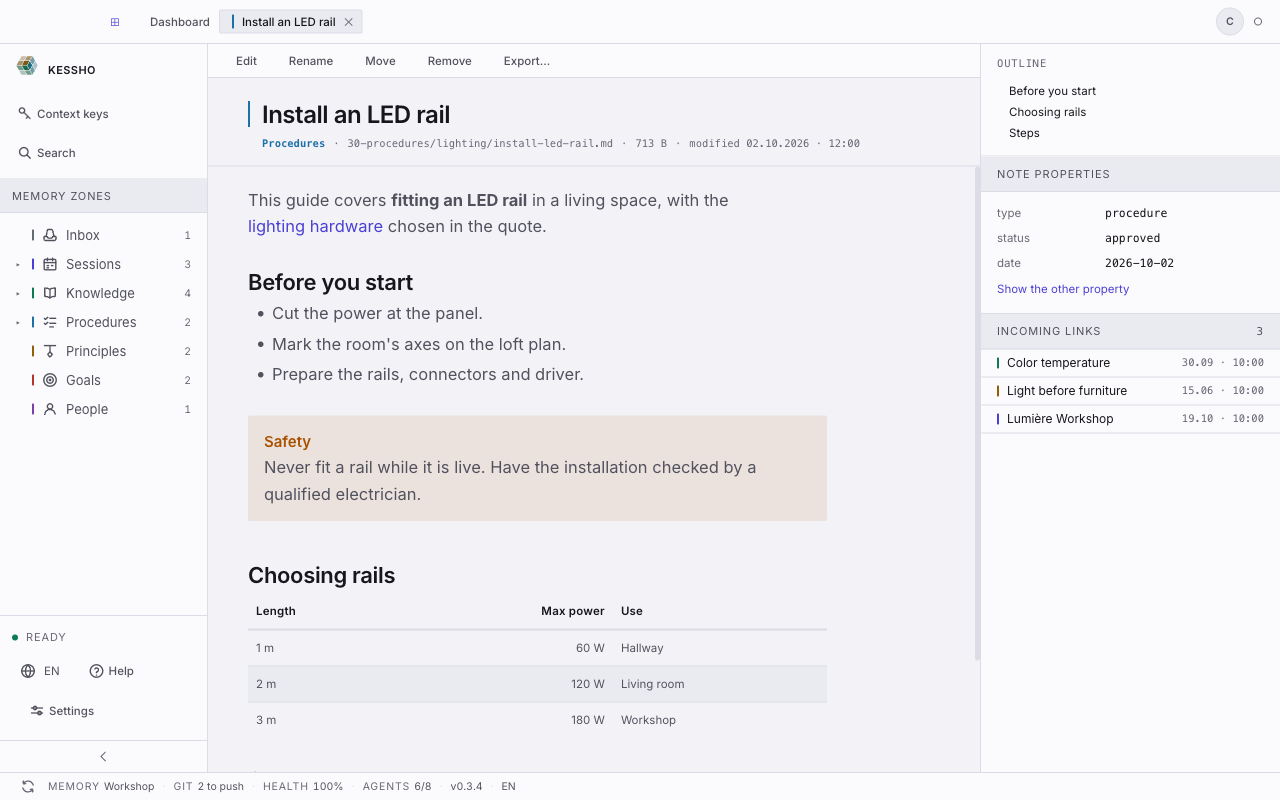
An atom is a note in your memory: a Markdown file. This screen shows it for reading and, one click on Edit later, turns it into a single text surface you can write in.
What you see
- The toolbar: Edit (which becomes Read while editing), Rename, Move, Remove and Export….
- The header: the note's title, then a grey line with its zone, its path, its size and its date ("modified 02.10.2026 · 12:00"). The note's tags show as pills under that line.
- The text: headings, lists, tables, callouts and images, as the file describes them.
- The right-hand column:
- OUTLINE: the note's headings. It only appears once there are two or more, and it disappears while editing: the editor has its own outline, opened with ⌘⇧O.
- NOTE PROPERTIES: the fields from the top of the file (type, status, date…). Show the other property or Show the N other properties unfolds the rest, and Collapse to main properties folds it back.
- INCOMING LINKS: the notes that cite this one, with their date. If none does, the column says so: "No note relies on this one".
- While editing, three things are added (more below): the margin that names every block, a MEMORY panel in the right-hand column, and a status bar under the text: Line 7 · Markdown · UTF-8 · Saved, then Cancel and Save.
In a narrow window the right-hand column moves below the text. The Collapse properties, outline and links button (or Show properties, outline and links) closes and reopens it.
What you can do
Read a note
Scroll the text. In the right-hand column, click a heading in the OUTLINE to jump to it, or a line in INCOMING LINKS to open the note that cites this one.
- A link to another note (
[[…]]) is clickable and opens that note in a tab. - A link whose target does not exist stays visible but leads nowhere. Hover it: "No note named … — this link needs fixing".
- A link to a web address is not clickable. The address shows when you hover it.
- A task-list checkbox ticks with one click, even in reading mode: the file is updated. If the write fails, a message tells you and asks you to reopen the note.
Edit a note
Click Edit. The text becomes one Markdown surface: you type straight into it, as on a page.
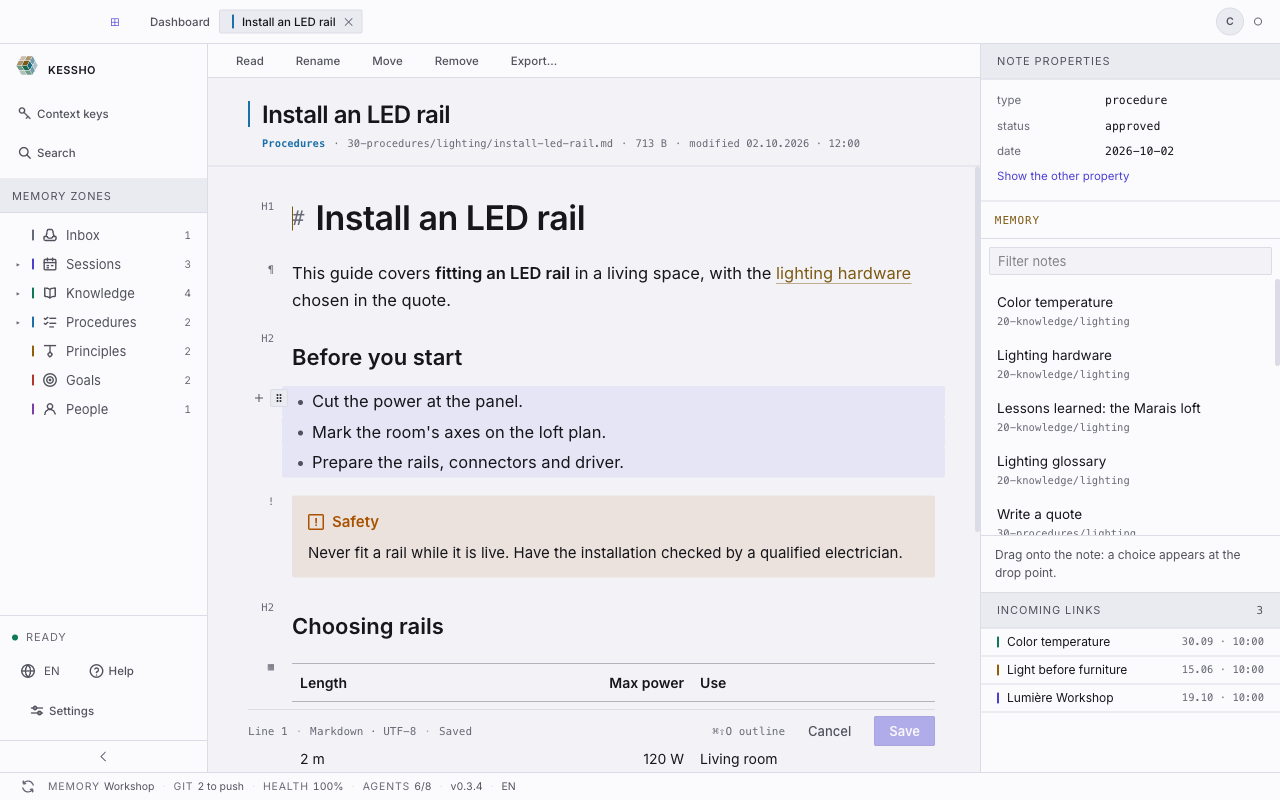
Away from the line your cursor is on, you see the result: big headings, bold in bold. On the cursor's line the syntax appears (#, **, [[…]]) so you can change it. As soon as you move to another line, it folds away.
The file stays ordinary Markdown: the editor adds nothing to it.
Save or cancel
The status bar under the text tells you where you stand: Saved, or Modified when some text is unsaved. A dot also shows on the note's tab.
- Save writes the file. The button stays greyed out until something changes. The editor stays open after saving, and your undo history is kept.
- Cancel closes the editor and returns to reading, without saving.
- ⌘Z undoes the last action, ⌘⇧Z redoes it.
- If the editor refuses to write (the text would no longer match what it read), a message says so and nothing is written.
A tab with unsaved changes refuses to close: save or cancel first. Quitting Kessho with unsaved text asks you to confirm; you can turn that question off in Settings > Appearance.
Read the margin
To the left of the text, the margin names each block with a sign: H1 to H6 for headings, ¶ for a paragraph, • for a bulleted list, 1. for a numbered list, ☐ for a task list, ❝ for a quote, ! for a callout, </> for code, ▦ for a table, ▣ for an image, ⧉ for an embed, — for a rule. A list carries one sign, on its first line.
The margin is display only: it writes nothing to the file. When the window is too narrow, it folds away.
Move, duplicate or delete a block
Hover a block: two buttons appear in the margin, a + and a six-dot grip.
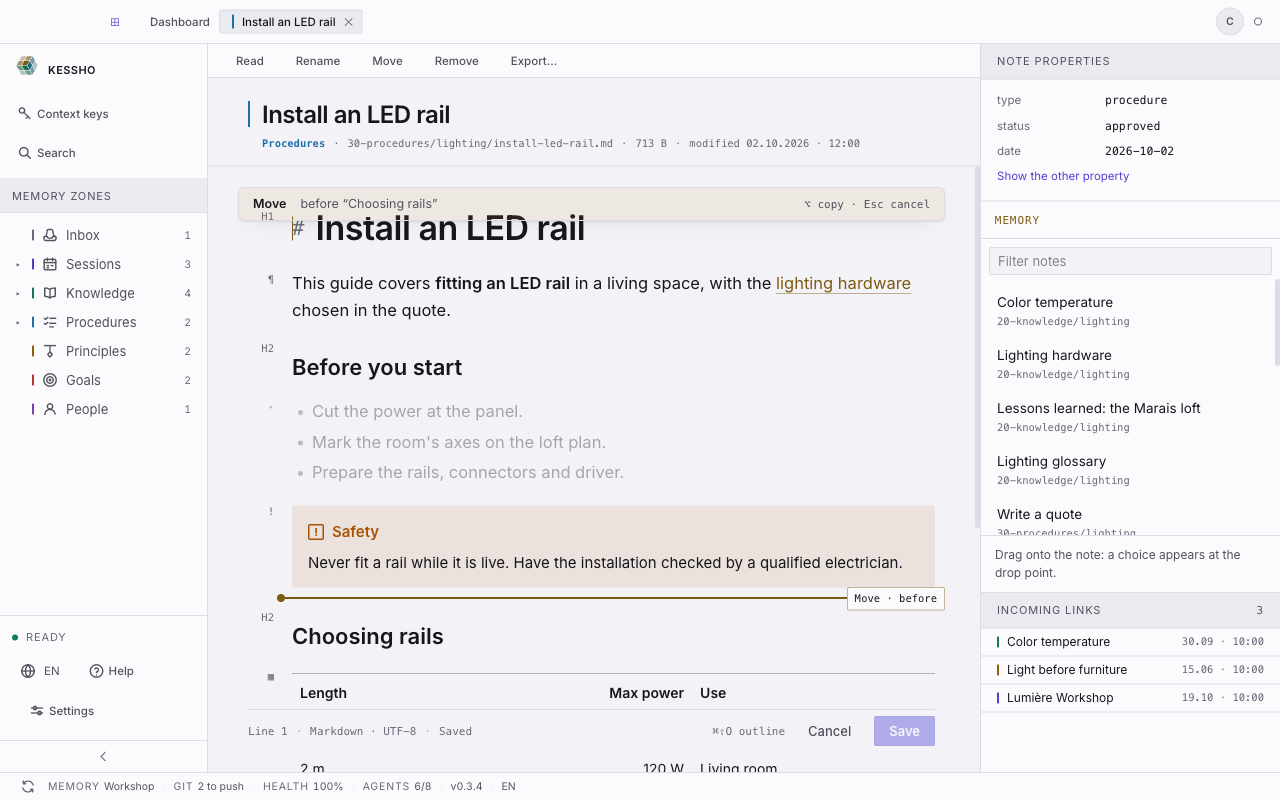
- Drag the grip to move the block. Hold ⌥ to copy it instead of moving it. Esc cancels the drag.
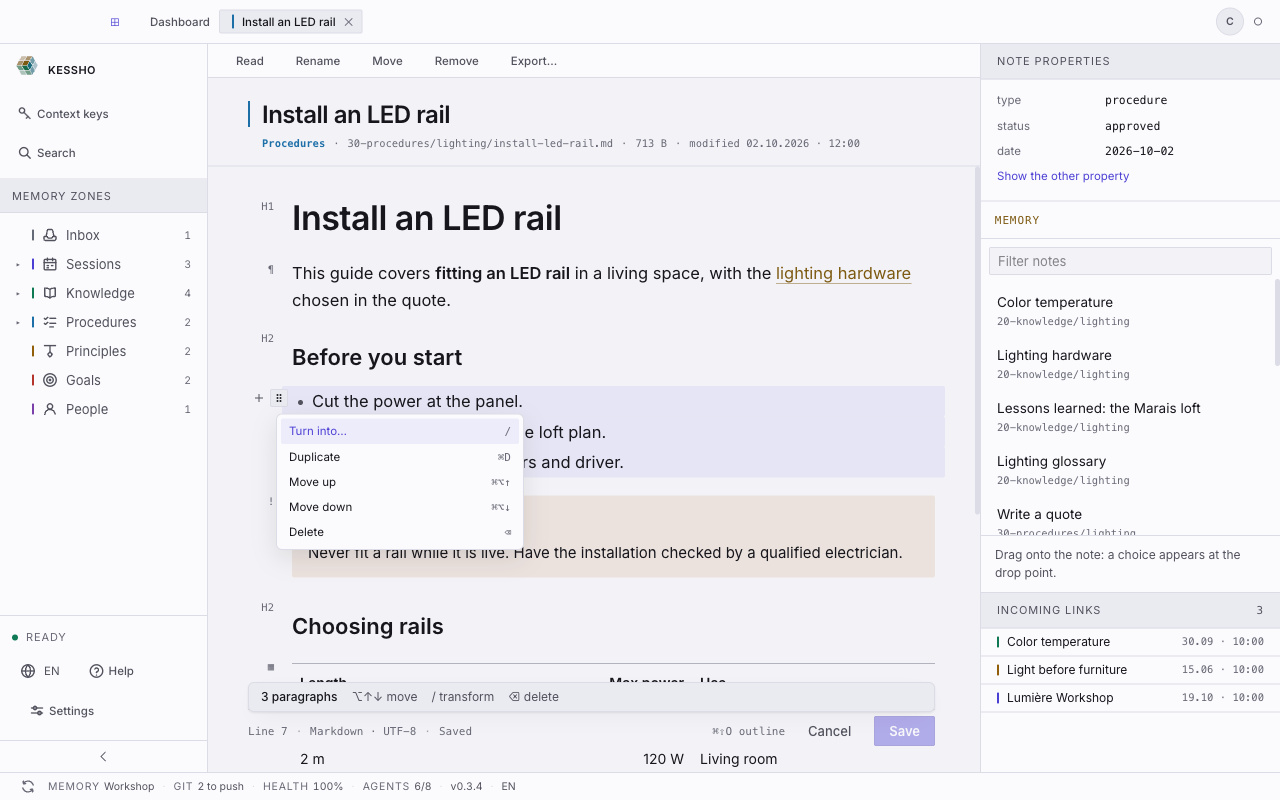
- Click the grip (without moving): the block is selected and its menu opens.
- Turn into… opens the
/menu so you can change the block's type. - Duplicate (⌘D) copies the block right below.
- Move up (⌘⌥↑) and Move down (⌘⌥↓) shift it by one step. Move up is greyed out on the first block.
- Delete (⌫) removes it.
- Turn into… opens the
A list moves, duplicates and deletes as one block: it is never cut in two.
Add a block with the +
The margin's + ("Add a block below") creates an empty paragraph under the hovered block and opens the / menu on it straight away.
Pick a block's type with the / menu
Type / at the very start of a line. The Block commands menu opens.
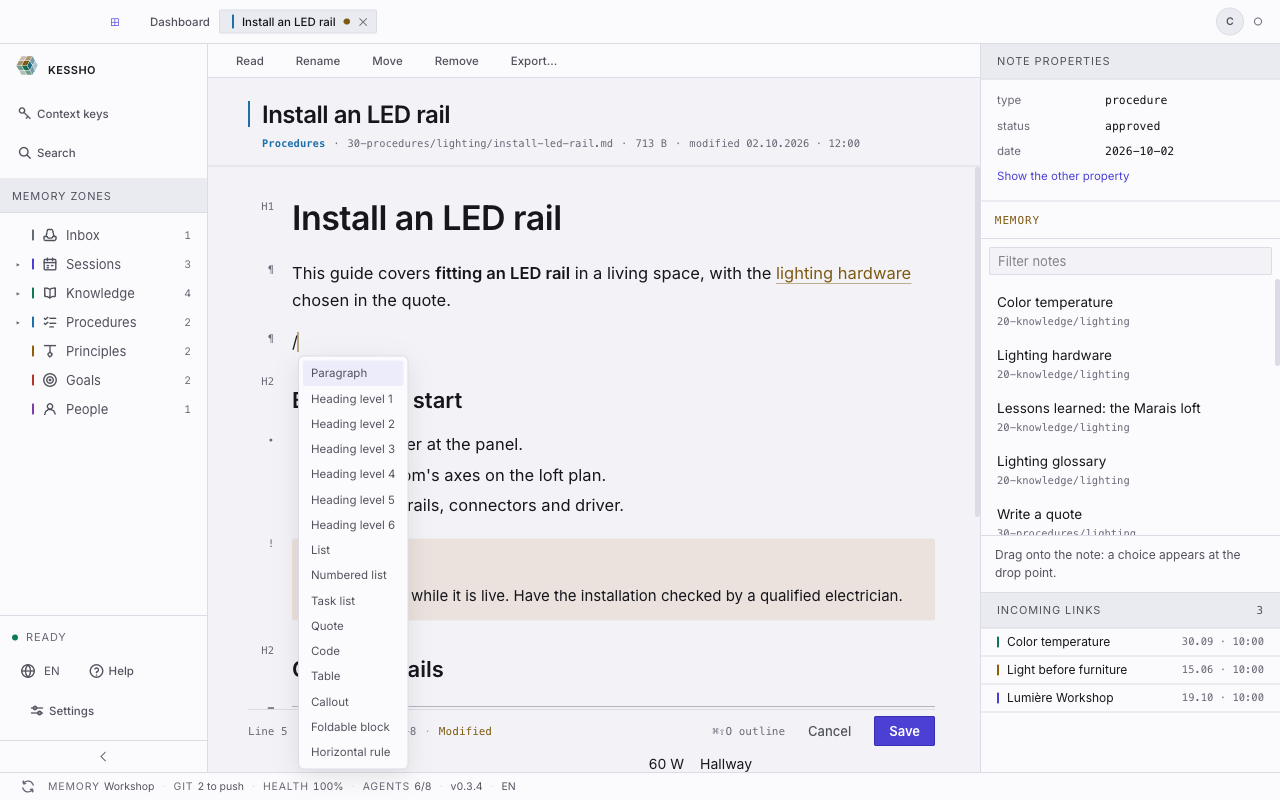
It offers: Paragraph, Heading level 1 to 6, List, Numbered list, Task list, Quote, Code, Table, Callout, Foldable block and Horizontal rule.
- Keep typing to filter:
/tabkeeps only Table. - ↑ and ↓ move through the list, Enter or Tab picks, Esc closes.
- A
/in the middle of a text (a date, a path) opens nothing.
Format text
Select some words: the Formatting bar appears above the selection. It has five buttons: Bold (B), Italic (I), Strikethrough (S), Highlight (H) and Inline code (</>). Clicking an already active button removes the formatting.
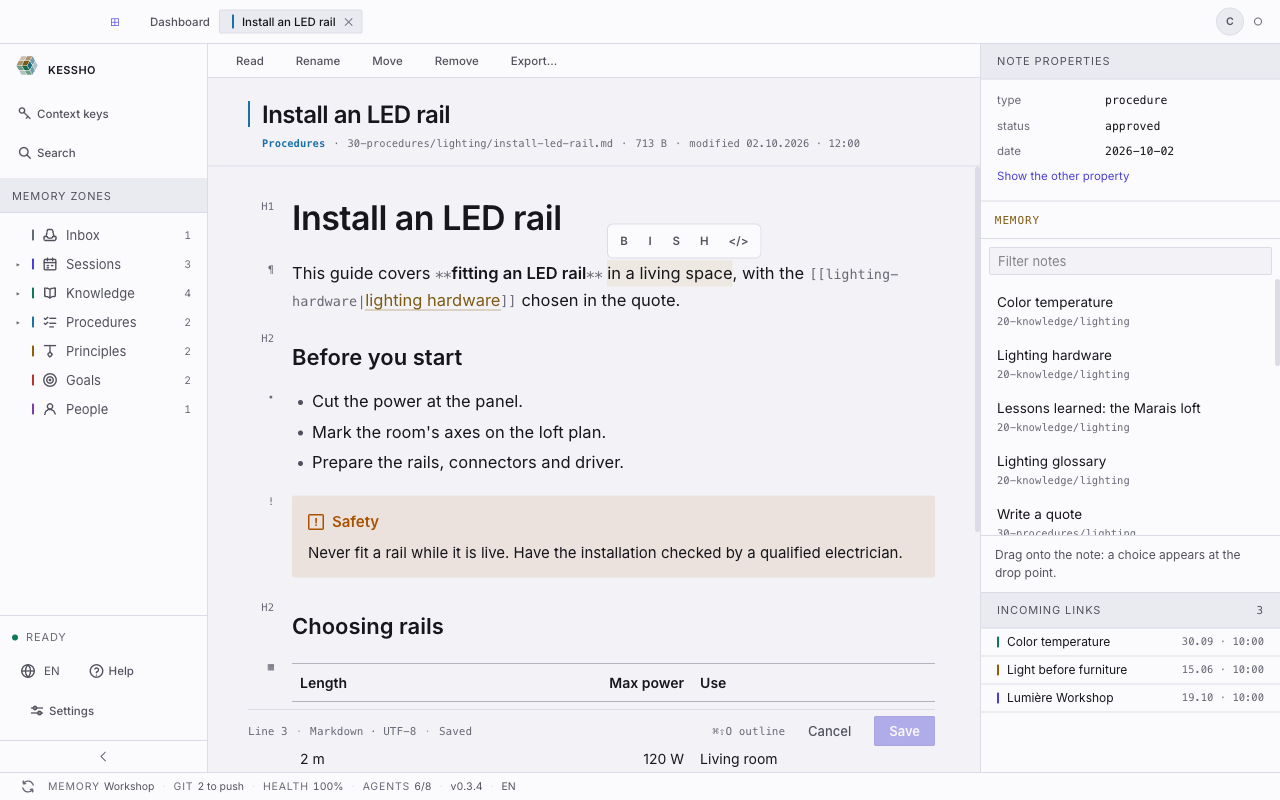
The same actions have shortcuts (list below). Clicking in the bar does not lose your selection.
Work in a table
A table is written in Markdown, but you handle it with the mouse and the keyboard.
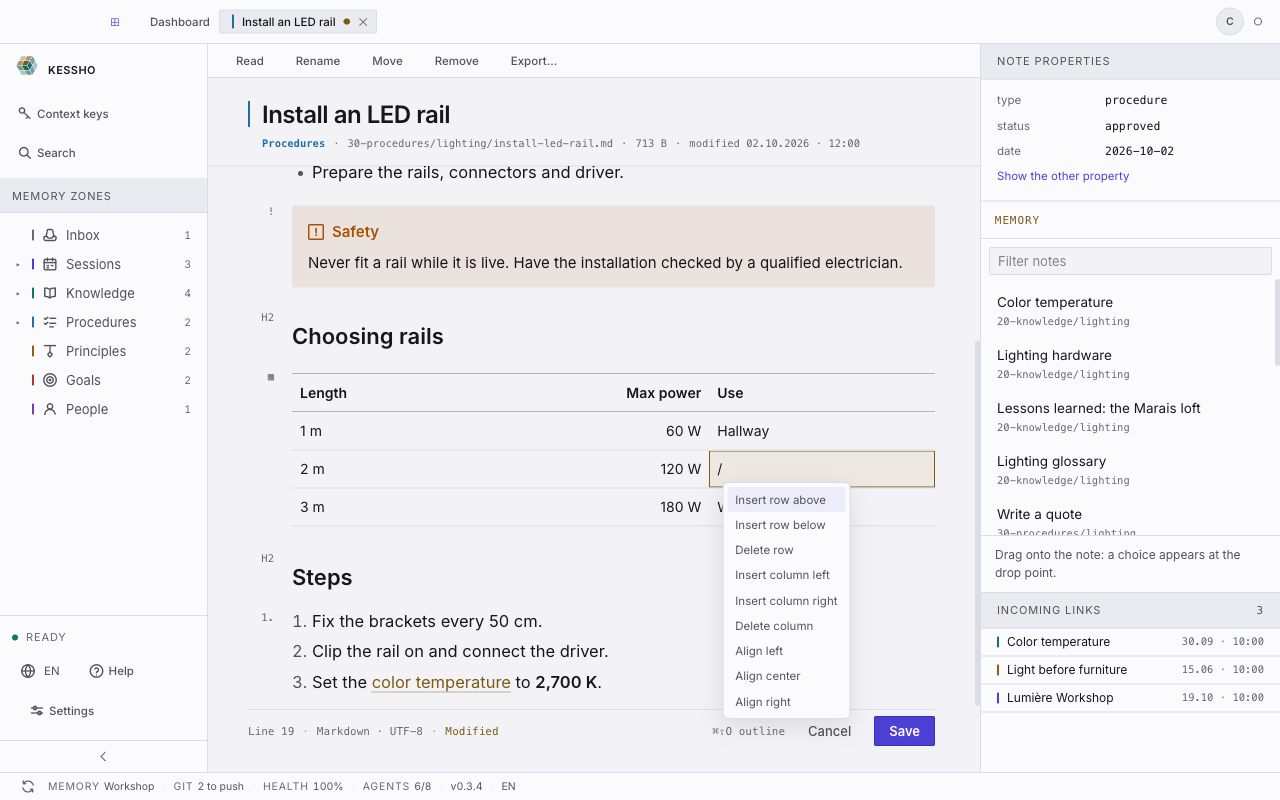
/menu in a cell: type/at the start of a cell. In the table body, the menu offers nine entries: Insert row above, Insert row below, Delete row, Insert column left, Insert column right, Delete column, then Align left, Align center and Align right. In the header row it offers only seven: Insert row above and Delete row are not there. Delete column is not offered when the table has a single column.- Tab moves to the next cell, ⇧Tab to the previous one. Tab in the last cell adds a row.
- ⌘↵ adds a row below. ⌥Tab adds a column.
- ⌘⌥⏎ adds a row, ⌘⌥⇧⏎ a column, ⌘⌥⌫ removes the row, ⌘⌥⇧⌫ removes the column.
If the table has no valid separator line, the editor asks you to fix it by hand before you use these actions.
Add a callout
Pick Callout (or Foldable block) in the / menu. A callout is a Markdown quote whose first line is > [!type].
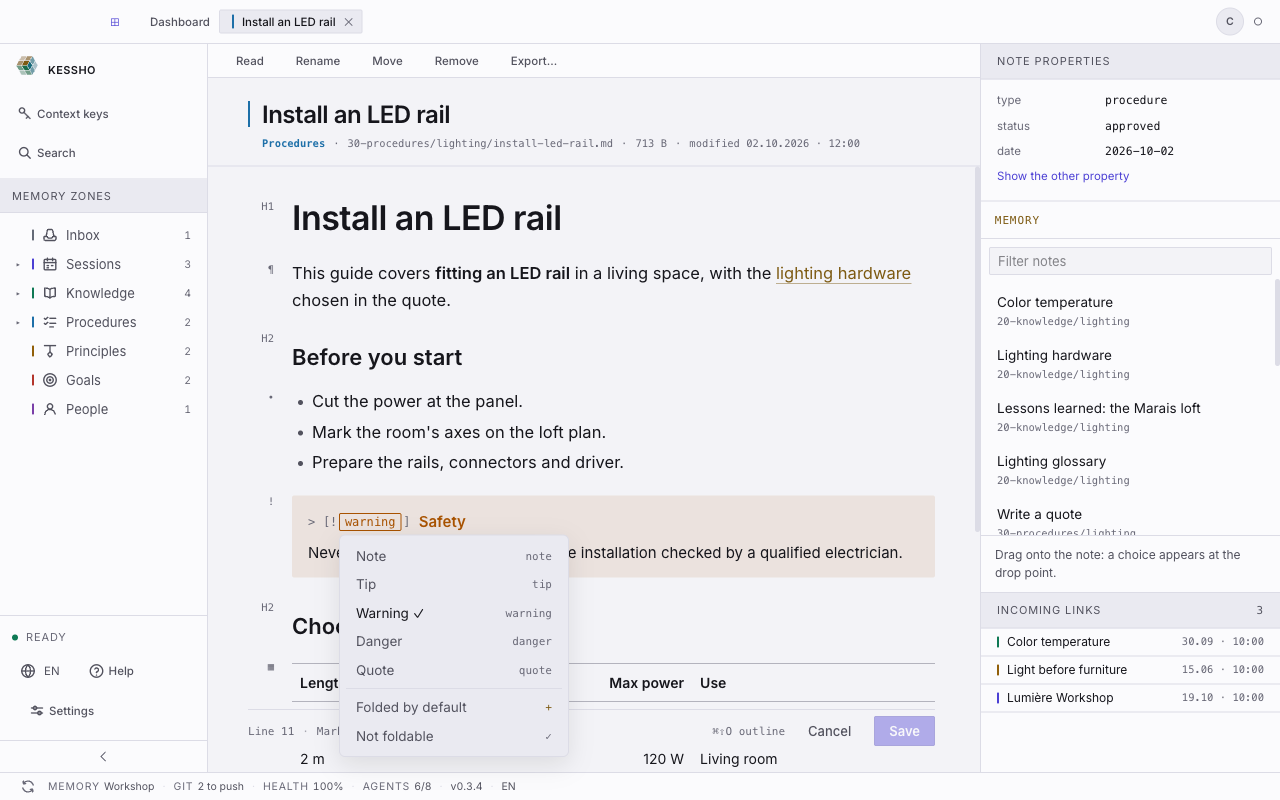
- Put the cursor on the header line: the type word (
note,warning…) becomes a button. Click it, or press ⌥↵, to open the Callout type menu: Note, Tip, Warning, Danger, Quote. - In the same menu, Folded by default and Not foldable set the folding. A foldable callout has a chevron (Collapse / Expand).
Add an image
Paste an image, or drag an image file into the text. Accepted formats are png, jpg, gif and webp, up to 10 MB; anything larger is not added and a message tells you. The image is stored with your memory and a link is written in the note.
- Drag the handles on the sides of the image to change its width.
- Add a caption: the field under the image. The caption becomes the image's alt text.
- Select the image and press ⌫: it leaves the text, the file stays in your memory.
Link your notes
- Type
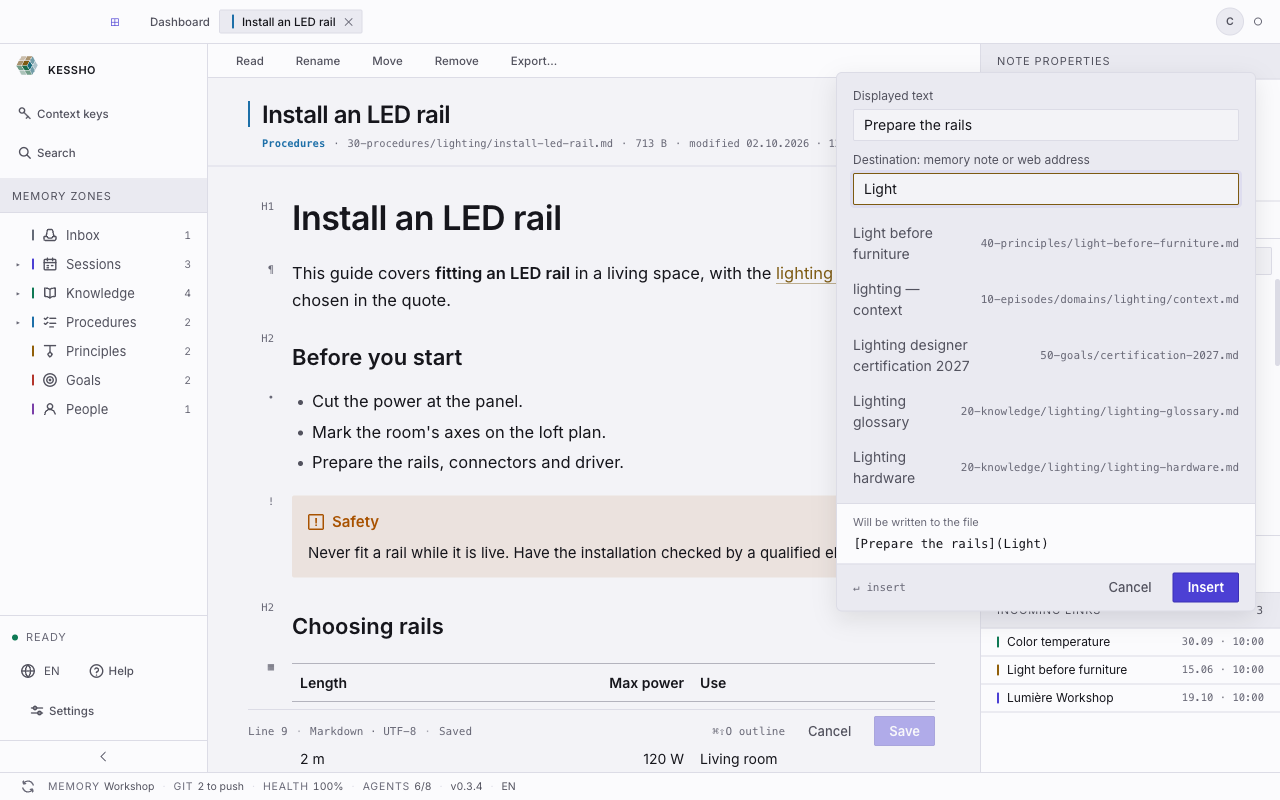
[[: a list of notes offers targets (eight at most). Type#to get tag suggestions. ↑ ↓ move through them, Enter or Tab picks. - ⌘K opens the Link window: Displayed text, then Destination: memory note or web address. It shows what will be written to the file ("Will be written to the file"). Insert confirms.
- ⌘ + click on a
[[…]]link opens the note it points to. - In the MEMORY panel in the right-hand column, Filter notes looks up a note. Drag it into the text: a choice appears at the drop point, Link (key 1) or Inclusion, content shown (key 2). Esc cancels.
Select and move paragraphs
Esc in the text selects the block under the cursor. The bar above the status bar then reads "N paragraphs · ⌥↑↓ move · / transform · ⌫ delete".
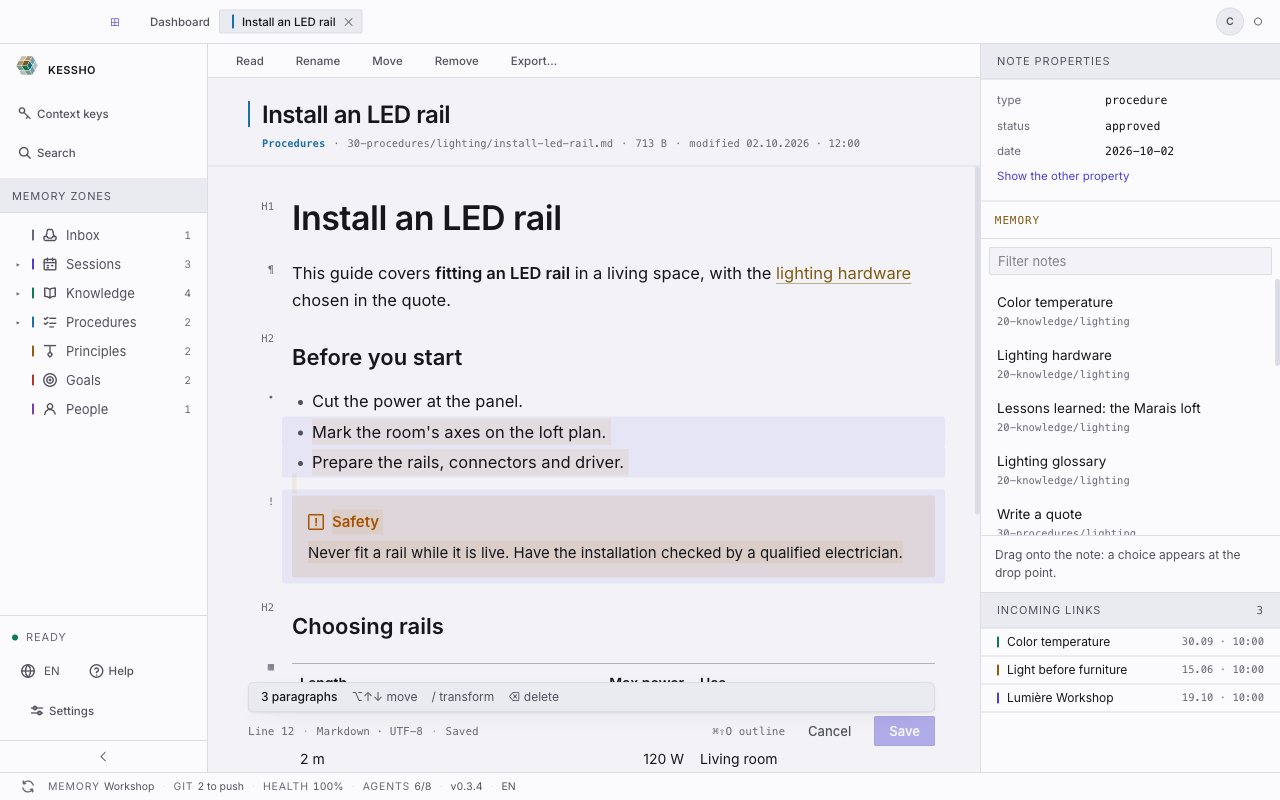
- ⇧↑ and ⇧↓ extend the selection.
- ⌥↑ and ⌥↓ move the selected paragraphs.
- / transforms them, ⌫ deletes them, ⌘C and ⌘X copy or cut them.
Find and replace
⌘F opens the Find and replace window, ⌘⌥F opens it on the replace tab. It has three tabs: Find, Replace and In the memory, which searches all your notes and lists those that contain the text.
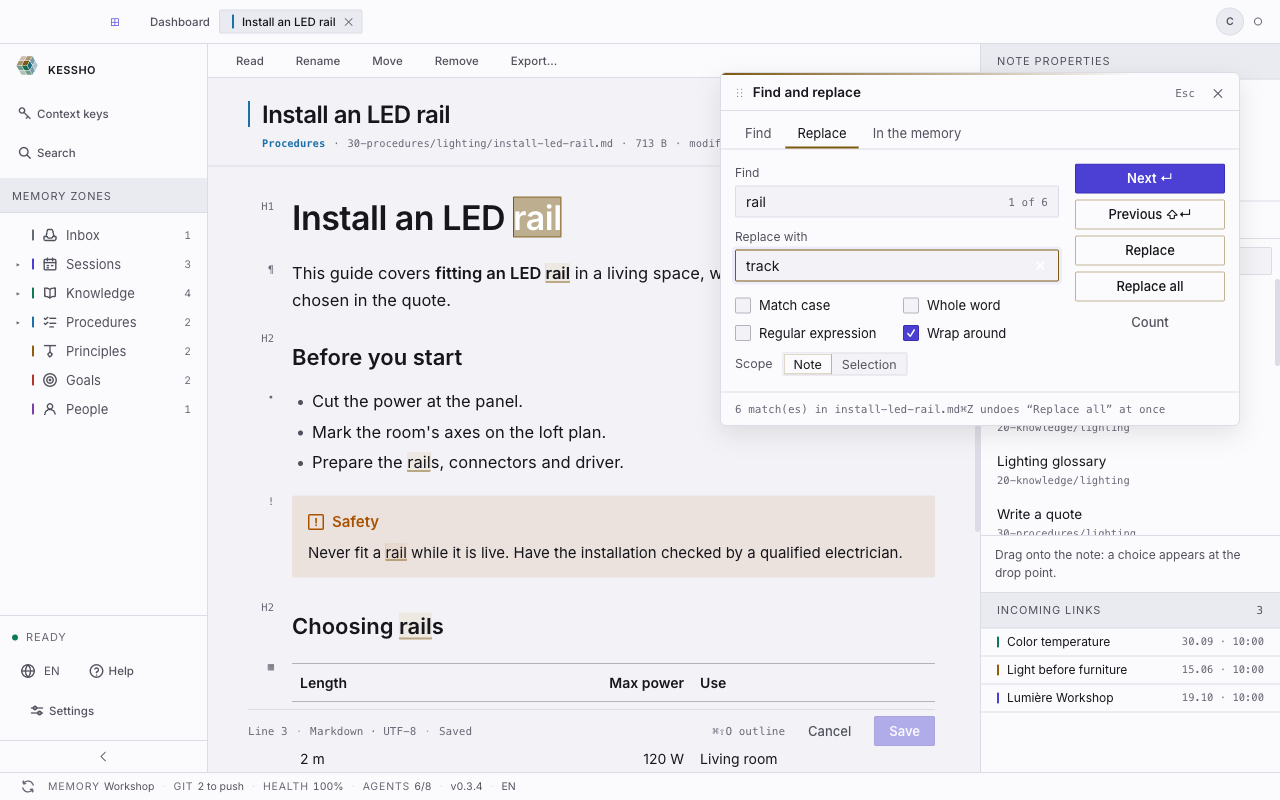
- Options: Match case, Whole word, Regular expression (Invalid expression if it is not written correctly) and Wrap around.
- Scope is set to Note or Selection.
- The counter reads "2 of 4"; Previous and Next step through the matches.
- Replace changes the current match, Replace all changes every one. ⌘Z undoes Replace all in one go.
- If the selected text fits on one line, it fills the search field.
See the outline
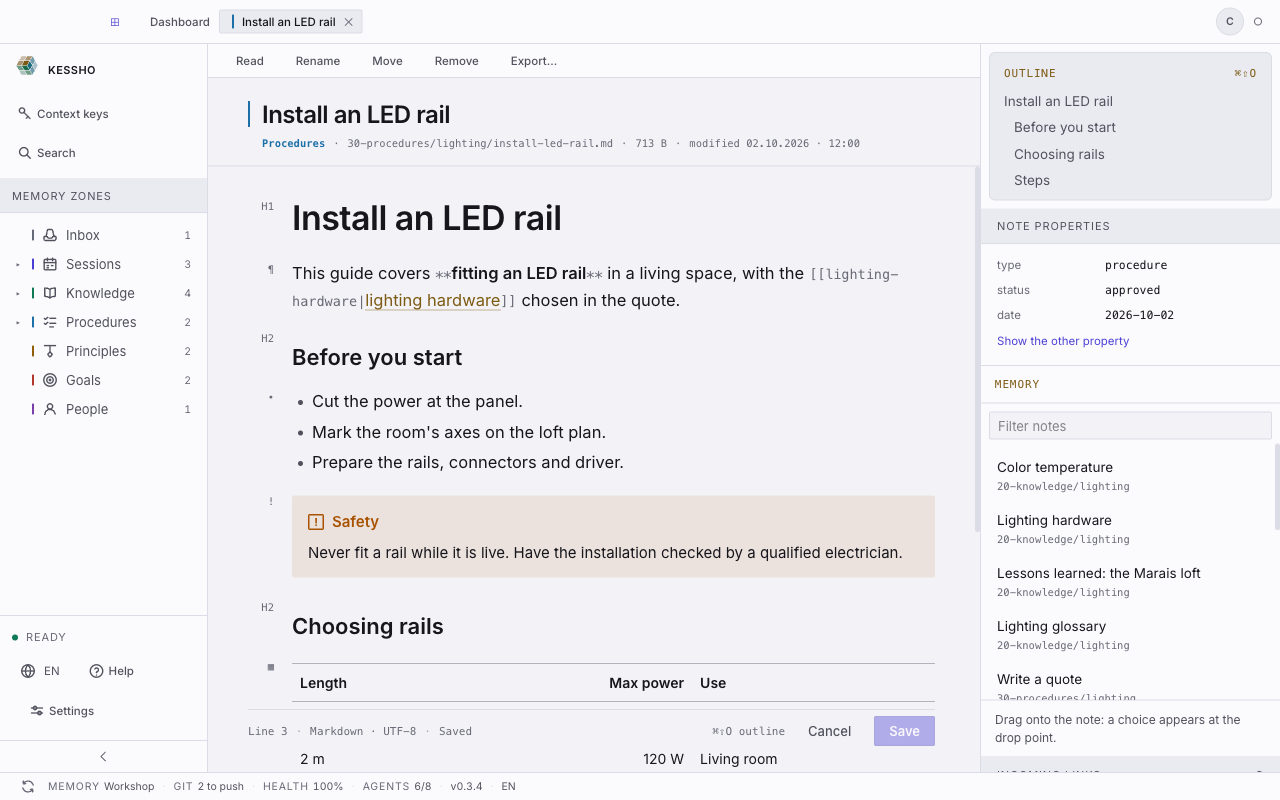
⌘⇧O shows or hides the note's Outline in the right-hand column. Click a heading to jump to it. Drag a heading in the outline: its whole section moves with it.
Export or print
Export… (toolbar) or ⌘⇧E opens the Export the note window, with a preview. For HTML it follows your settings; for PDF it only reflects the page and margins, not the theme or the included items.
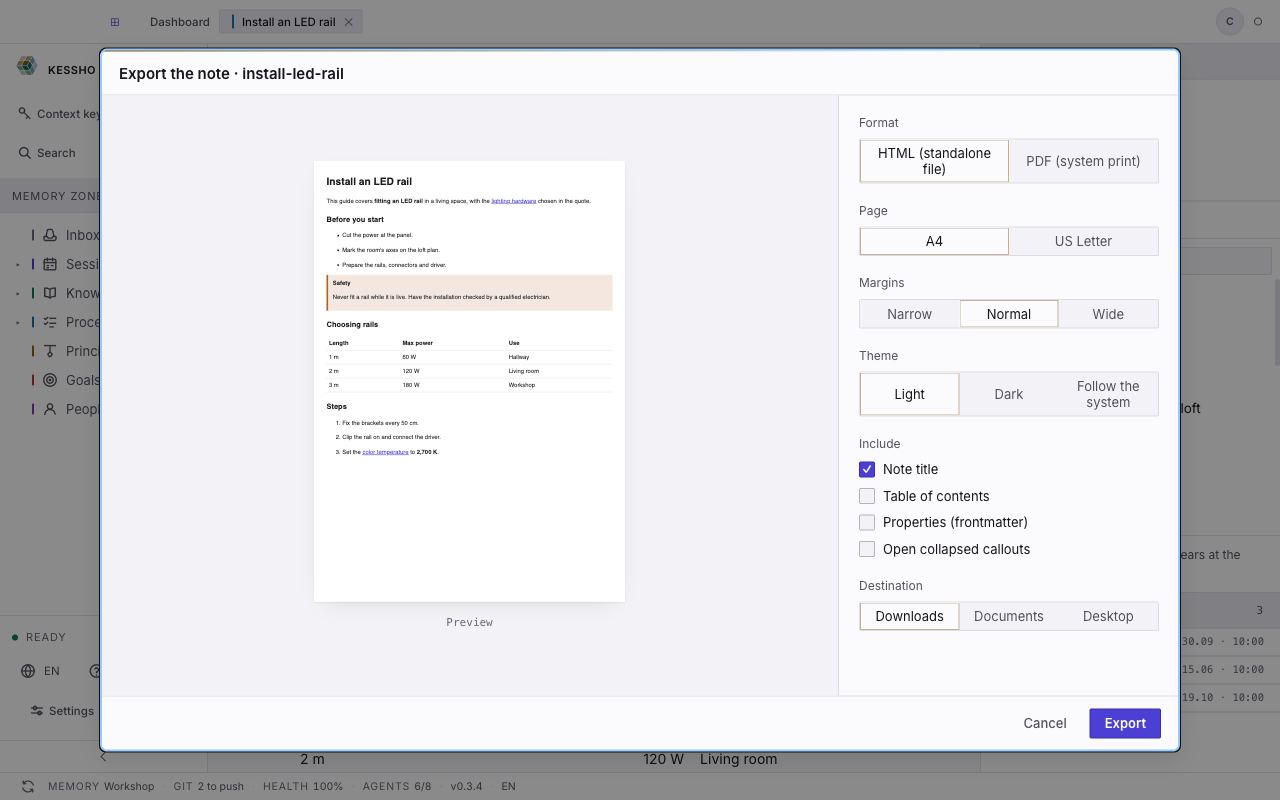
- Format: HTML (standalone file) or PDF (system print).
- Page: A4 or US Letter. Margins: Narrow, Normal or Wide. Theme: Light, Dark or Follow the system.
- Include: Note title, Table of contents, Properties (frontmatter), Open collapsed callouts.
- Destination (HTML): Downloads, Documents or Desktop. For PDF, the button becomes Print… and the system print window asks for the name and destination.
- Your settings are remembered note by note, on this computer.
⌘P prints the note directly while you are editing.
The shortcuts, and how to change them
Here are the default keys on a Mac. On Windows, ⌘ becomes Ctrl and ⌥ becomes Alt.
| Action | Keys |
|---|---|
| Undo / Redo | ⌘Z / ⌘⇧Z (or ⌃Y) |
| Bold, Italic | ⌘B, ⌘I |
| Strikethrough, Highlight | ⌘⇧S, ⌘⇧H |
| Inline code | ⌘E |
| Heading 1 to 6, Paragraph | ⌘⌥1 to ⌘⌥6, ⌘⌥0 |
| Numbered list, Bulleted list, Task list | ⌘⇧7, ⌘⇧8, ⌘⇧9 |
| Quote, Code block | ⌘⌥Q, ⌘⌥C |
| Move block up, Move block down, Duplicate block | ⌘⌥↑, ⌘⌥↓, ⌘D |
| Insert a link | ⌘K |
| Find, Replace | ⌘F, ⌘⌥F |
| Outline, Export, Print | ⌘⇧O, ⌘⇧E, ⌘P |
| Add a table row, column | ⌘⌥⏎, ⌘⌥⇧⏎ |
| Remove the table row, column | ⌘⌥⌫, ⌘⌥⇧⌫ |
These shortcuts only work in the editor. To change one, open Settings > Shortcuts, In the editor section: click Change next to the action, then type the combination you want. Esc cancels. A combination without ⌘ (or Ctrl), one reserved by the system or one already used by another action is refused, with the reason. Reset puts the original keys back for that action, Reset all for every action.