
Graph
The graph draws your memory as a network: each point is a domain, a concept, a project or a note, and each line is a relation between two of them. You can explore it with the mouse or the keyboard, and it updates by itself when the memory changes.
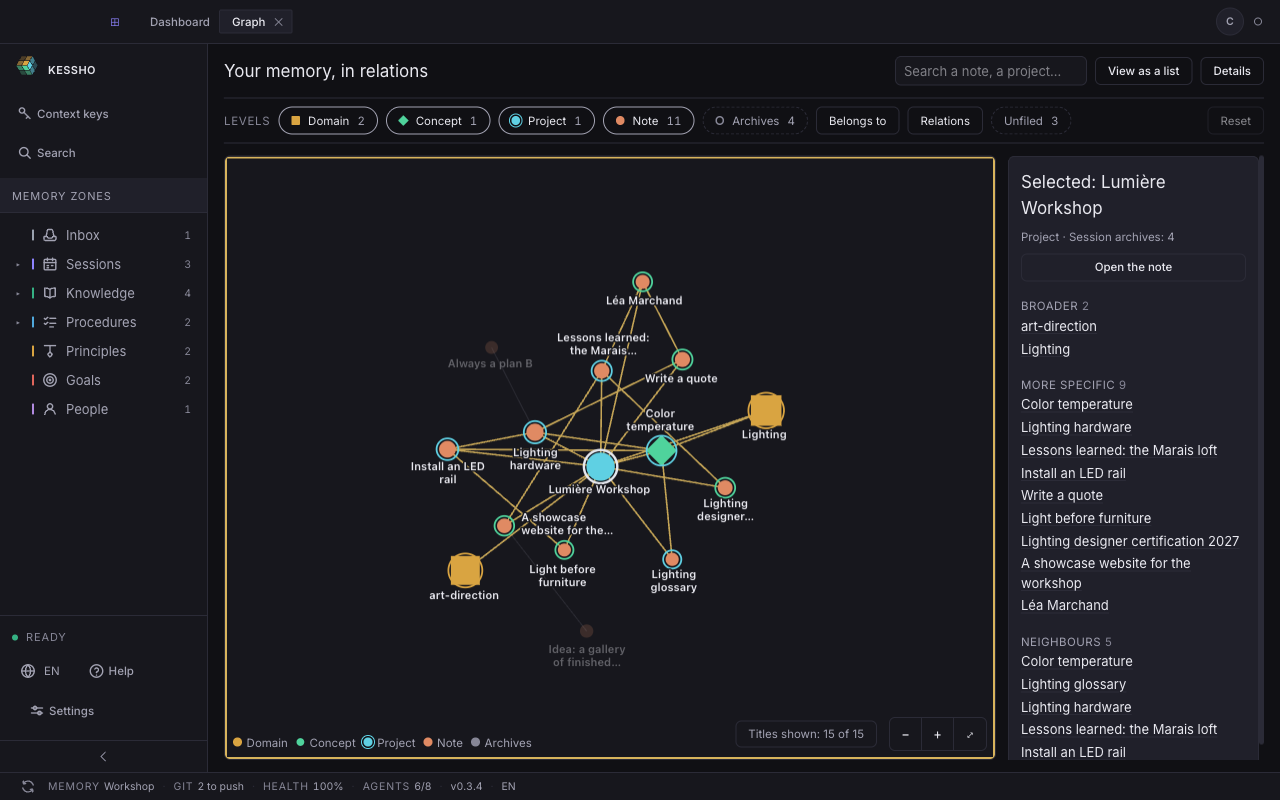
What you see
The graph opens in its own tab, Graph (see Home to get there).
- The header: the title "Your memory, in relations", the Search a note, a project… field, and two buttons, View as a list and Details.
- The filter bar: the LEVELS row with one pill per level and its number of points (Domain, Concept, Project, Note, Archives), the Belongs to and Relations menus, the Unfiled pill and the Reset button.
- The drawing: one point per item, one line per relation. A legend at the bottom left names the levels. At the bottom right, "Titles shown: 14 of 14" says how many labels fit on screen, and three buttons control the zoom (Zoom out, Zoom in, Show everything).
- The details panel, in the right-hand column:
- With nothing selected, it reminds you of the keys: "Up and down arrows: go up or down. Left and right arrows: move to a neighbour. Enter: open the note."
- With a point chosen, it shows "Selected: …", its level ("Project · Session archives: 4"), the Open the note button, then its relations in three groups with their count: Broader, More specific and Neighbours.
Session archives are not drawn by default: they are "folded into their project", and the Archives pill gives their number.
When the memory has fewer than three relations, there is nothing to draw. The screen says so: "Nothing to link yet. File notes under a project, a domain or a concept and their links will appear here." If reading fails, it tells you ("The relations could not be read.") and offers to try again.
What you can do
Pick a point
Click a point: it is selected, and the details panel shows its relations. In the panel, clicking the name of a relation moves the selection to it.
With the keyboard, put the focus on the drawing (Tab, or a click), then:
- ↑ goes to a broader item (the first in the Broader list), ↓ goes down to a more specific one;
- ← and → move to a neighbour;
- the first key press picks the most connected item among the domains, concepts and projects;
- Esc clears the selection.
Open a point's note
Double-click the point, press Enter while it is selected, or click Open the note in the details panel. The note opens in a tab (Atom and editor).
Move the drawing
Drag a point to move it: it stays where you hold it and the rest of the network rearranges around it. Drag the background to pan the drawing.
Zoom
- The Zoom in (+), Zoom out (−) and Show everything (⤢) buttons, at the bottom right of the drawing.
- ⌘ (or Ctrl) and the mouse wheel, or a pinch on the trackpad. The wheel alone only zooms once the drawing has keyboard focus: otherwise it scrolls the page.
Search for a note
Click the Search a note, a project… field, or type / (outside a text field).
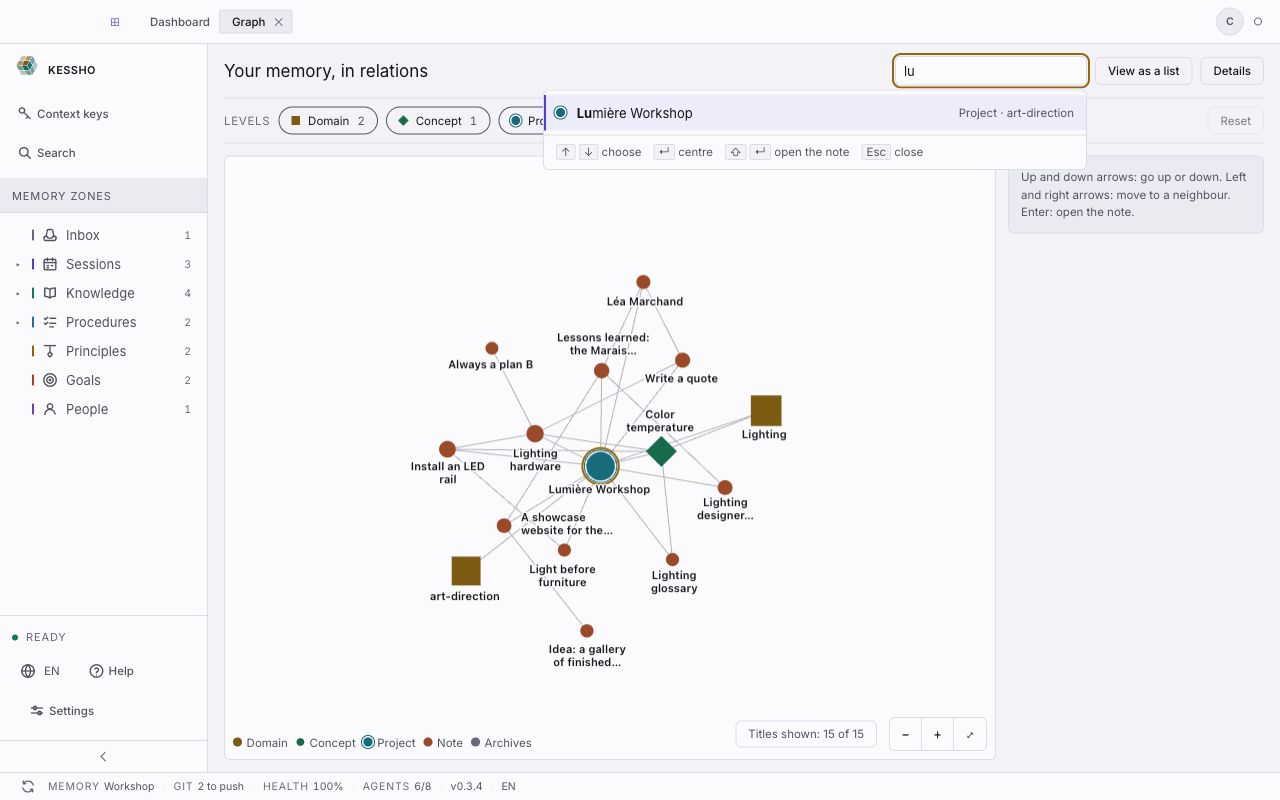
- Results appear as you type, with their count ("Results: 3"). Matching points get a ring in the drawing.
- ↑ and ↓ step through the list. Enter centres the drawing on the result and selects it. ⇧ Enter opens the note.
- Esc closes the list, a second Esc clears the field.
- A result ruled out by a filter stays in the list, faded ("ruled out by the filters"). Show them lifts the filters.
- With no result: "No note matches …", with the advice to try fewer letters or a word from the title.
Filter
Filters combine: a point has to pass every filter you have set.
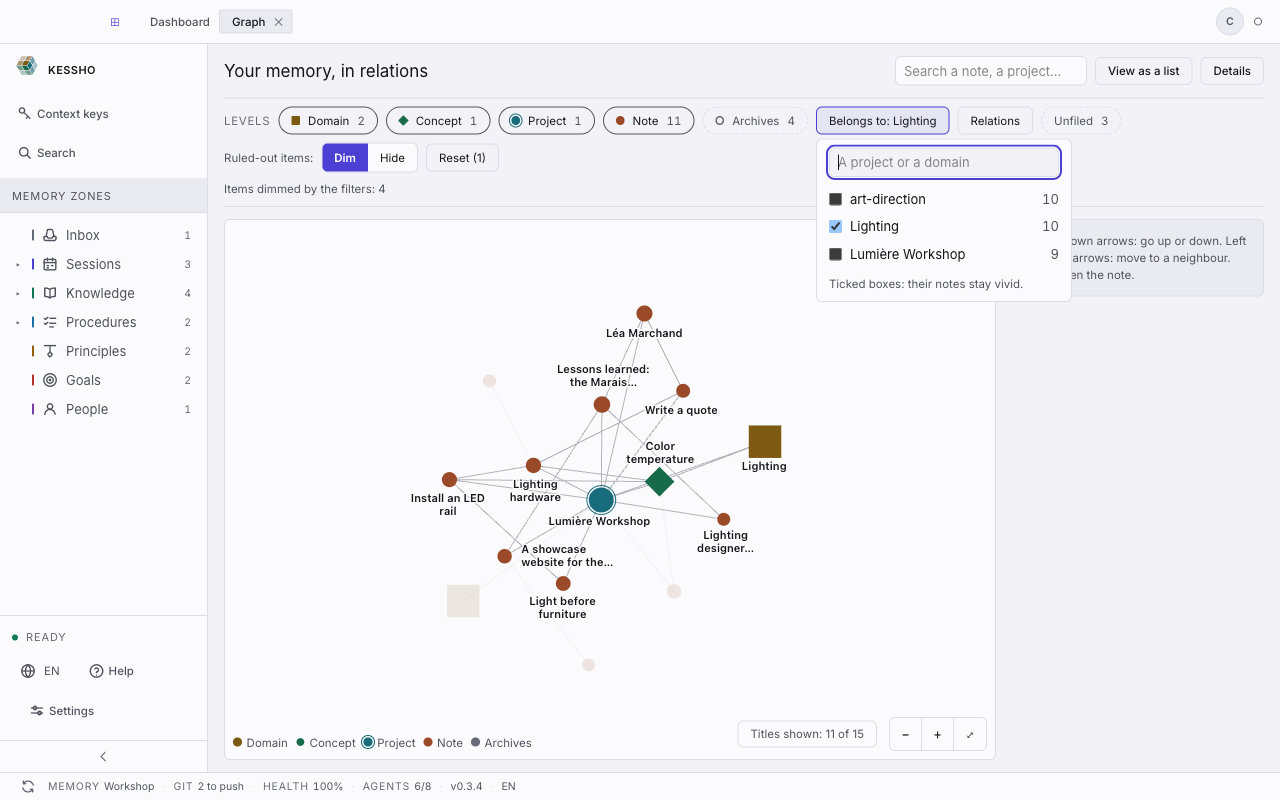
- Levels: click a pill to remove or restore a level. The Archives pill unfolds the session archives into the drawing; the memory is then read again.
- Belongs to: a menu with a search field (A project or a domain) and a checkbox per project or domain. Ticking boxes keeps only those items and what descends from them.
- Relations: All, 3 or more, 10 or more (hubs) or No relation, depending on how many relations each point has.
- Unfiled: keeps only the notes, concepts and projects that have no parent.
- Ruled-out items: as soon as a filter is set, choose Dim (ruled-out points stay in place, very faint) or Hide (they disappear and the drawing rearranges). A line says how many were dimmed or hidden.
- Reset (N) removes the N filters you have set.
View the memory as a list
View as a list replaces the drawing with a list of notes and relations, grouped by level then in alphabetical order. The selection, the search, the filters and the details panel stay the same. View the graph returns to the drawing. Your choice is remembered on this computer.
In a window too narrow for the drawing, the list takes over.
Fold the details panel
The Details button, or the F key (outside a text field), folds or reopens the right-hand column to give the drawing all the room.
Let the graph follow the memory
Nothing to do: when the memory changes (an agent writes, you edit a note), the graph reads it again within a few seconds. If you switch to another tab, the graph keeps its place, zoom, selection, filters and search for when you come back.