
Settings
Settings gather everything you can adjust in Kessho: appearance, where the memory lives, sync, shortcuts, updates. They fit on a single page, and the language is changed elsewhere, in the sidebar.
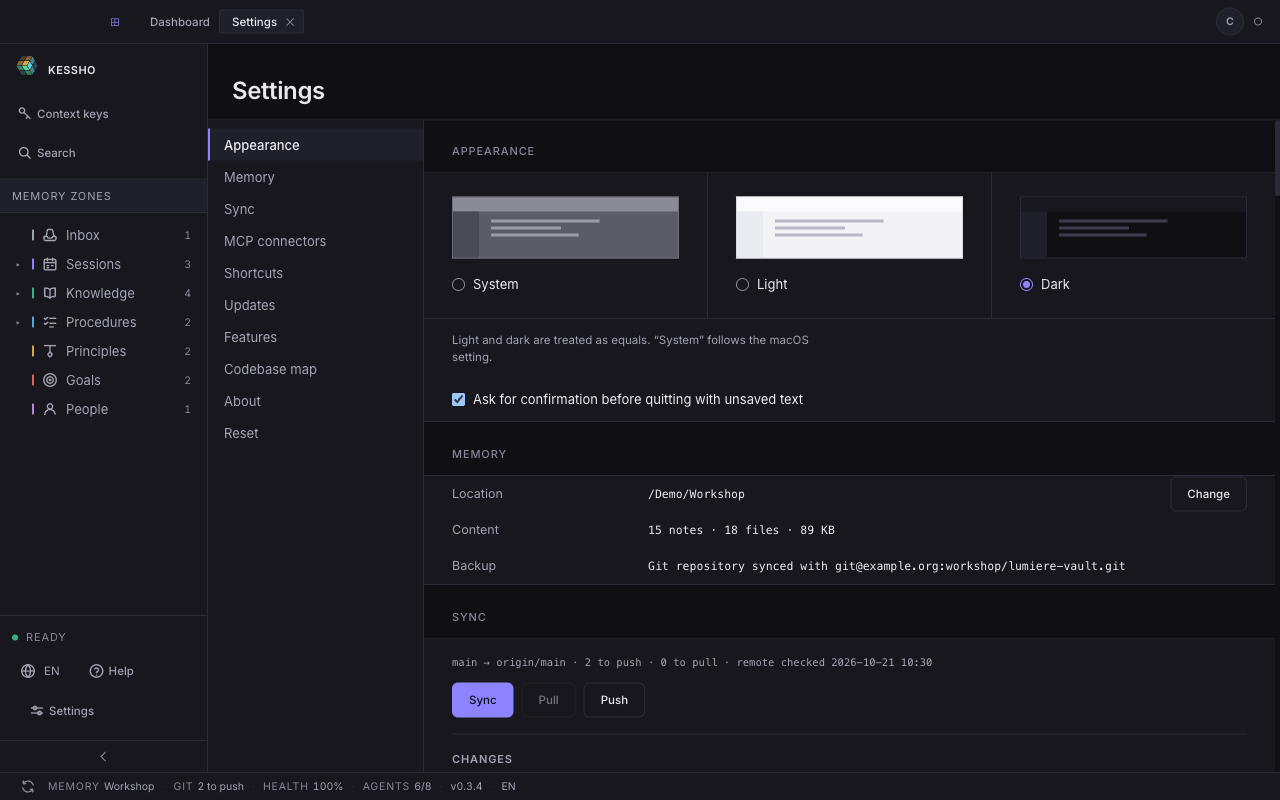
What you see
Click Settings at the bottom of the sidebar (or press ⌘,) to open the Settings tab.
- On the left, the list of sections: Appearance, Memory, Sync, MCP connectors, Shortcuts, Updates, Features, Codebase map, About and Reset. Click a name to jump to its section.
- On the right, the page: all the sections one after another, with the current section's name staying pinned at the top as you scroll. The screen reopens where you left it.
What you can do
Choose the appearance
In Appearance, click one of the three tiles: System, Light or Dark. The change is immediate. System follows the macOS setting; light and dark are treated as equals. The same choice is one click away at the top right, left of your profile: a button cycles through System, Light and Dark.
The "Ask for confirmation before quitting with unsaved text" checkbox decides whether Kessho asks you a question when you quit with a modified, unsaved note. It is ticked by default.
Change the language
The language is not set in Settings: you pick it in the sidebar, at the bottom, with the button that shows the language code (EN).
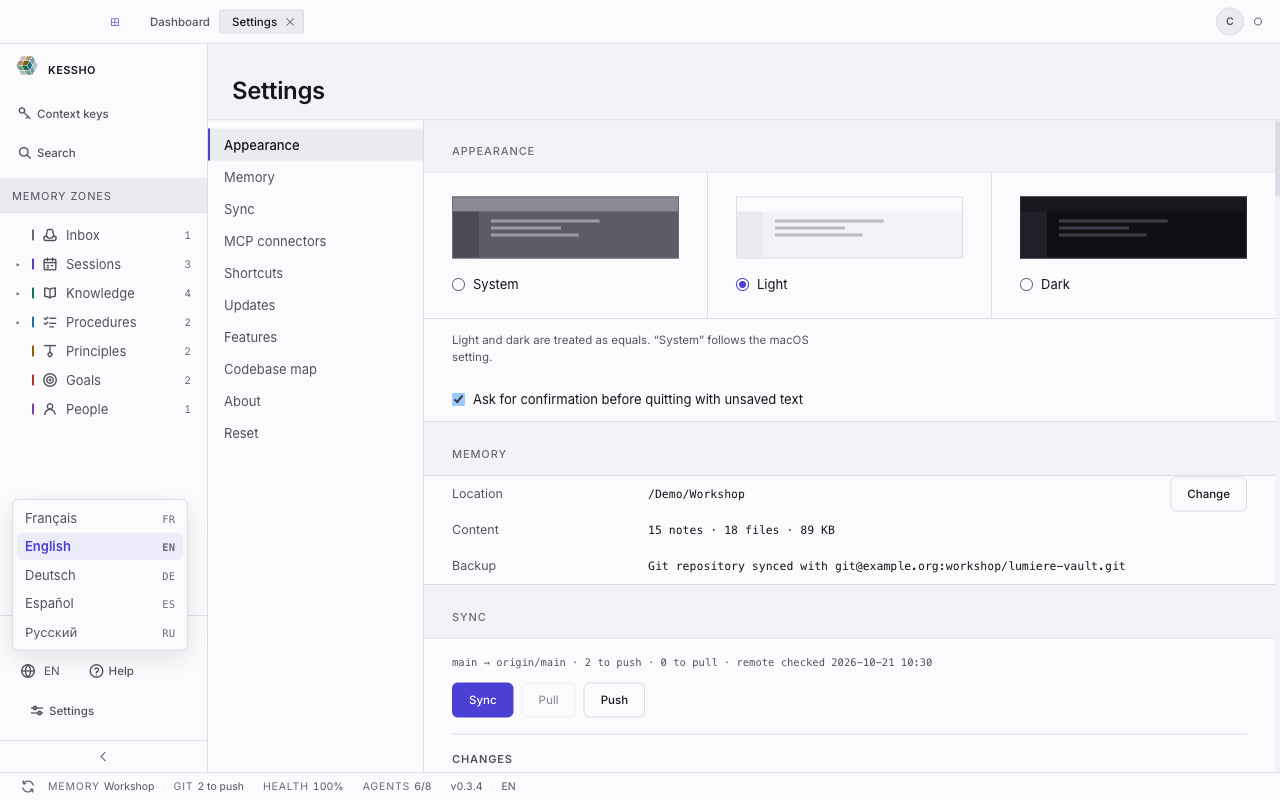
The menu offers Français, English, Deutsch, Español and Русский. Click the one you want.
Change or check the memory
The Memory section is a table of four rows:
- Location: the folder of your memory. Click Change to pick another one in the folder picker; the choice is saved straight away. Closing the picker without choosing changes nothing.
- Content: what the memory holds, for example "13 notes · 16 files · 89 KB".
- Previous installation: this row only appears if Kessho detects one that has not been taken over yet. It sends you to the banner on Home to resume the migration.
- Backup: says whether the memory is protected by git. "None — your files are yours", "Local git repository, no remote" or "Git repository synced with …".
To pick a memory for the first time, see Choose your memory.
Sync the memory
The Sync section shows the repository's state and its actions: Sync, Pull, Push, the changes to commit, the remote and the agents' automation. Everything is described in Sync.
Connect your agents
The MCP connectors section lists the AI clients detected on your computer and says which ones carry Kessho. See Connect your agents.
Read the shortcuts, change the editor's
The Shortcuts section has two tables.
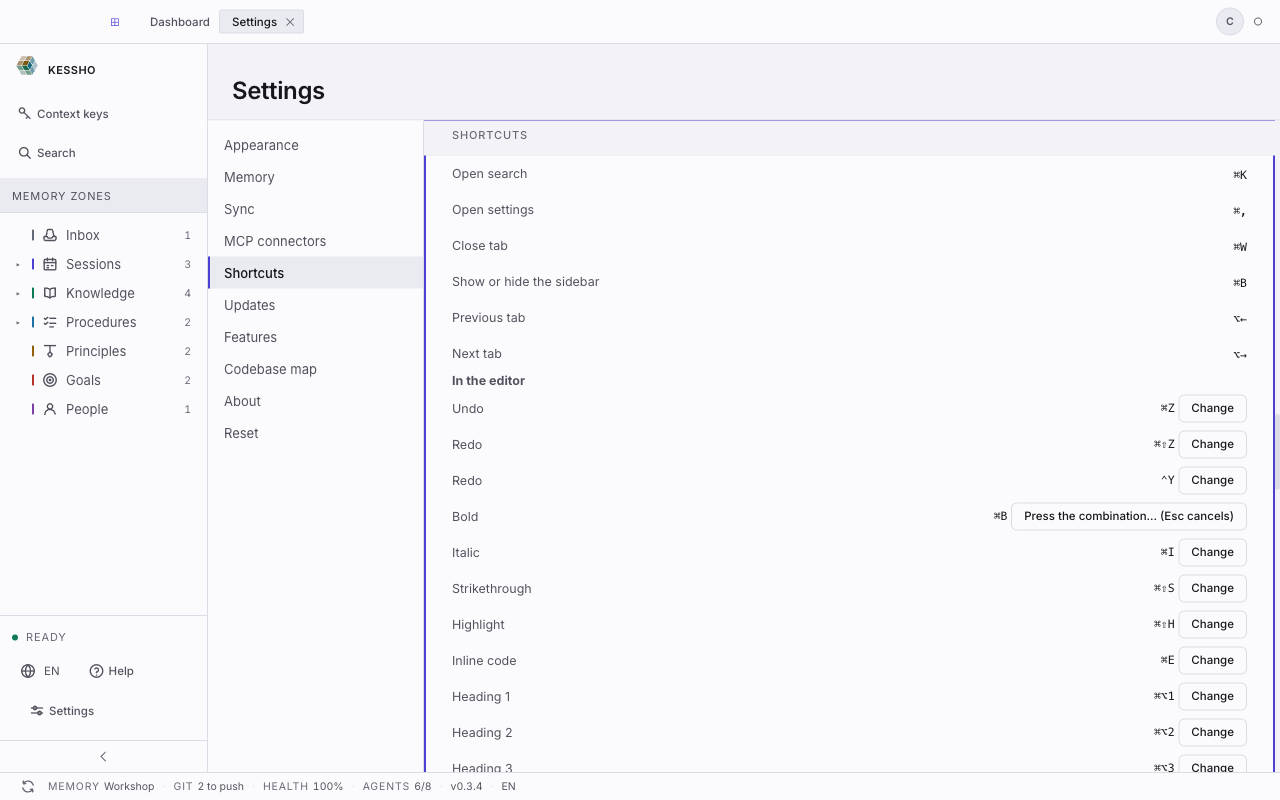
- The first lists the application's shortcuts: ⌘K open search, ⌘, open settings, ⌘W close the tab, ⌘B show or hide the sidebar, ⌥← and ⌥→ previous or next tab. It is read-only. On Windows, ⌘ becomes Ctrl and ⌥ becomes Alt.
- The second, In the editor, lists the note editor's shortcuts. Those can be changed: click Change next to an action, type the new combination, Esc cancels. A combination is refused, with the reason, if it does not contain ⌘ (or Ctrl), if the system reserves it or if another action already uses it. Reset puts the original keys back for that action, Reset all for every action.
Shortcuts do not apply while you are typing text. The editor's actions are listed in Atom and editor.
Update Kessho
In Updates:
- Read the Installed version.
- Pick the Channel. A channel that cannot be reached is marked "Channel unavailable", with the reason when it is known.
- Click Check. The result reads "Up to date — … is the latest published version." or "Version … available.".
- If a version is available, click Install and restart. If Kessho processes used by your AI agents are still running, Kessho tells you: Close and install closes them before replacing the program.
At launch, Kessho queries the public channel once. If a newer version exists, a "Version … available" banner appears at the top: See the update opens this section, Later hides it until the next launch. Nothing is installed without your click. To turn this check off, untick Look for a public update at launch, in the same section.
Look at the tiers
Features shows the Licence tiers: what each tier grants. It is read-only, these tiers are not settings.
Map a project's code
Codebase map measures how well a memory project's code is described.
- Type a project's name in Memory project, then click Scan.
- Read the Coverage ("N files described out of M"), the Undocumented candidates, the Dead references and the Stale entries.
- To add a folder to the scan, type it under Add a zone to scan and click Add.
- To clean up, click Preview repair: the preview says how many dead references would be removed. Apply repair runs it.
See the version and the notices
About gives the Product, the Version and the Platform. Show third-party notices unfolds the licences of the open-source components Kessho includes; Hide third-party notices folds them back.
Reset
Reset restarts the first-run wizard: click Relaunch Onboarding Wizard. The configuration is cleared; the memory and its contents are left untouched. See First launch.