
Choose your memory
Kessho's memory is a folder of Markdown files on your disk. You pick it at first launch and can change it whenever you like. This page explains what you can choose, and what changing it does — and does not do.
What the memory is
- An ordinary folder, which you can copy, back up or open with other tools.
- Notes in Markdown, filed by zones.
- Compatible with Obsidian: a folder of Obsidian notes can serve as your memory. Kessho does not depend on it, and does not need Obsidian to be installed.
Your agents and the application read the same folder. The assistants Kessho is declared to are not given any path: the server finds the memory on its own, from the application's configuration. So changing the memory in the application also changes the one your agents see.
The three ways to start
| You want to… | Pick | What happens |
|---|---|---|
| Start from scratch | New Kessho memory | Kessho suggests a folder that does not exist yet ("does not exist yet"). |
| Use notes you already have | Existing folder | Kessho recognises Obsidian folders and counts their notes. |
| Pick up a previous installation | Previous install | Kessho suggests it when it detects one on your machine. |
Choosing your memory at first launch
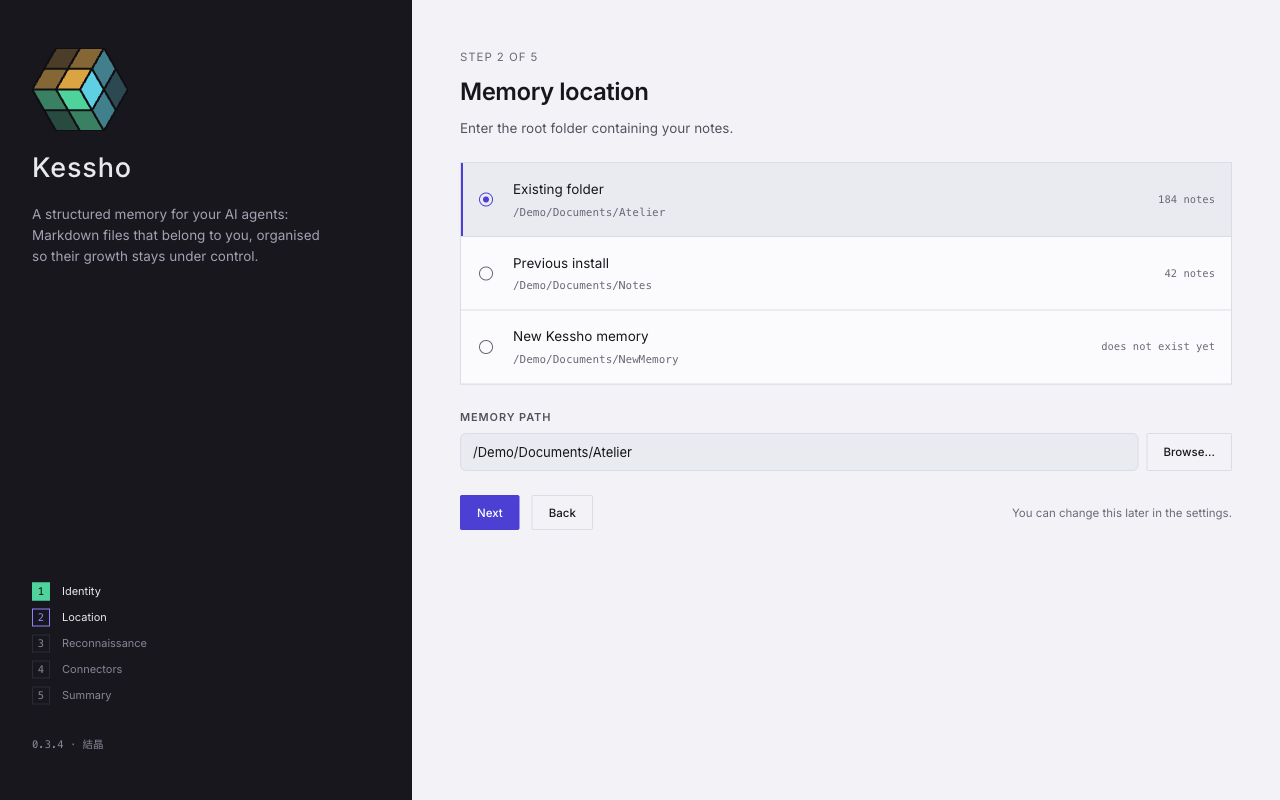
- At the Location step, look at the suggestions. Each shows its kind, its path and its number of notes ("184 notes").
- Click a suggestion, or type a path in Memory Path, or click Browse…: the "Choose the memory folder" picker opens.
- If a suggestion says "read-only", Kessho could not write to it in a test: pick another location instead.
- Click Next. At the following step, Walk the folder shows you what Kessho reads there, without saving anything.
- On the last screen, check Memory Location, then click Launch Kessho.
Each step is detailed in First launch.
Changing your memory later
- Open Settings, then the Memory section.
- The Location row shows the current folder. Click Change.
- Pick a folder in the picker.
The new path is saved straight away. If you close the picker without choosing, nothing is written. If saving fails, the screen shows "Saving failed." with the cause, and the old path stays displayed.
Changing moves no file. Kessho starts reading the folder you picked; the old folder stays as it is, where it was. To take your notes elsewhere, copy the folder yourself before changing.
The Memory section also shows:
- Content: the number of notes, the number of files and the size of the folder (for example "184 notes · 190 files · 2.1 MB");
- Backup: "None — your files are yours", "Local git repository, no remote" or "Git repository synced with…" (see Sync);
- Previous installation, only if a previous installation is detected and not yet migrated.
If a previous installation is detected
A "Migration available" banner appears above the screens. It offers Run Migration (1-Click), then Verify Migration. The migration carries over your profile, the memory location and the connectors of the previous installation.
What next?
- See what the memory holds: Home and Zones.
- Give the memory to your assistants: Connect your agents.