
Delivery
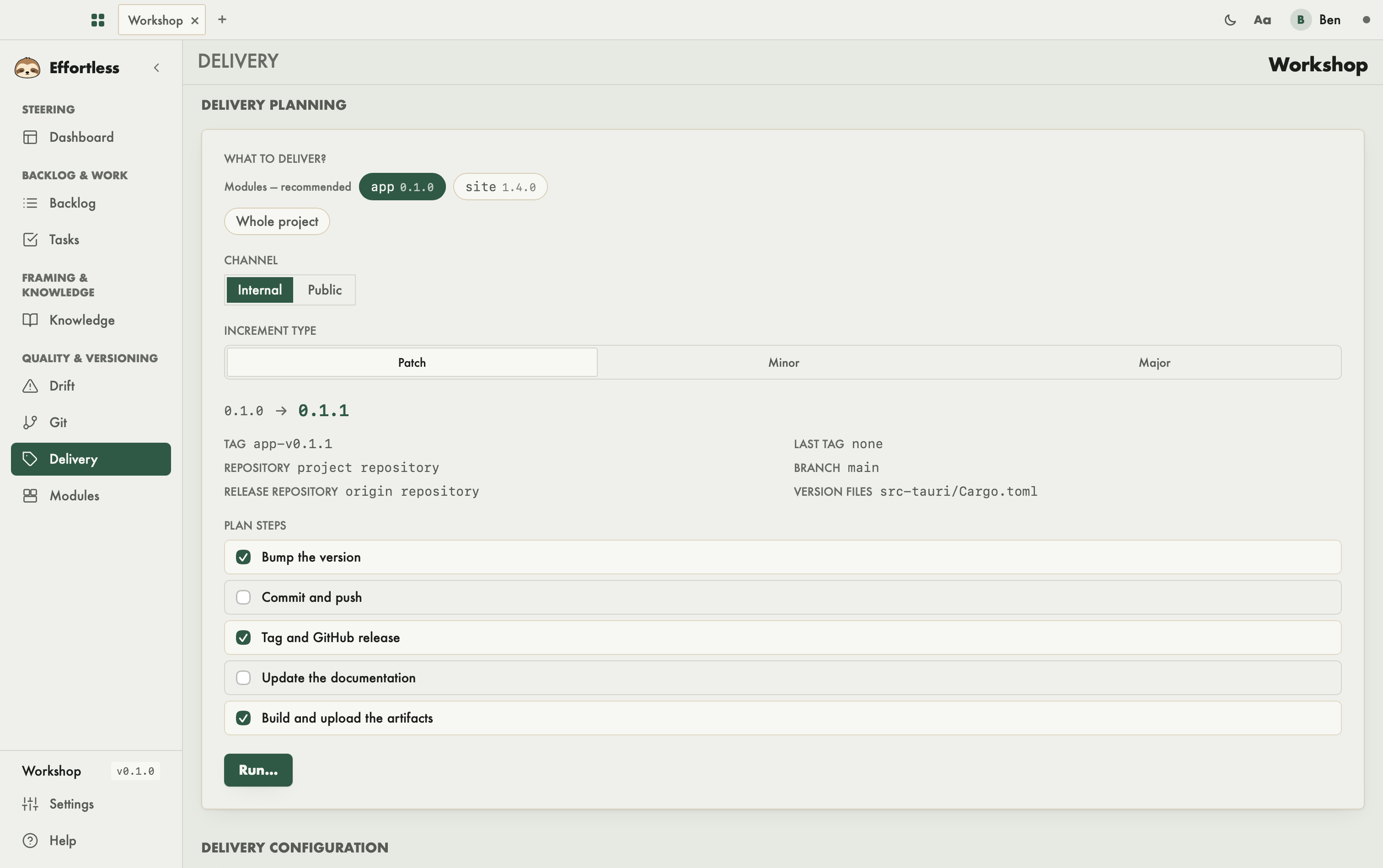
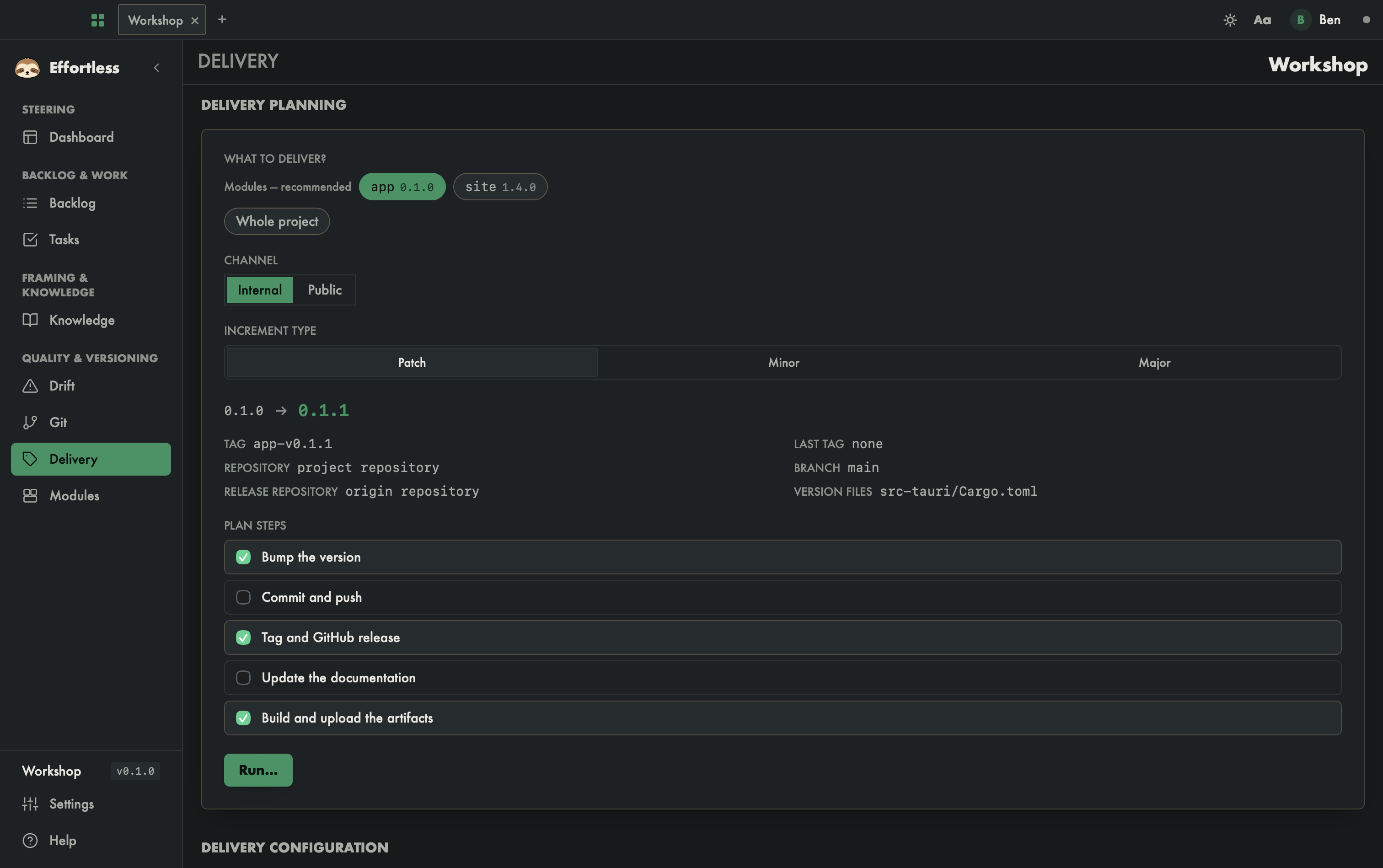
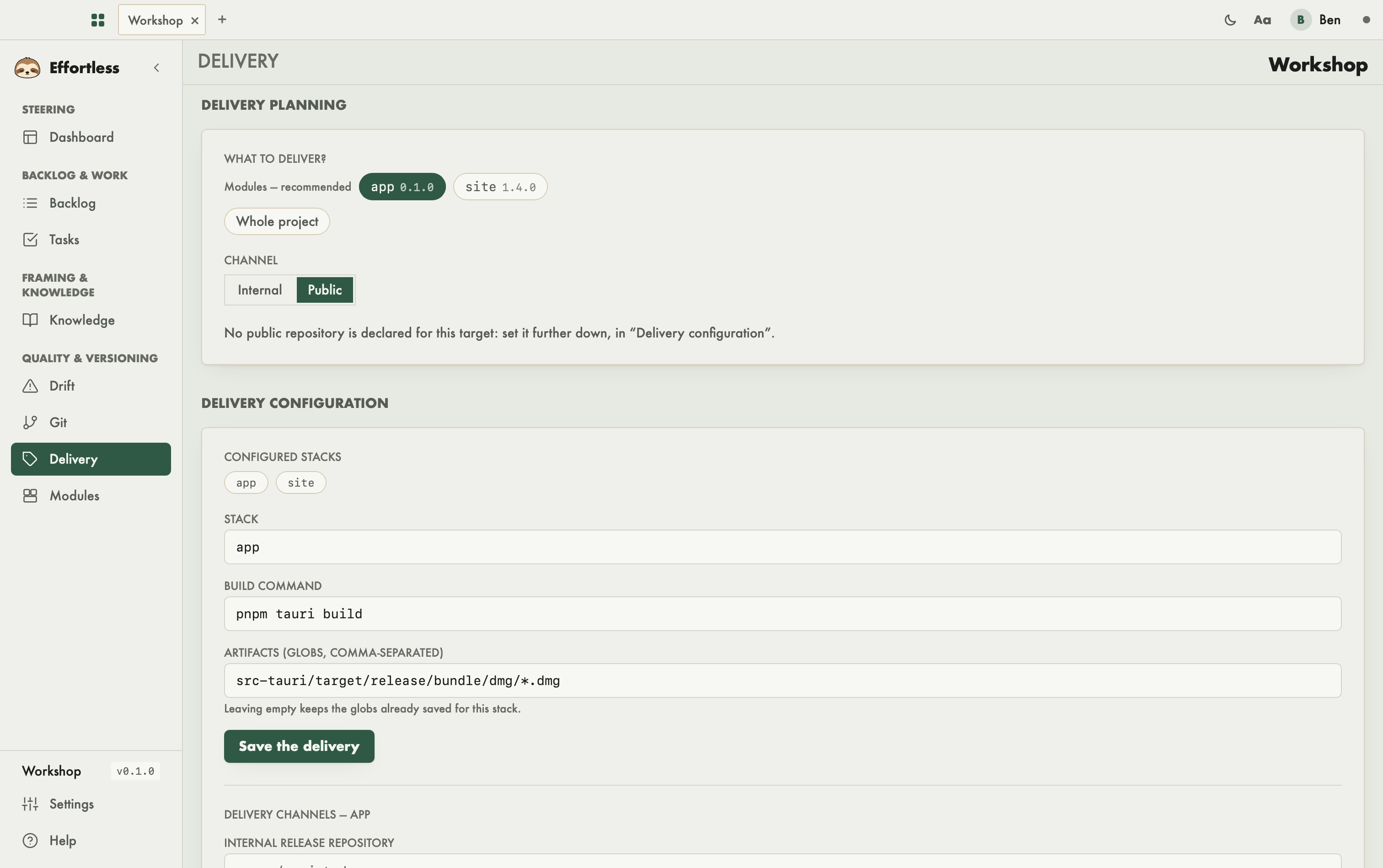
This screen, titled Delivery planning, delivers a new version: that of a module (recommended), or that of the whole project. You choose what to deliver, the plan is computed right away, then you run it after a summary.
What you see
- What to deliver? First, under Modules — recommended, the project's modules with their version. Below, Whole project. The first module is selected by default.
- Increment type: Patch, Minor or Major.
- The plan of the chosen target:
- the current and target versions, for instance
1.4.0 → 1.4.1; - the Tag that will be set, the Last tag, the Repository (the module's own, or the project's), the Release repository, the Branch and the Version files;
- Good to know: what to know before running, for instance a target version behind the last tag;
- the Plan steps, each with its checkbox.
- the current and target versions, for instance
- Delivery configuration (further down): each module's build command and artifacts.
What you can do
Choose what to deliver
Click a module, or Whole project. The plan is recomputed at once, without writing anything.
What changes with the target:
| Target | Version read from | Tag set | Git acts in |
|---|---|---|---|
| Module with its own repository | its files (package.json, Cargo.toml…) | v1.4.1 | its repository |
| Module in the project repository | its files | site-v1.4.1 | the project repository, bounded to the module's path |
| Whole project | effortless.json and the declared version files | v0.2.0 | the project repository |
A module's version files are detected. To impose others, declare them in stacks[].release.version_files of effortless.json.
Choose the steps
Check the steps to run: Bump the version, Commit and push, Tag and GitHub release, Update the documentation, Build and upload the artifacts. A step that does not apply to the target is greyed out. Your choices are remembered for this project; with nothing checked, the screen asks "Check at least one step."
Run
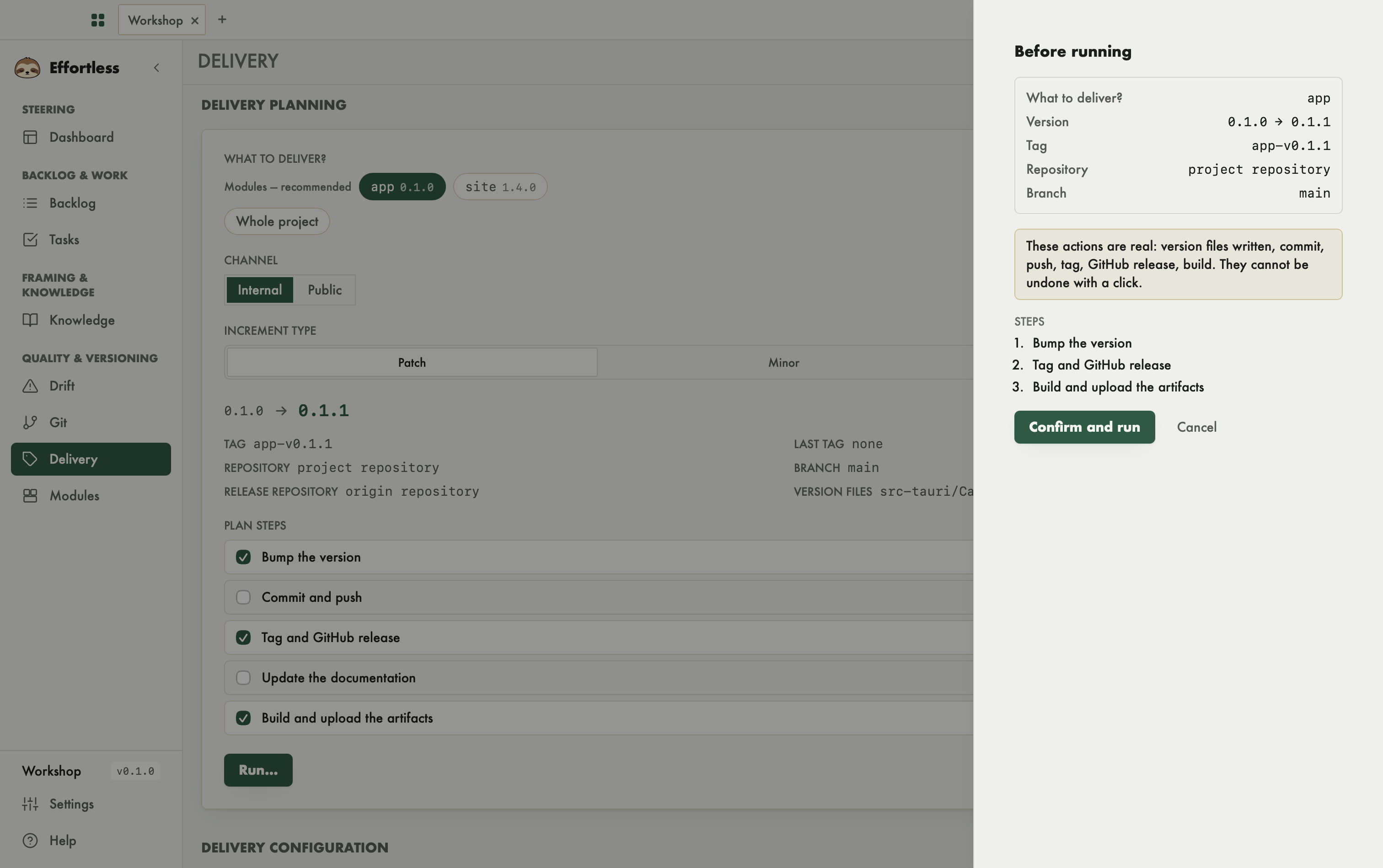
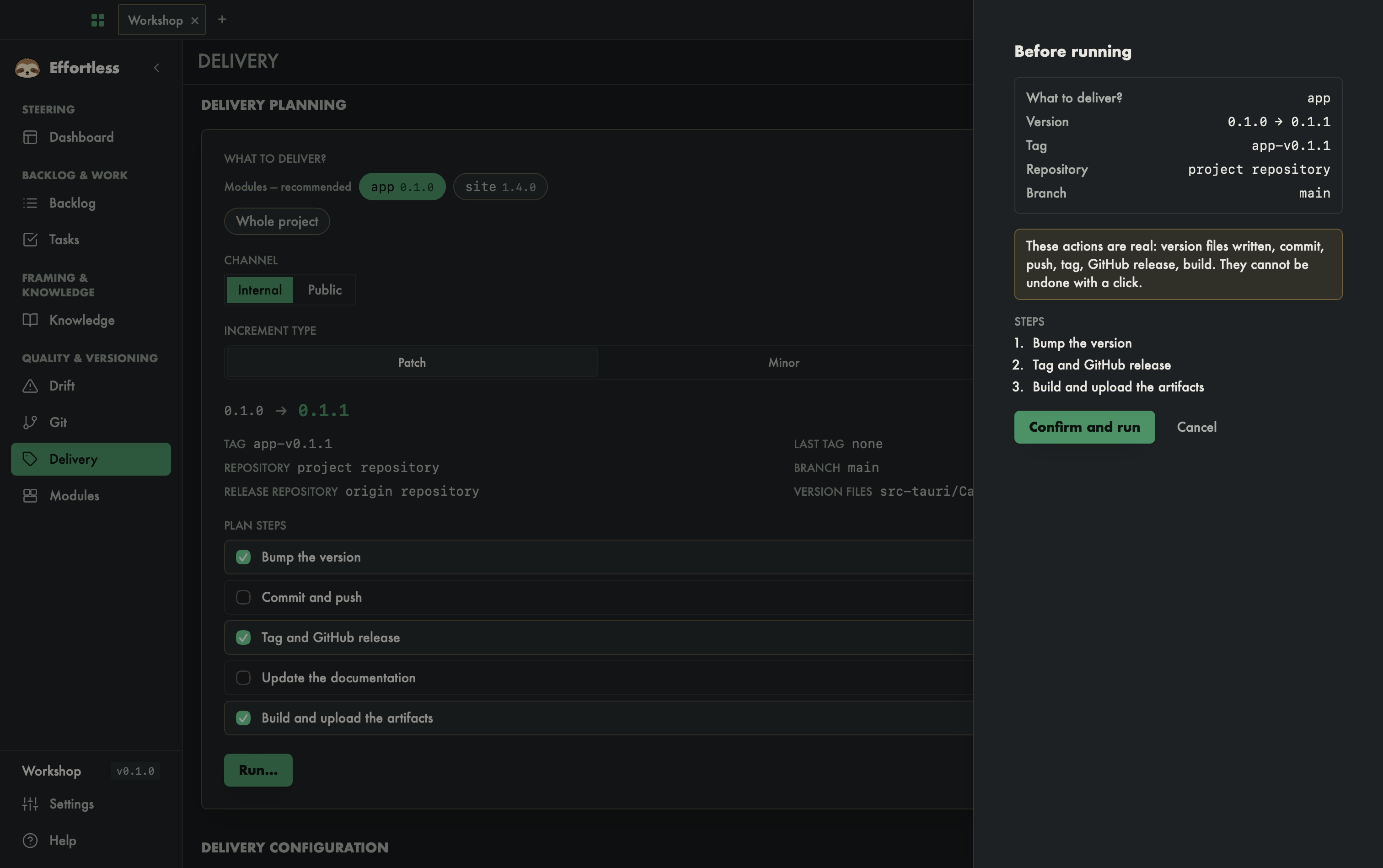
- Click Run…. A panel sums up the target, version, tag, repository and steps.
- Read it: these actions are real (version files written, commit, push, tag, GitHub release, build) and cannot be undone with a click.
- Click Confirm and run.
The result shows step by step: done, to do by hand (the engine could not act and says why, for instance without gh), failed, or not run (an earlier step failed: the chain stops).
In semi-auto work mode, the run is refused and the panel says so.
A tag is never set on uncommitted files: without Commit and push, the new version would not be in the tagged commit. The step then fails and says so.
Deliver internally or publicly
Under the target, choose the Channel:
- Internal: the delivery described above. The release and its artifacts go to the internal Release repository (by default, the code's origin repository).
- Public: you publish a version already delivered internally, as is — same tag, same artifacts, no new bump. The screen only offers versions delivered internally and not yet public. If no public repository is declared for the target, it says so and points to the configuration further down.
To publish:
- Click Publish… next to the version.
- The panel recalls the tag, the repository it comes from and the one it goes to. Publishing is public and irreversible.
- Type the tag in the Type … to confirm field: the Publish button only enables then.
The engine refuses, and says so, if the release does not exist on the internal channel, if it is already public, or in semi-auto mode.
Configure the delivery
- Click a module in Configured stacks to prefill the form, or enter its name in Stack.
- Enter the Build command, for instance
pnpm build. For a module, it runs in its directory. - List the Artifacts, for instance
dist/*.zip. Leaving this field empty keeps those already saved. - Click Save the delivery.
Further down, Delivery channels sets the target's two release repositories: Internal release repository (owner/name; empty = the origin repository) and Public release repository (owner/name; empty = no public delivery). Click Save the channels.
Read the history
Delivery history, at the bottom of the screen, lists every delivery run, with its columns Date, Channel (internal or public), Target, Tag (linking to the release when it exists), Repository and Outcome (delivered or stopped). It lives in .effortless/deliveries.json, versioned with the project.
With an AI agent
An agent does the same through effortless_release_plan (the plan) and effortless_release_apply (the run, after your consent). Both take stack to target a module. It configures delivery through effortless_release_delivery_set and the channels through effortless_release_channels_set. It publishes through effortless_release_promote, which requires repeating the tag in confirm — after your explicit consent. It reads the history through effortless_deliveries.