
Help
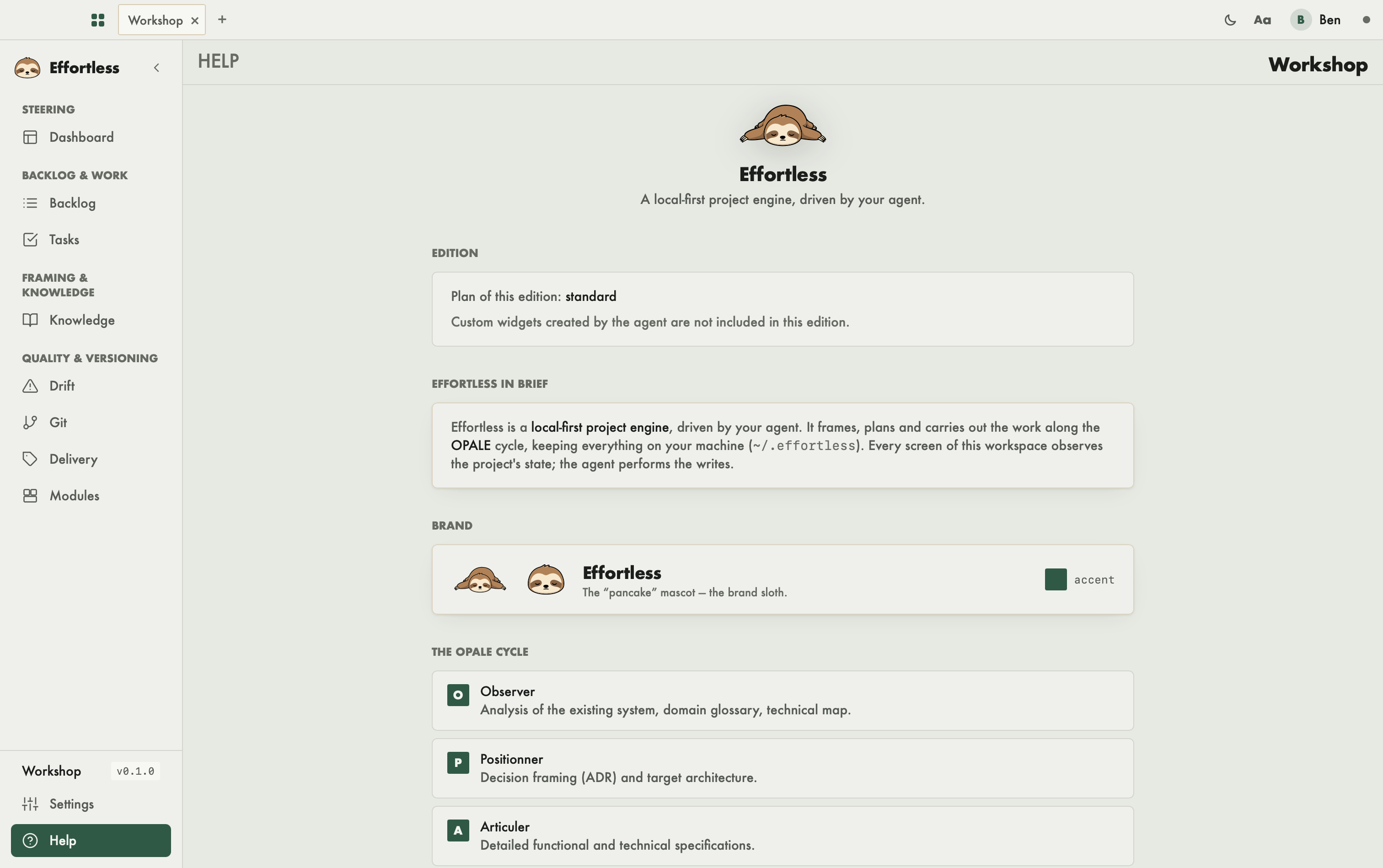
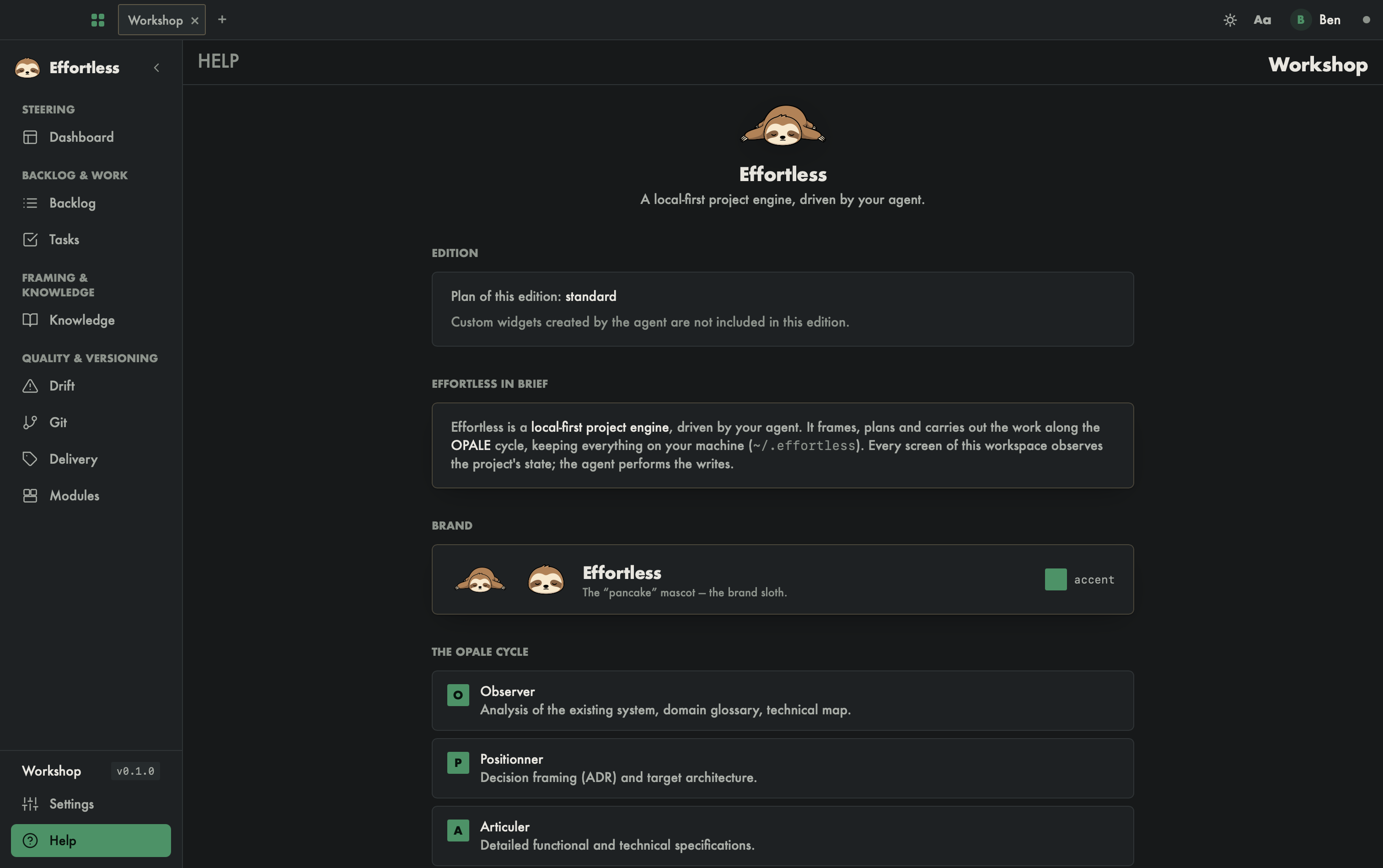
The Help screen is a small guide built into the app: it recalls what Effortless is, which edition you run, the OPALE cycle and the keyboard shortcuts. Open it from the bottom of the sidebar, under Settings: a workspace must therefore be open.
What you see
Top to bottom:
- Header: the mascot, the Effortless name and its tagline.
- Edition: the plan of your edition (here
standard) and what it includes or not. The standard edition does not include agent-created custom widgets. - Effortless in brief: a summary. Effortless frames, plans and runs the work following the OPALE cycle, keeping everything on your machine (
~/.effortless). Every screen of the workspace observes the project state; the agent performs the writes. - Brand: the mascot and the app's accent color.
- The OPALE cycle: the five phases, each with a short description.
- O, Observer: analysis of what exists, business glossary, technical mapping.
- P, Positionner: decision framing (ADR) and target architecture.
- A, Articuler: detailed functional and technical specifications.
- L, Lancer: implementation plan, task breakdown, acceptance.
- E, Execute: implementation driven by the autonomous loop; docs and statuses kept up to date.
- Shortcuts: ⌘ , opens Preferences; ⌘ W closes the current workspace tab; ⌘ N opens a new tab, that is, the picker. On Windows and Linux, the screen shows Ctrl+, , Ctrl+W and Ctrl+N.
What you can do
The screen is read-only: it has no button or field. Scroll to read it all.
- Check your Edition here.
- Come back to find the shortcuts.
- Use the OPALE cycle as a reminder of the vocabulary you meet in tasks and the backlog.
Tip
⌘ , opens the preferences from anywhere, the picker included. ⌘ W and ⌘ N act on workspace tabs: from the picker, ⌘ W has no tab to close. On macOS, New Tab and Close Tab are also in the File menu. See Window, bars and tray. To change the theme or language, open the preferences: see Profile and preferences.