
Backlog
The backlog is the screen where you organise and understand the work. Its tree has two roots: Registry, the product's evolution registry and its lots, and Project, which holds the session history and, below it, the epics, their stories and their tasks. Every item in the tree has its own page, which says what it frames and what it contains.
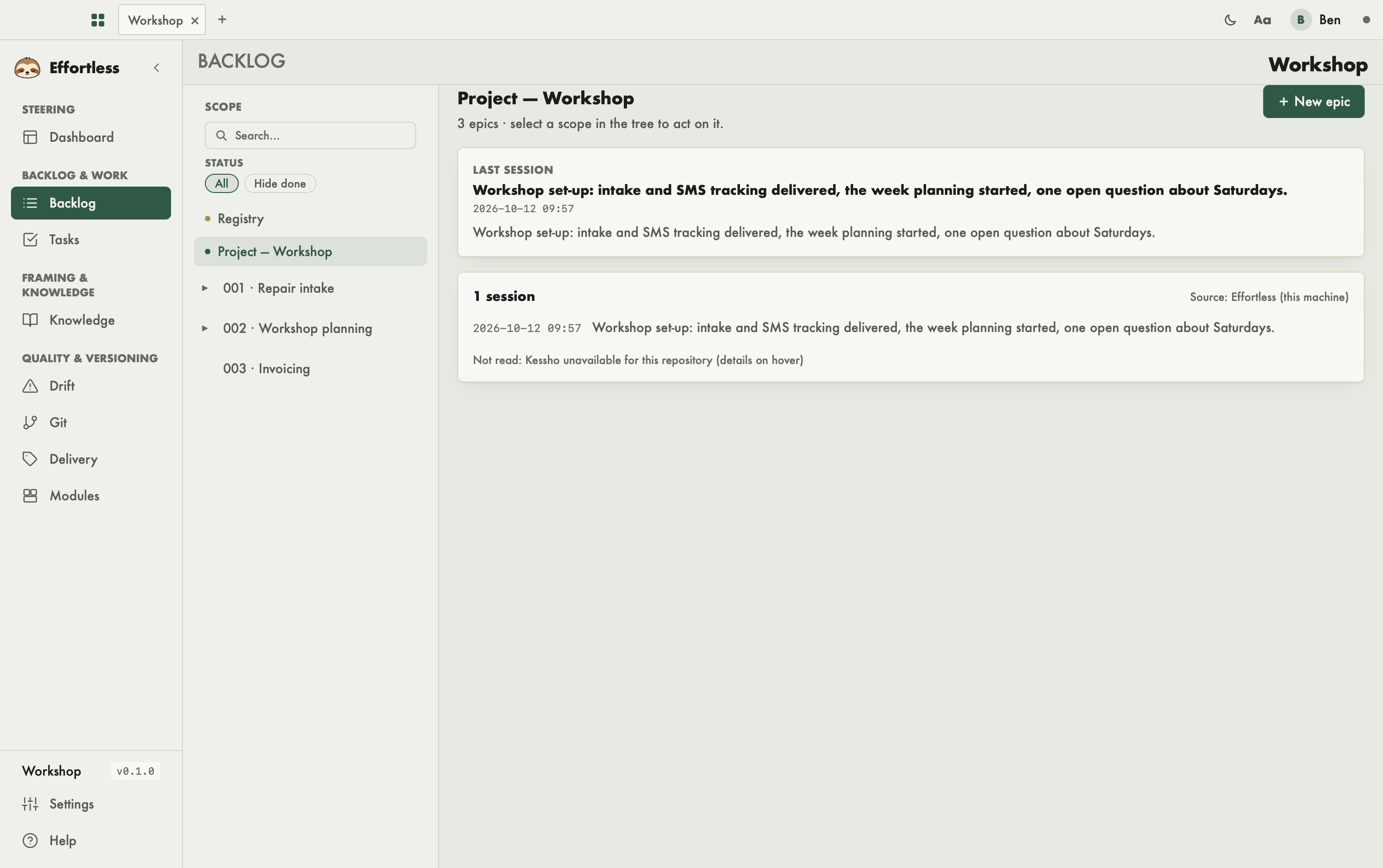
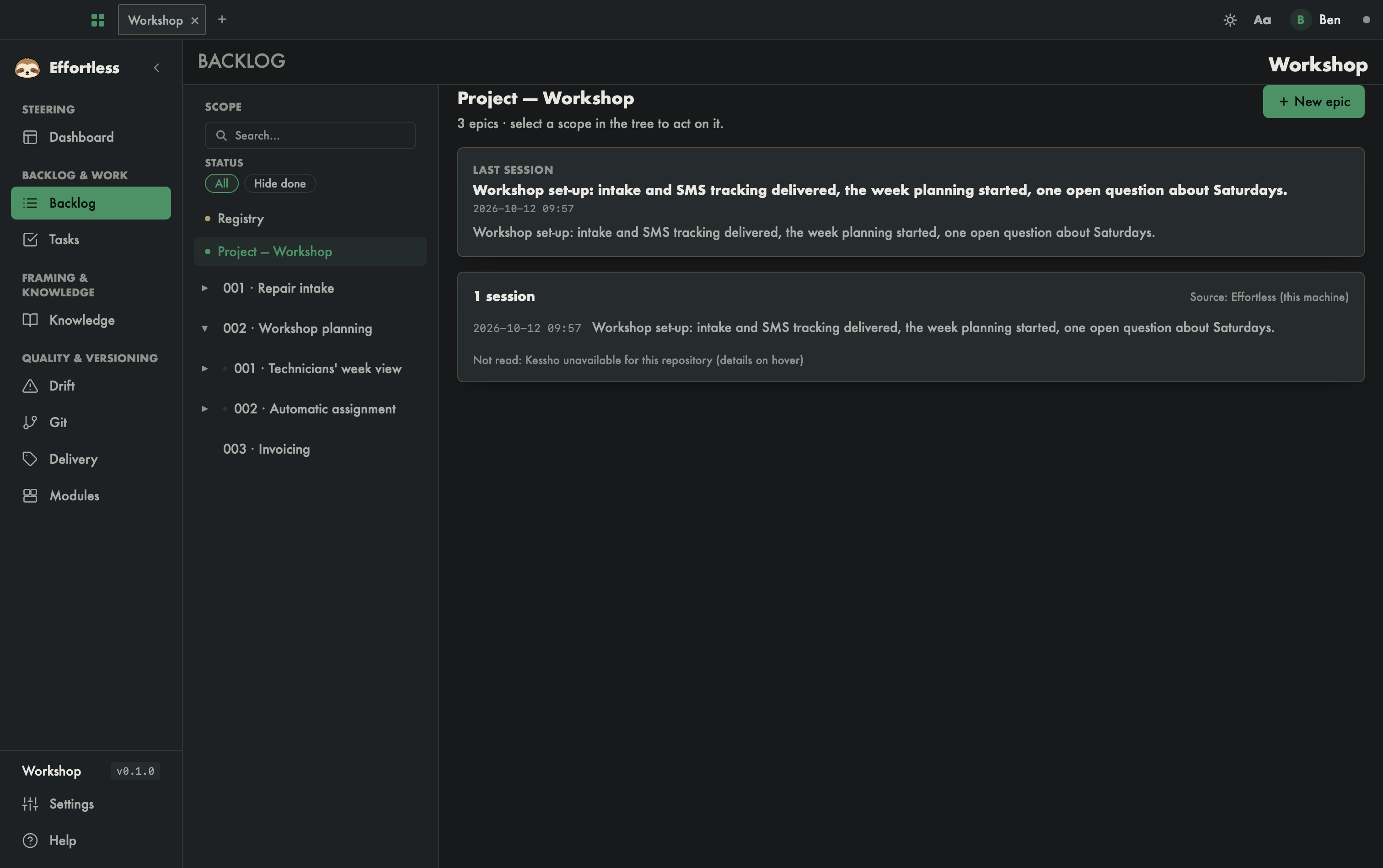
What you see
- Scope (left column): a Search… field, the Status filter (All or Hide done), then the tree: Registry, Project — Workshop, and under it the numbered epics, which you expand down to stories and then tasks. As soon as the project spans more than one year, a Vintage filter appears, and search results are sorted by year.
- Right panel: the page of the selected item.
The pages
Project — the session history
The Project root shows the Last session, with its summary, then the list of sessions, most recent first. The source is stated:
- Kessho, if your Kessho memory knows this repository: Effortless queries it and shows its session archives;
- otherwise Effortless (this machine): every time an agent works on the project through the MCP server, Effortless records the session (its client, the verbs called, the tasks touched, the number of commits), and the agent can write a summary into it. These sessions stay on your machine; they are not versioned.
If a source could not be read, the page says so ("Not read: …") and gives the reason on hover.
Registry — evolutions and lots
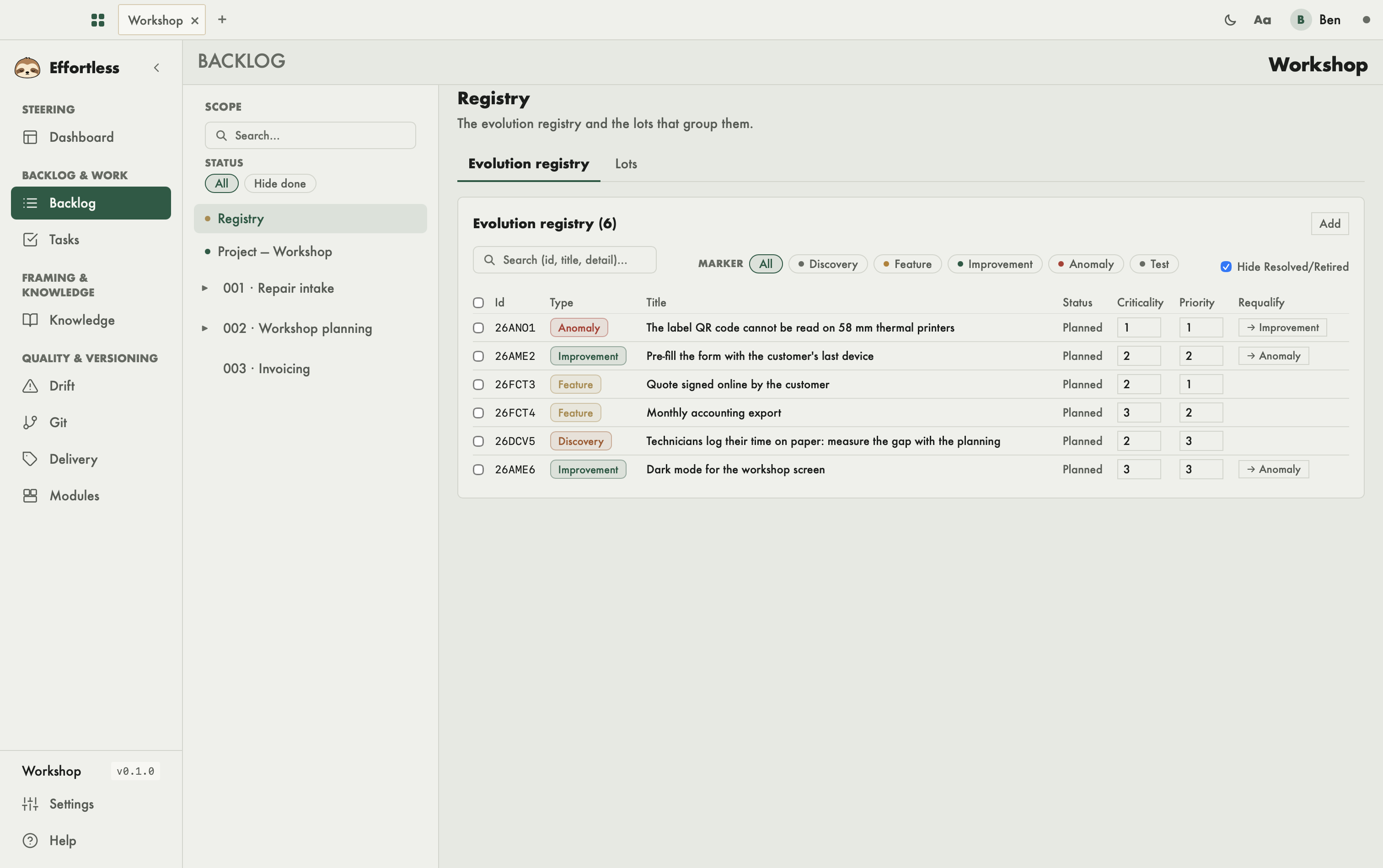
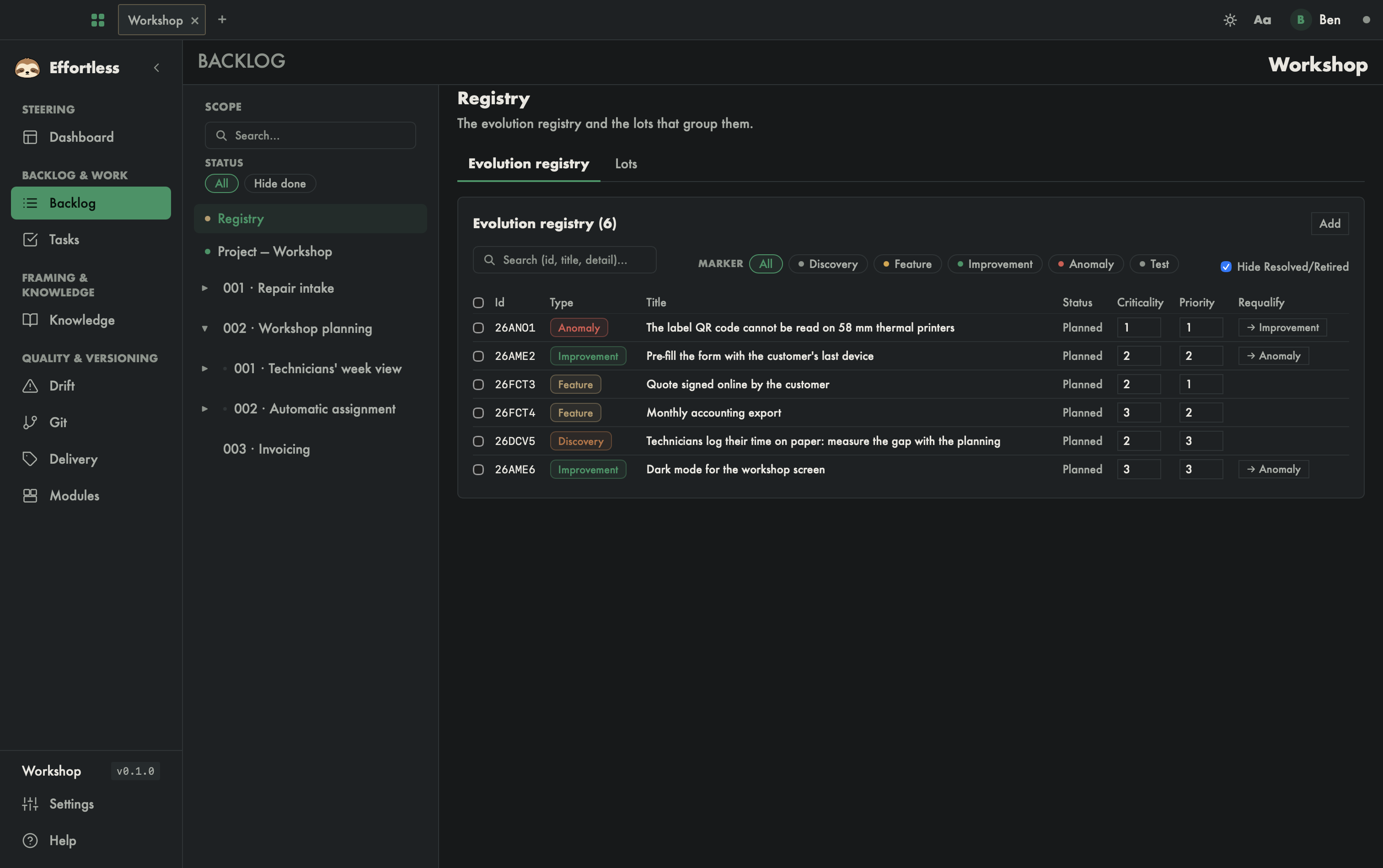
The Registry root opens two tabs, Evolution registry and Lots. The table lists each evolution: identifier, Type (Anomaly, Improvement, Feature, Discovery, Test), title, Status, Criticality and Priority. Clicking a column header sorts the table. Above it: Search (id, title, detail)…, the Marker filters and Hide Resolved/Retired.
Clicking an evolution's title opens the Evolution detail drawer.
The Lots tab shows "Lots to graduate": each lot lists its evolutions in the order they will be graduated.
Epic — what it frames and its stories
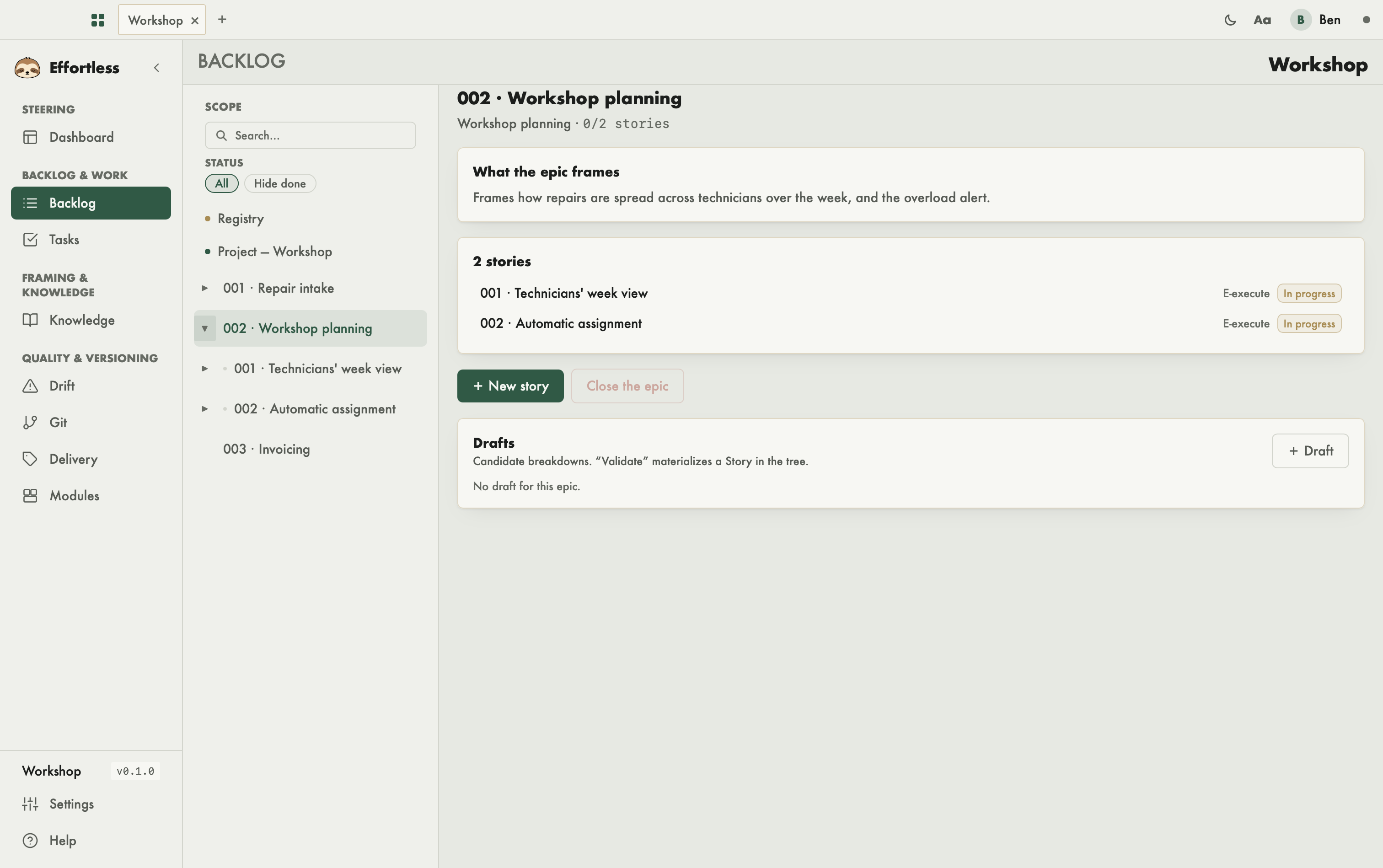
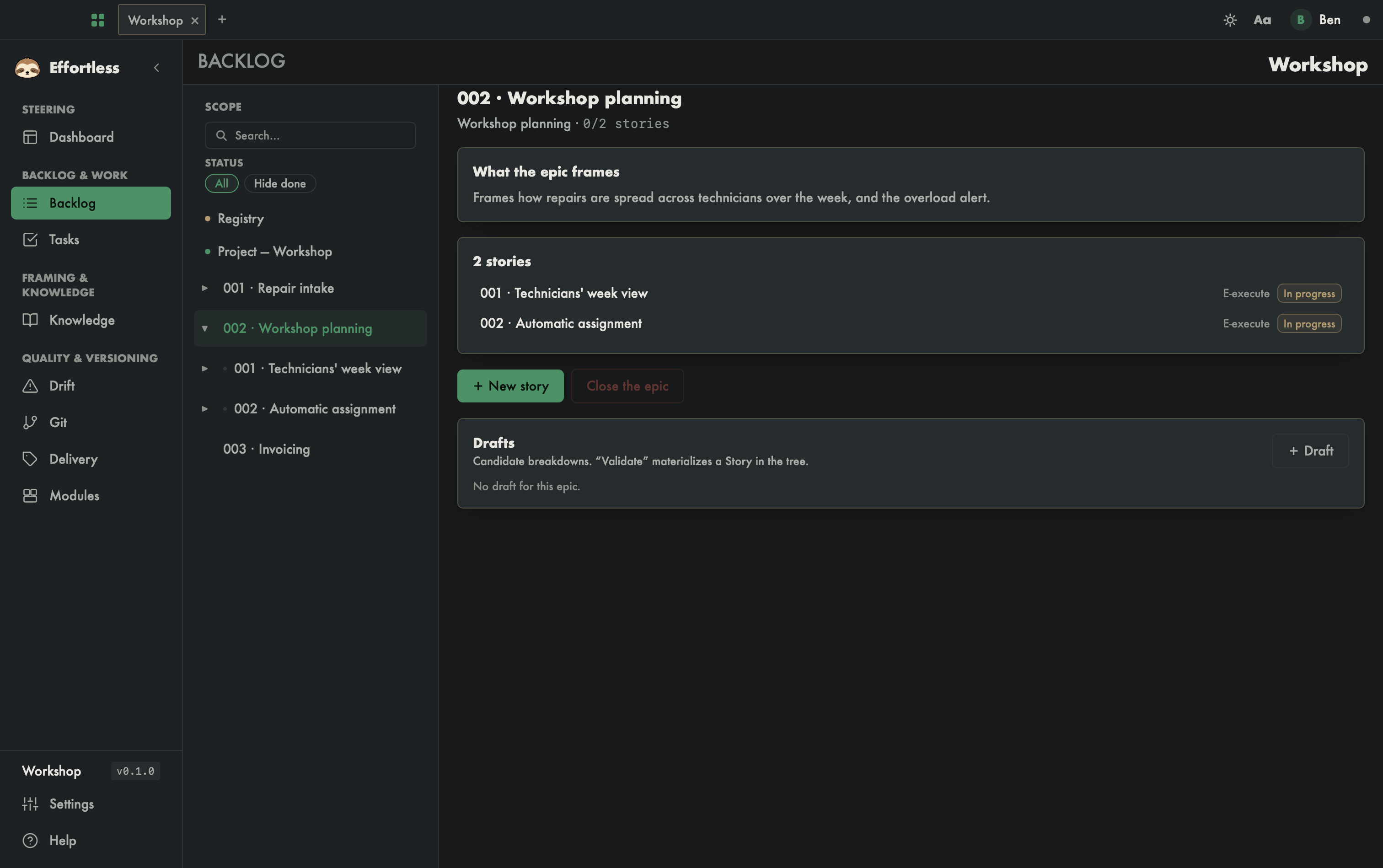
An epic's page says What the epic frames (its description), then lists its stories, each with its phase and status; a click opens the story. Below: New story, Close the epic and the breakdown Drafts — candidate stories, with their status (draft, submitted, materialized, rejected).
Story — what it frames and its tasks
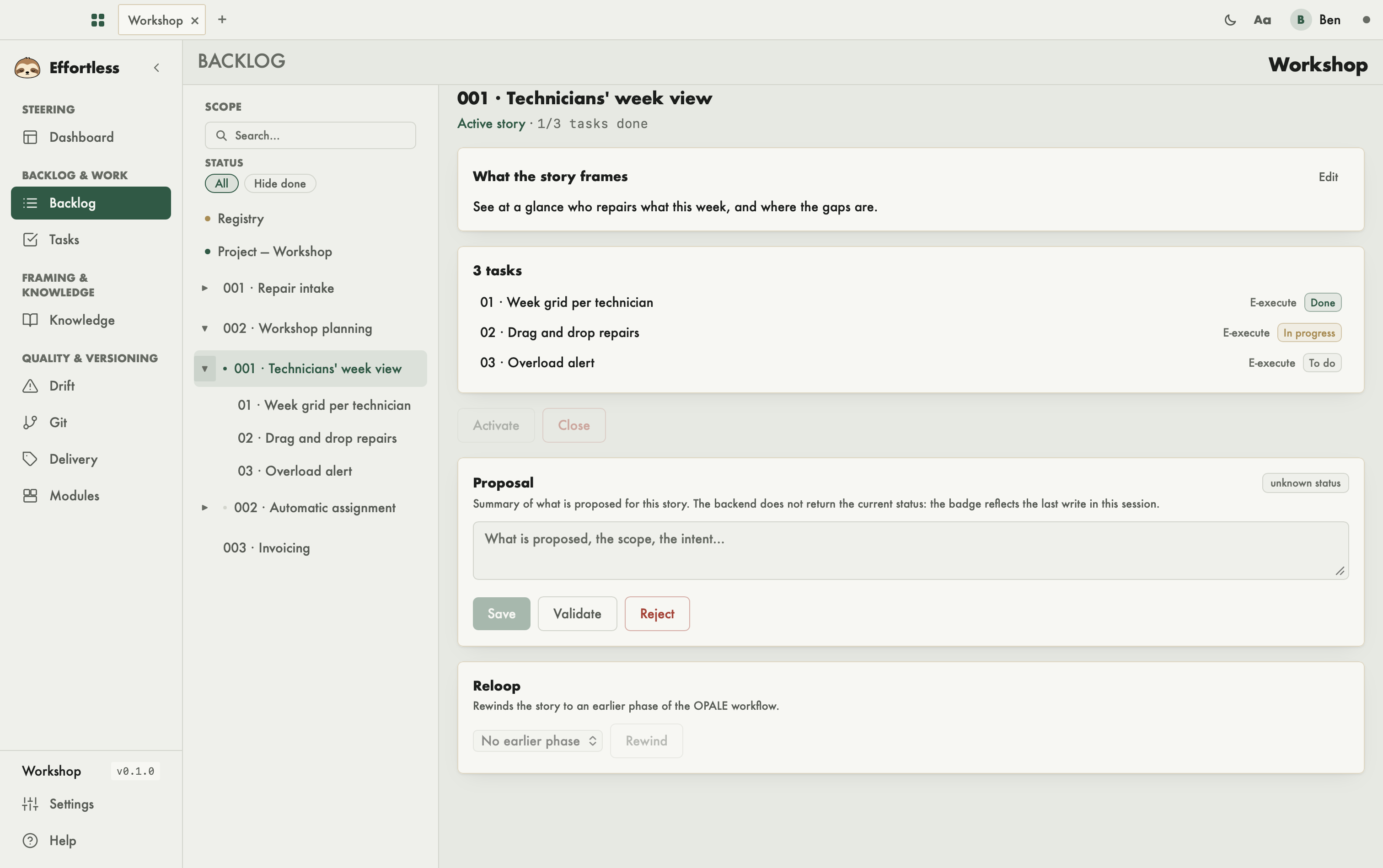
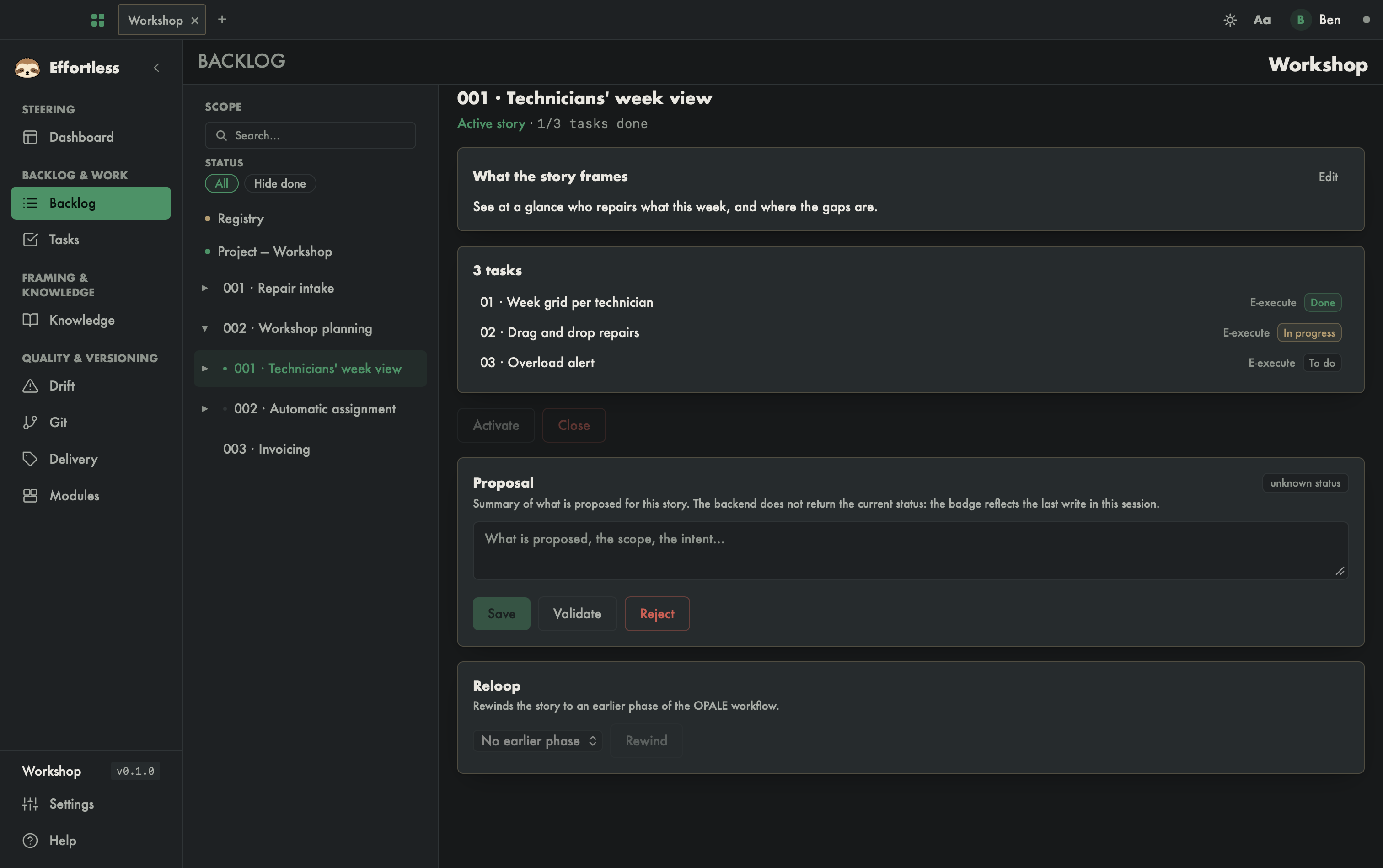
A story's page shows whether it is the Active story or an Inactive story, and how many tasks are done ("2/5 tasks done"). It says What the story frames (its objective, editable), then lists its tasks with their status; a click opens the task. Below: Activate, Close, the Proposal and the Reloop block, whose Rewind button sends the story back to an earlier phase.
Task — what to do and what it produced
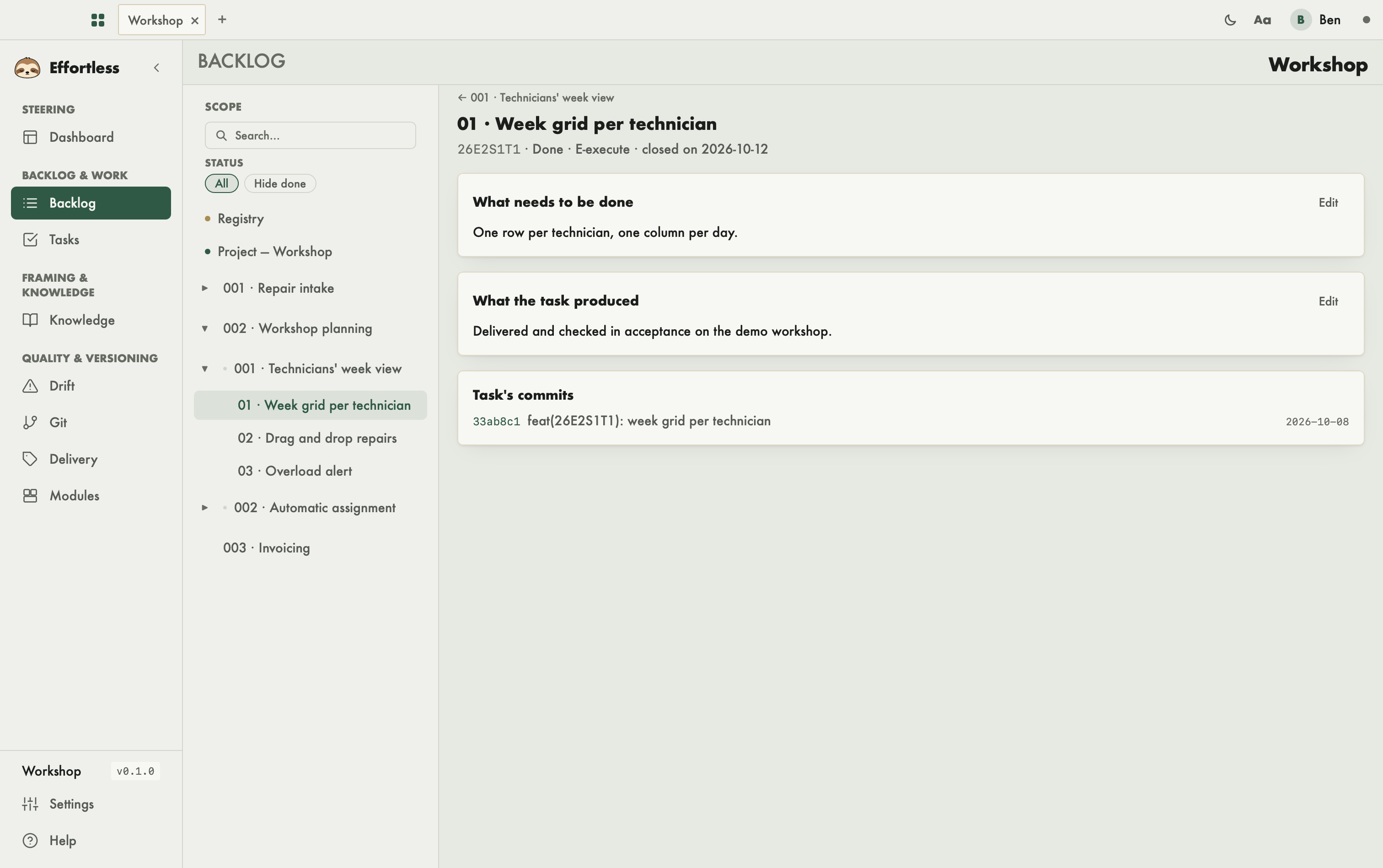
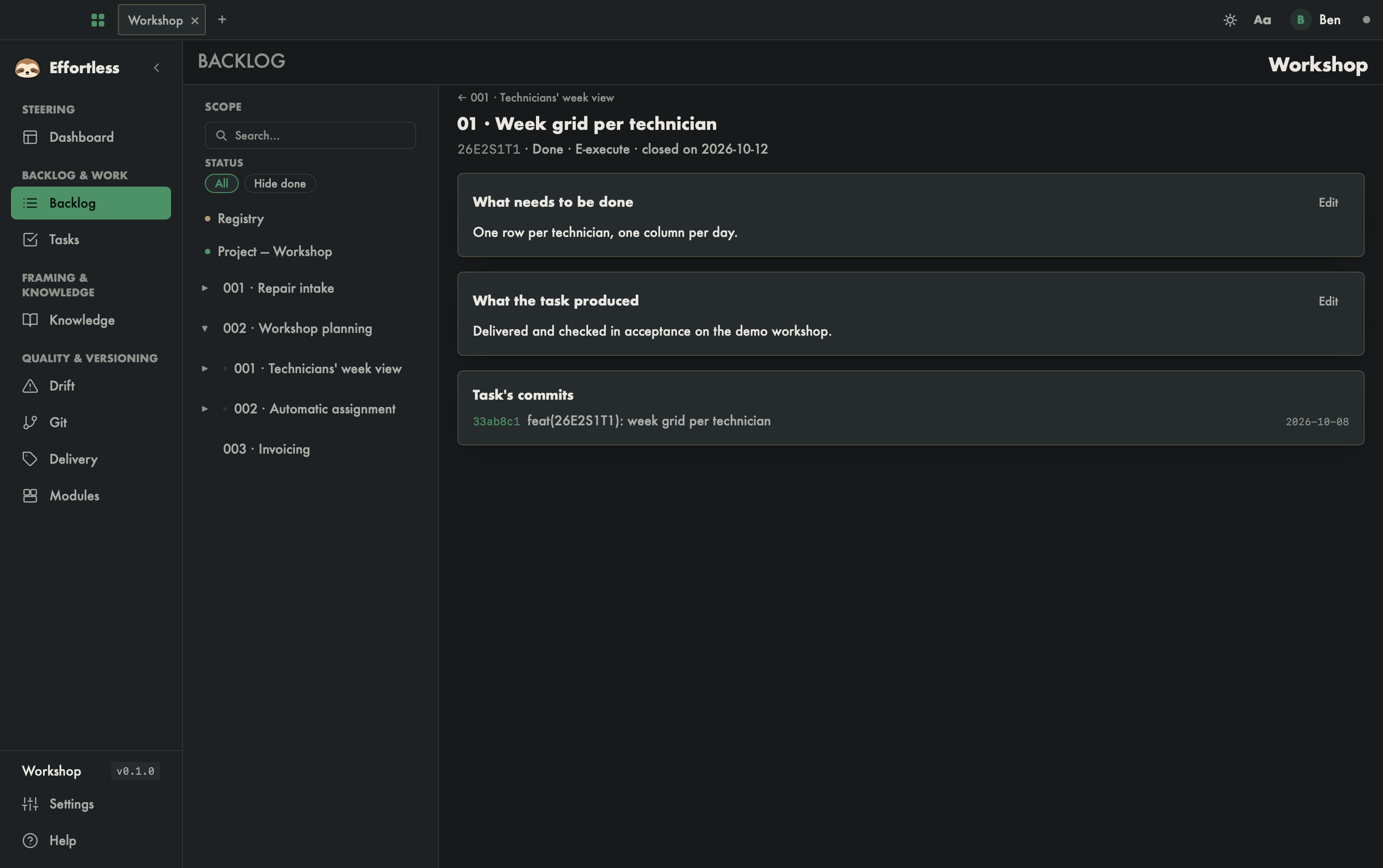
A task's page shows its reference (for example 26E2S1T1), its status, its phase and, once closed, its date ("closed on …"), then three sections:
- What needs to be done: the task's description, editable;
- What the task produced: its result, as observed, editable — the agent fills it in when closing the task;
- Task's commits: the commits whose message cites its reference.
The link at the top of the page goes back to its story.
What you can do
- Create an epic: on the Project root, New epic asks for a Zone and a Title; the Description (optional) can stay empty.
- Create a story: on an epic, New story asks for a Title, and optionally a Slug and Dependencies.
- Propose a breakdown: on an epic, Draft opens a form (Title, Summary, Nature
opaleorfix, Rationale (optional)), then Create the draft. Each draft offers Edit, Submit, Validate → Story (the story appears in the tree) and Reject. - Activate and close: Activate makes a story the active one; Close requires all its tasks to be Done; Close the epic requires all its stories to be finished.
- Propose and rewind: write the Proposal in its text box, then Save, Validate or Reject. For the Reloop, pick the phase in "Choose a target phase…", then Rewind; if the story is not active, the reloop activates it first, and the screen says so.
- Add an evolution: in the registry, Add asks for a type and a title.
- Sort evolutions: in the table, type the Criticality (1 Blocking, 2 Major, 3 Minor) and the Priority; the value is saved when you leave the field. An anomaly can be requalified as an improvement, and the other way round, with the "→ Improvement" or "→ Anomaly" button on its row; other types cannot be requalified.
- Mark or cancel an evolution: in the Evolution detail drawer, Mark ready to graduate (or Unmark), and Cancel, which asks for a Cancellation reason.
- Build a lot: tick evolutions (Select all, Clear selection), then Create a batch from the selection. In the Lots tab, New lot creates an empty lot; within a lot, Move up and Move down order the evolutions, Remove from lot takes one out, Add an evolution only offers evolutions ready to graduate, and Remove deletes the lot after confirmation.
With an AI agent
effortless_epic_start and effortless_story_start create epics and stories; effortless_task_update also carries a task's result; effortless_sessions returns the session history shown on the Project root, and effortless_session_summary writes the summary of the current session; effortless_evolution_add and effortless_evolution_graduate keep the registry.