
Creation assistant
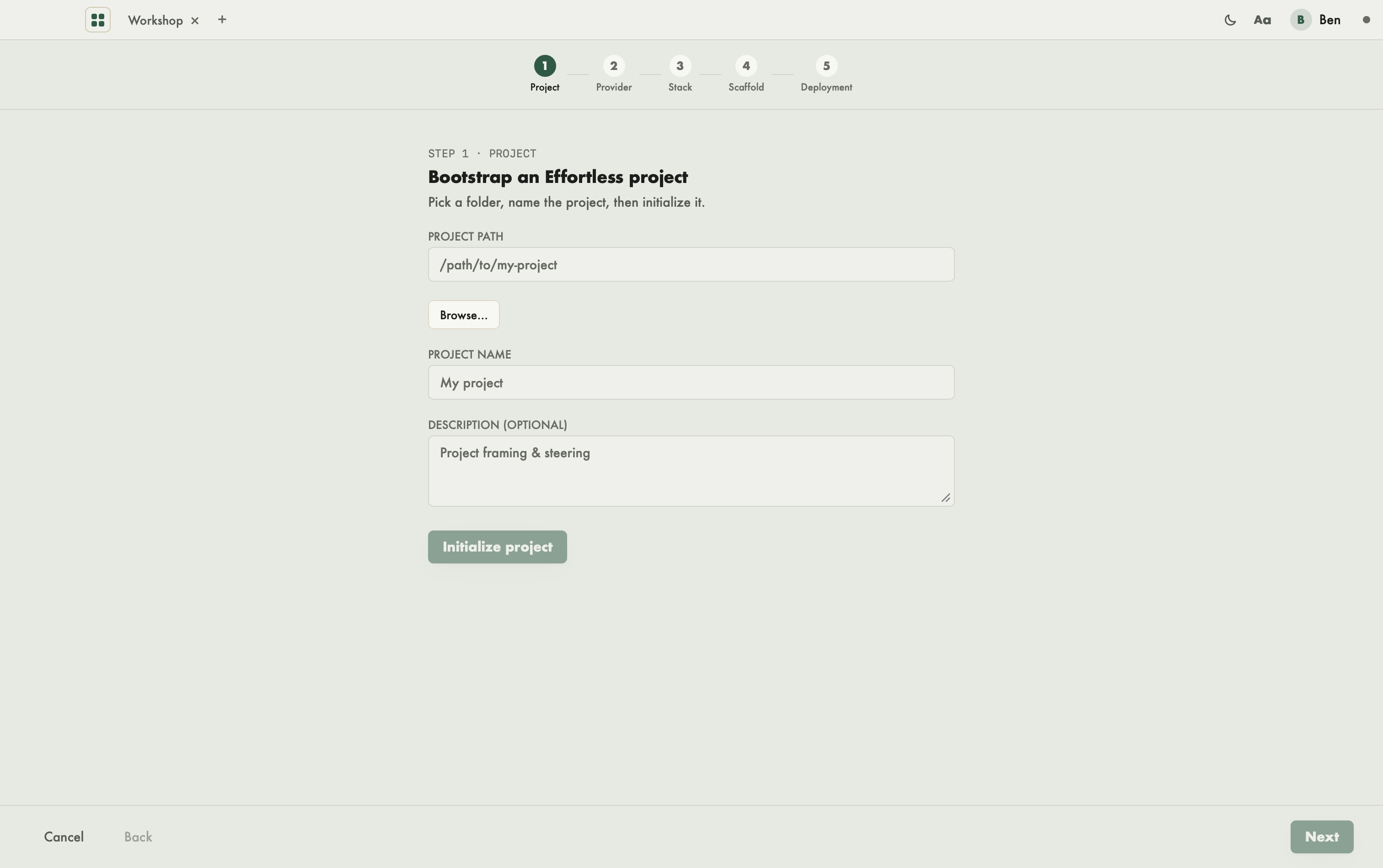
The creation assistant bootstraps a new Effortless project step by step: the project itself, the LLM routing profile, the technical stack, an initial structure, then the deployment into your AI tools. Open it from the picker, with Creation assistant.
To simply initialize a folder, with no assistant, use Create… in the picker (Open a workspace).
Before you start, decide on the work mode and the code layout: see Choosing your setup.
What you see
- At the top: five numbered steps, Project, Provider, Stack, Scaffold and Deployment. A completed step is marked.
- In the middle: the current step, with its title and what it does.
- At the bottom: Cancel and Back on the left; Later (to skip an optional step) and Next on the right, then Finish on the last step.
Each step really acts when you click its button: the result message shows below the button, or the error in red.
The steps
1. Project
- Enter the Project path, or pick the folder with Browse….
- Give a Project name, and if you like a Description (optional).
- Click Initialize project.
This step is required: Next stays greyed out until the project is initialized, because every following step writes into it. Once the project is initialized, its fields can no longer be edited.
2. Provider
Pick a Provider family (claude, gemini, codex or mistral), then Generate profile. Effortless writes an LLM routing profile from that family's preset. The button then becomes Regenerate profile. Optional.
3. Stack
The stack model picker: pick a model in Available models, check its build and cycle, fill in the Stack identifier and the required Variables, then Create the stack. The stack is created in the project you just initialized: this is how a module is declared (see Modules). Optional.
4. Scaffold
The list of templates in the project store. Select one, then Apply template: it lays an initial structure at the project root. If the store is empty, the screen says so ("No template in the project store."): skip the step. Optional.
5. Deployment
A Recap lists the four previous steps, each followed by done or skipped: a step is “done” only when its action was actually performed (a stack created, for instance), not merely visited. Below it, the MCP & Skills panel installs the Effortless server into your AI assistants, as in Preferences › MCP & Skills (Profile and preferences).
Finish
Finish takes you back to the picker, without opening the project. Open it afterwards with Open…, or by typing its path.
Cancel leaves the assistant at any time. What has already run (initialization, profile, stack, template) stays written in the folder.
With an AI agent
The same steps exist as MCP verbs: effortless_init, effortless_provider_profile_init, effortless_stack_add, effortless_scaffold_apply_project and effortless_deploy.