
Open a workspace
The picker is Effortless's home screen: you land on it at every launch once your profile exists (on the very first launch, see First launch), and whenever you click the grid icon or + in the top bar. A workspace is an Effortless project: you come here to open one, create one or adopt an existing project.
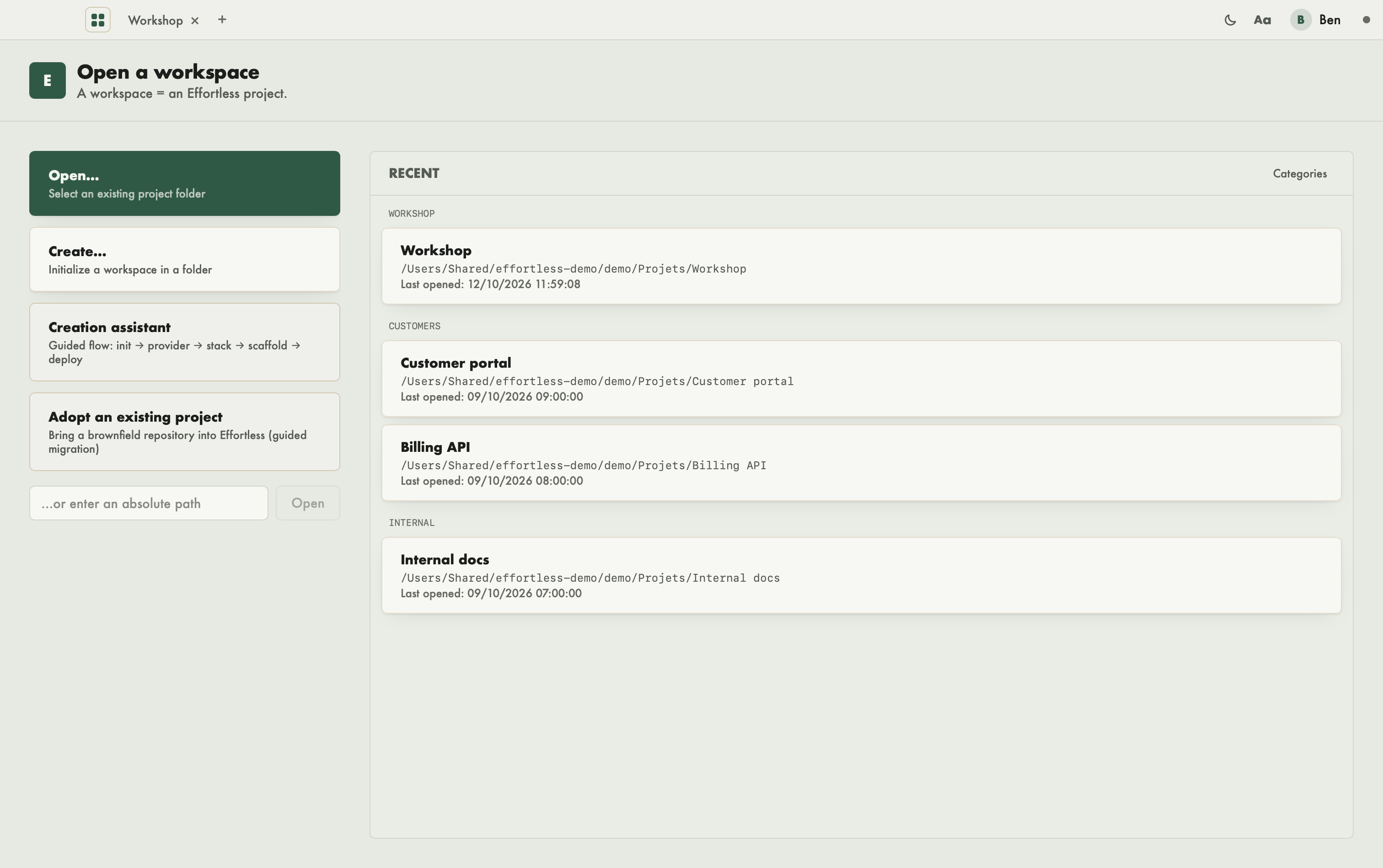
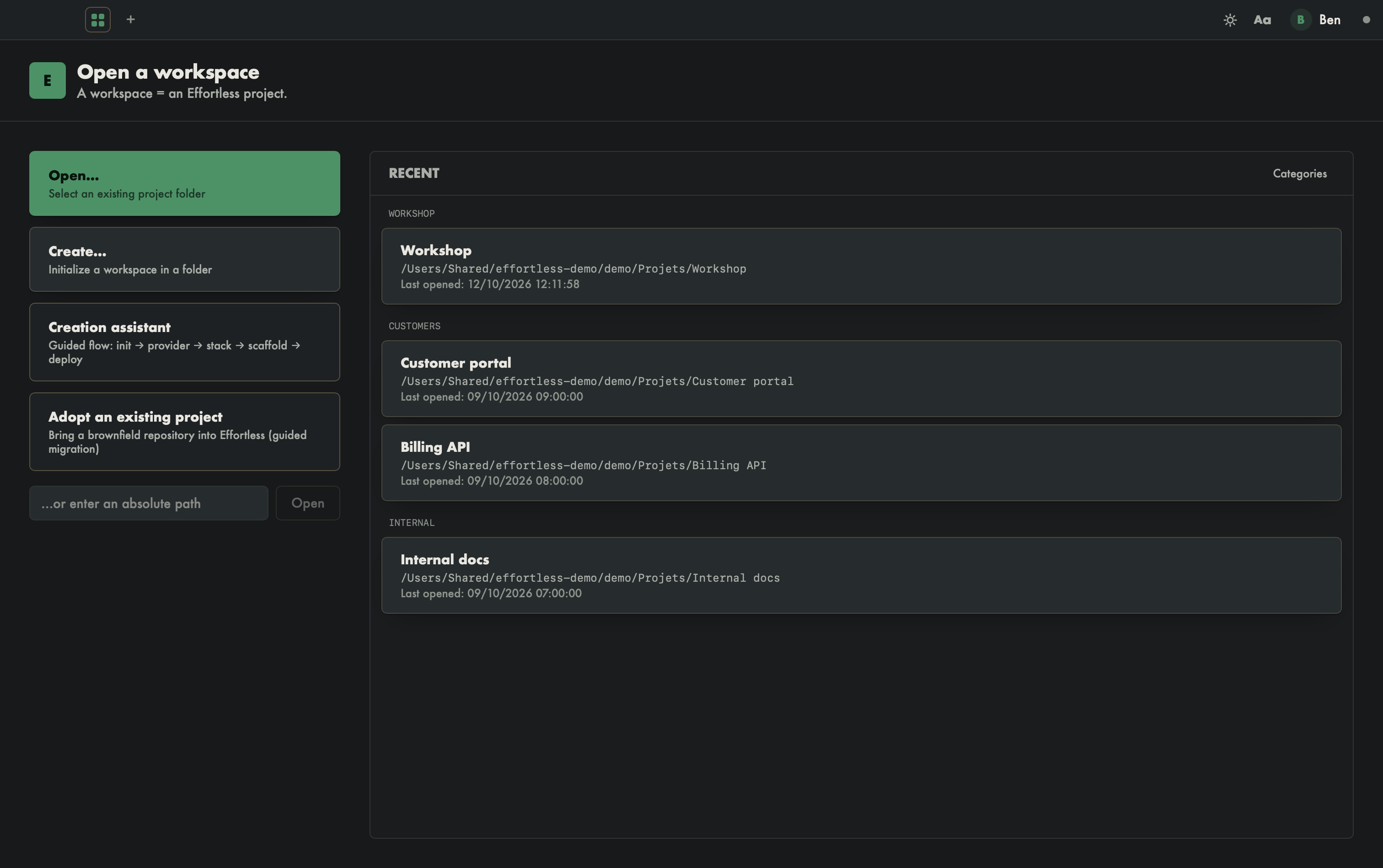
What you see
- At the top: the title "Open a workspace" and the reminder "A workspace = an Effortless project."
- On the left: four actions — Open…, Create…, Creation assistant, Adopt an existing project — and a path input.
- On the right: the Recent list, grouped by category once you have declared some (Workshop, Customers, Internal in the example). Each card shows the project name, its path and its "Last opened" date. While the list is empty, the screen shows "No recent workspace. Open or create a project on the left."
The tabs, theme and preferences of the top bar are described in Window, bars and tray.
What you can do
Open an existing project
Click Open… ("Select an existing project folder") and choose the folder. You can also type the absolute path in …or enter an absolute path, then click Open. The project opens in a tab; if it is already open, its tab is reactivated.
If opening fails, a message starting with "Error:" shows below the actions, with the reason given by the engine (or "Unable to open.").
Create a workspace
Create… ("Initialize a workspace in a folder") has you pick a folder, initializes it as an Effortless workspace and opens it at once, with no further question.
Creation assistant is a separate button: a guided flow in five steps — project, provider, stack, scaffold, deployment. See Creation assistant.
Adopt an existing project
Adopt an existing project brings a repository already under way ("brownfield") into Effortless: you pick its folder, then a four-step assistant opens. See Adopt an existing project.
Reopen a recent workspace
Click a card in the Recent list to reopen the workspace. When you hover over a card, controls appear on its right:
- a drop-down list to file the project under a category — only once you have declared at least one category;
- ✎ ("Rename (display name)"): the name becomes an editable field. Save or Enter confirms, Cancel or Escape cancels. If you empty the field, the rename is simply cancelled;
- × removes the project from the list: "Remove?" asks for confirmation, answer Yes or No. Nothing is deleted on disk.
Sort into categories
Categories (top right of the list) opens category management:
- type a name in New category, then Add;
- rename a category by editing its name: the change is saved when you leave the field or press Enter;
- delete it with Delete category. Its projects stay in the list, uncategorized.
If a name is refused, the screen shows "Category not saved (name already taken?)." You file a project under a category with the drop-down list that appears when you hover over its card; without a choice, it sits under "Uncategorized".
With an AI agent
An agent has no picker: it works in the workspace folder, resolved from its working directory. effortless_init creates a workspace, effortless_status reports its state.