
Dashboard
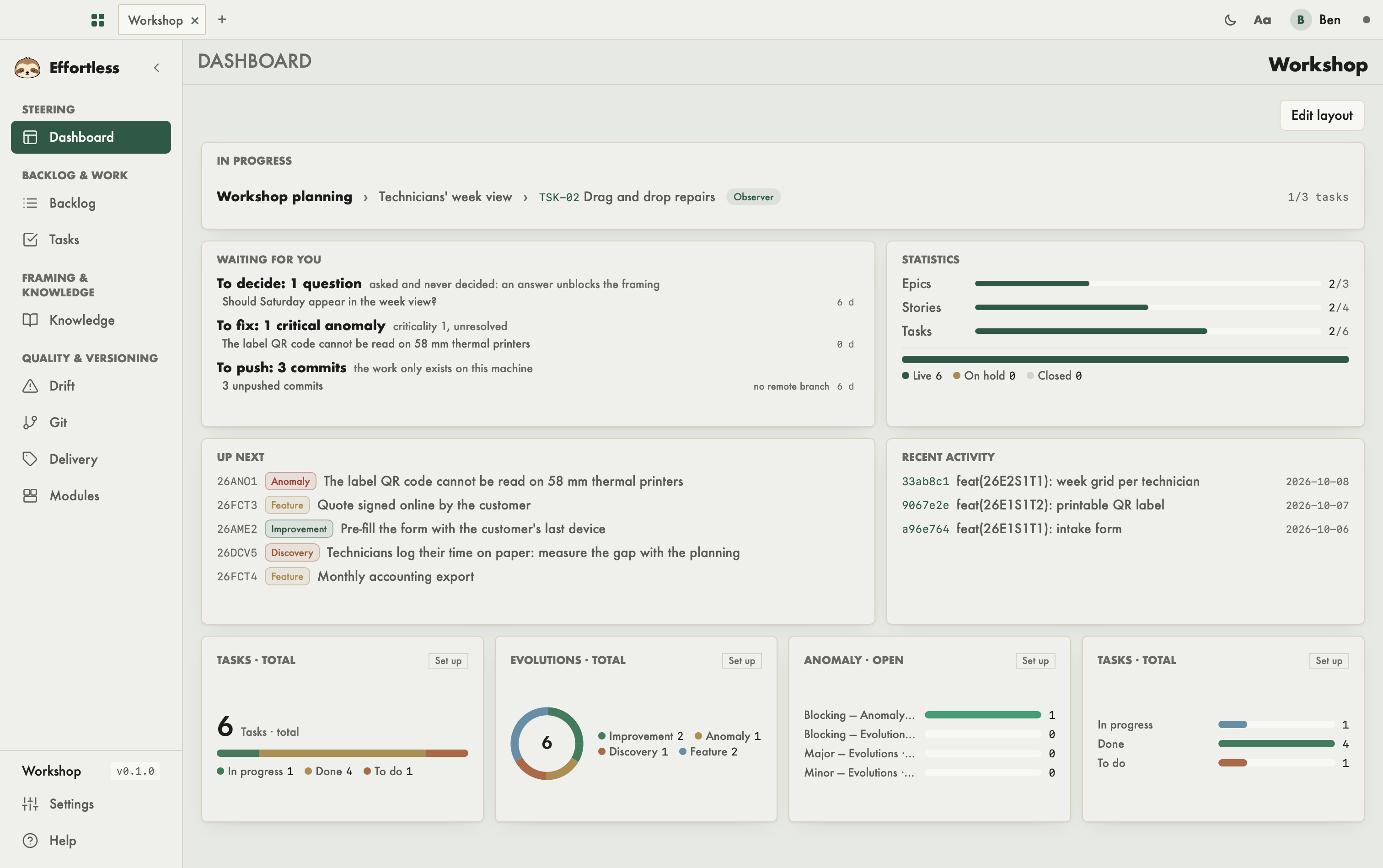
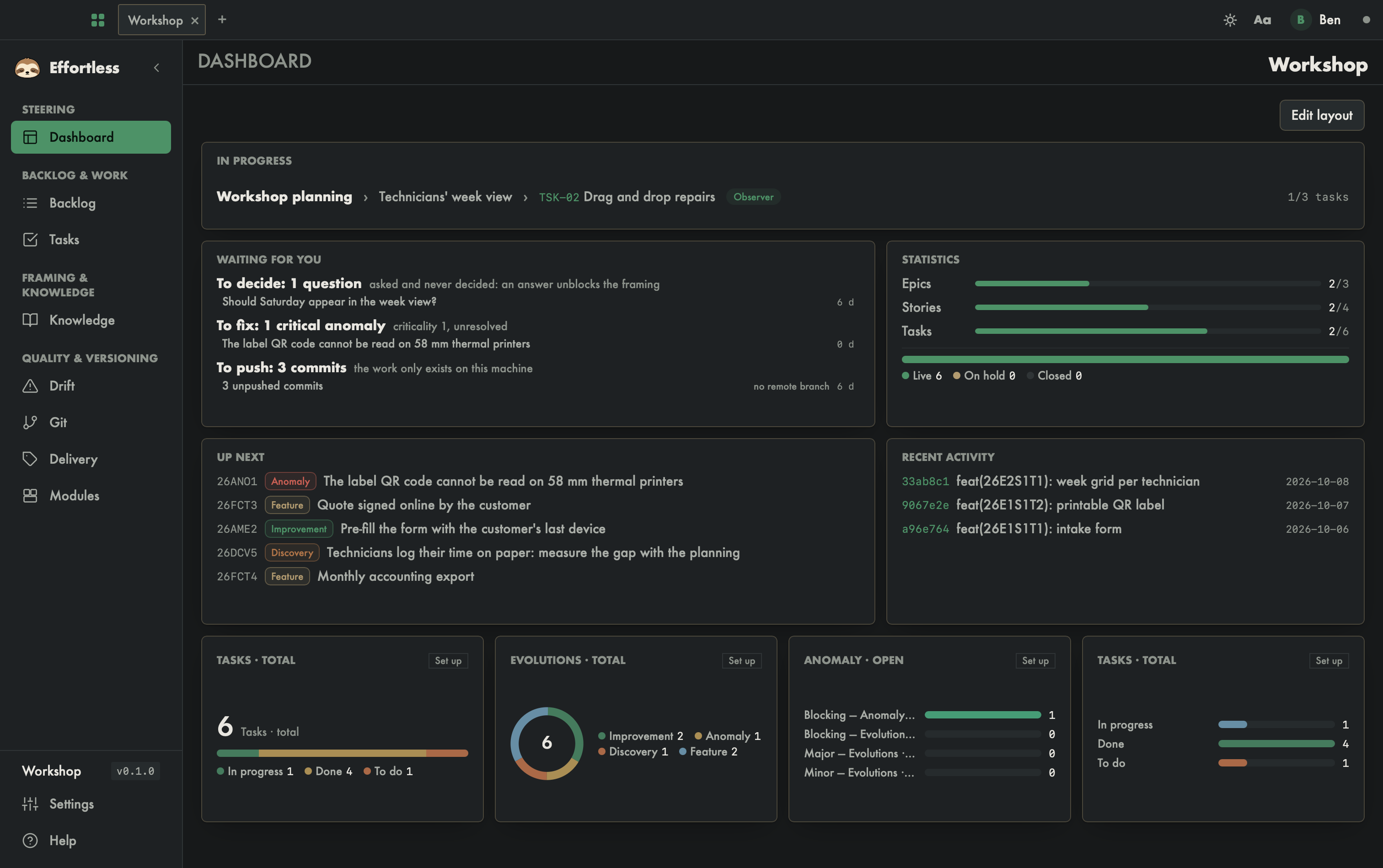
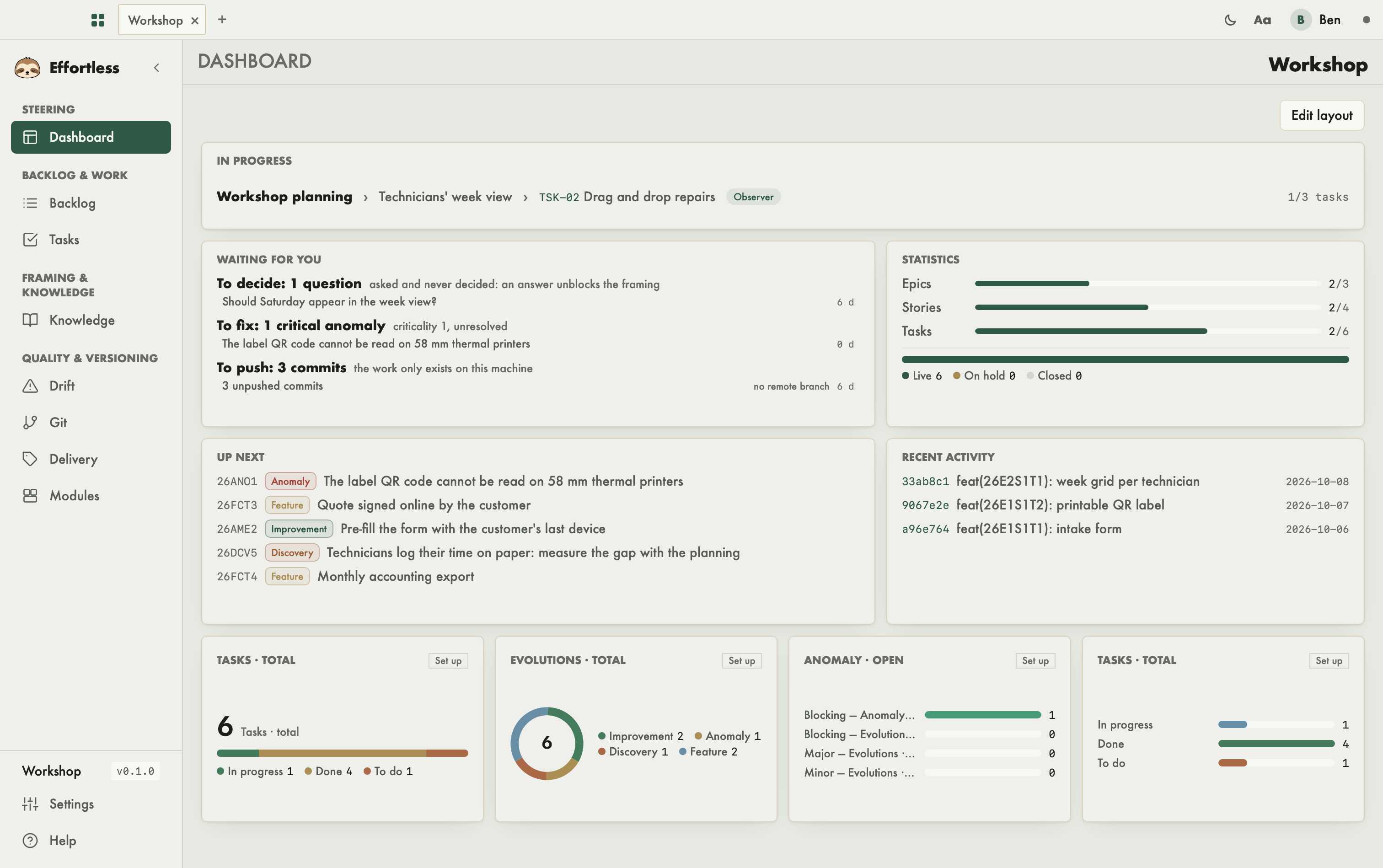
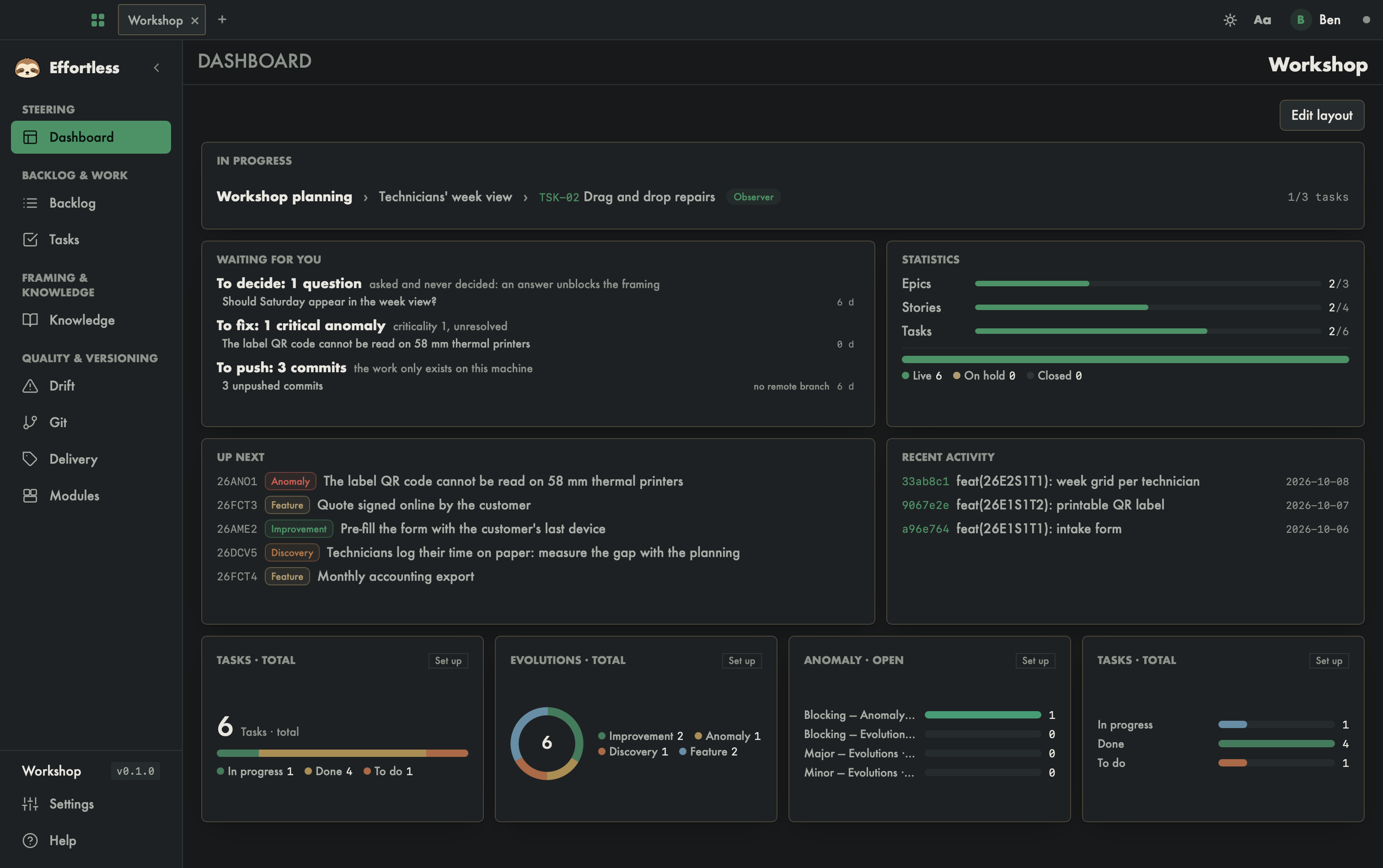
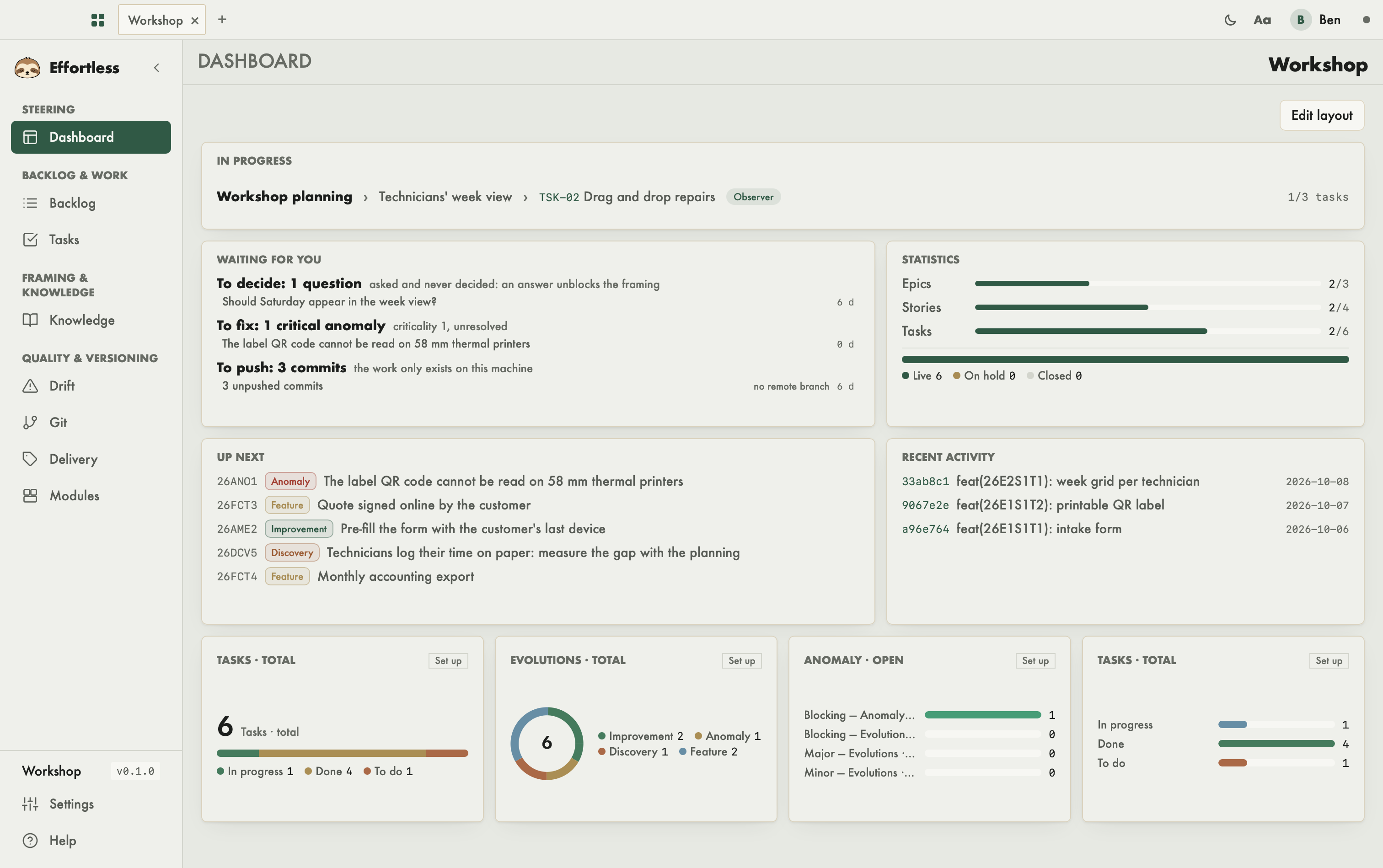
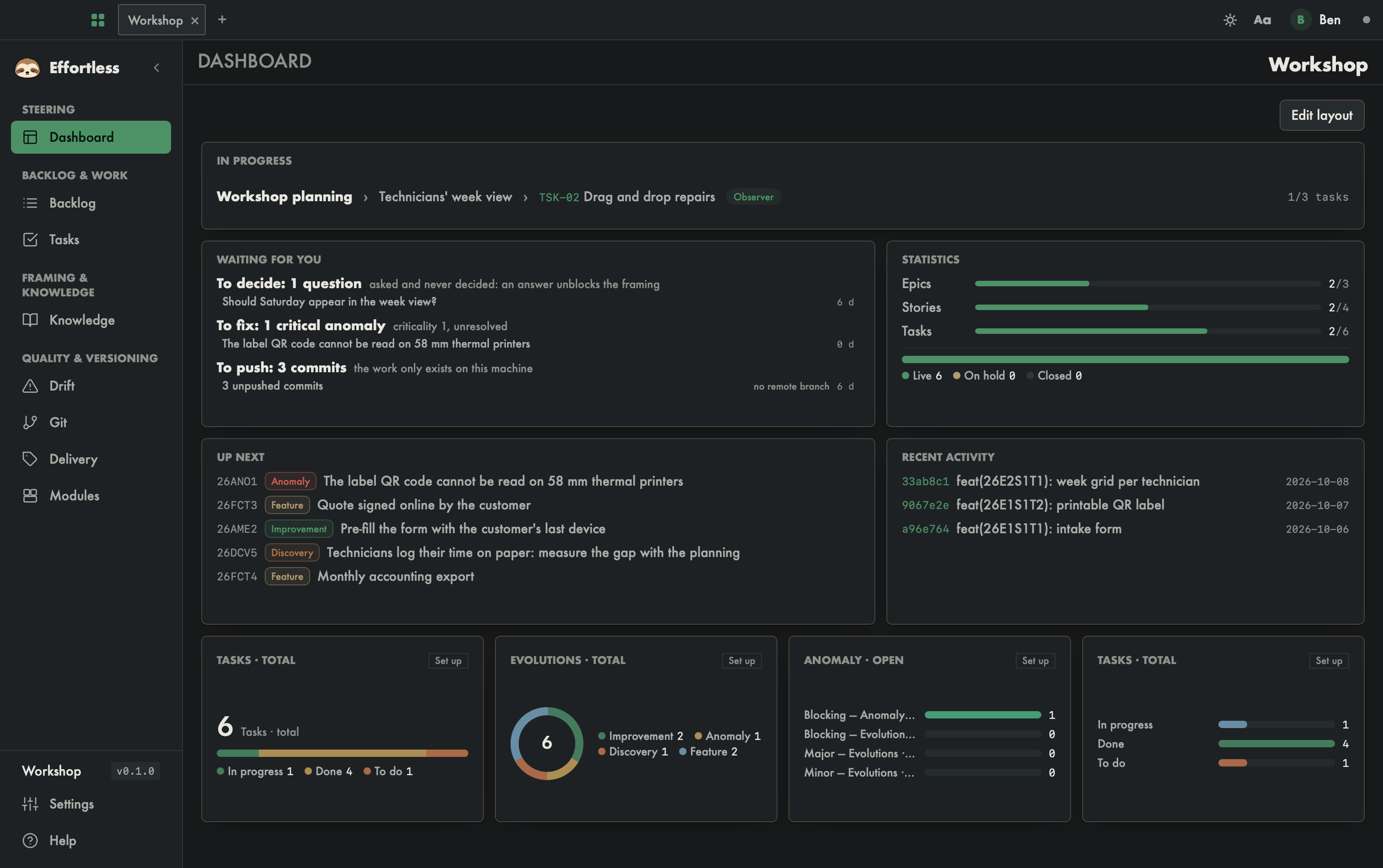
The dashboard is a workspace's pick-up screen. It answers a single question: what is waiting for you? You see in one line what is in progress, then the list of what needs action from you, the state of the backlog and what comes next.
What you see
- In progress: a single line — the active epic, the active story, the task in progress with its identifier, the OPALE phase as a pill and the story's task counter (for example "2/5 tasks"). A click opens the Tasks screen.
- Waiting for you: what needs human action, grouped by kind. Each section states its action and count — "To decide: 11 questions", "To close or resume: 1 task", "To deliver: 1 commit" —, a sentence says why, and each item shows its age ("52 d"), oldest first; beyond three, + N more unfolds the rest and Fold folds it back. The engine lists:
- open questions, on a story or on the project;
- unverified acceptance scenarios of a story whose acceptance tests require a maturity status;
- orphan tasks: a task still In progress while its story or epic is closed, or while its story is not the active one;
- unresolved critical anomalies (criticality 1);
- unpushed commits, commits since the last delivered version, and drift (code files modified with no task in progress).
- Statistics: a progress bar per backlog level (epics, stories, tasks — "left / total"), and a stacked bar of the evolution registry (live, on hold, closed) with its legend.
- Up next: the first five evolutions in the order computed by the engine — not the file order.
- Recent activity: the repository's latest commits.
If a source could not be read (a repository with no upstream branch, for instance), the footer of Waiting for you says so: "Not checked: …". Nothing is hidden.
When there is nothing, each card says so: "Nothing in progress: no active epic.", "Nothing is waiting for you: …", "No live evolution.", "No activity."
What you can do
Act on an item
Click a line in Waiting for you: it opens the screen where you act — Knowledge for a question or a scenario, Backlog for an orphan task or an anomaly, Git, Delivery or Drift for the rest.
Open the detail
Statistics and Up next open the Backlog; Recent activity opens Git.
Add tiles
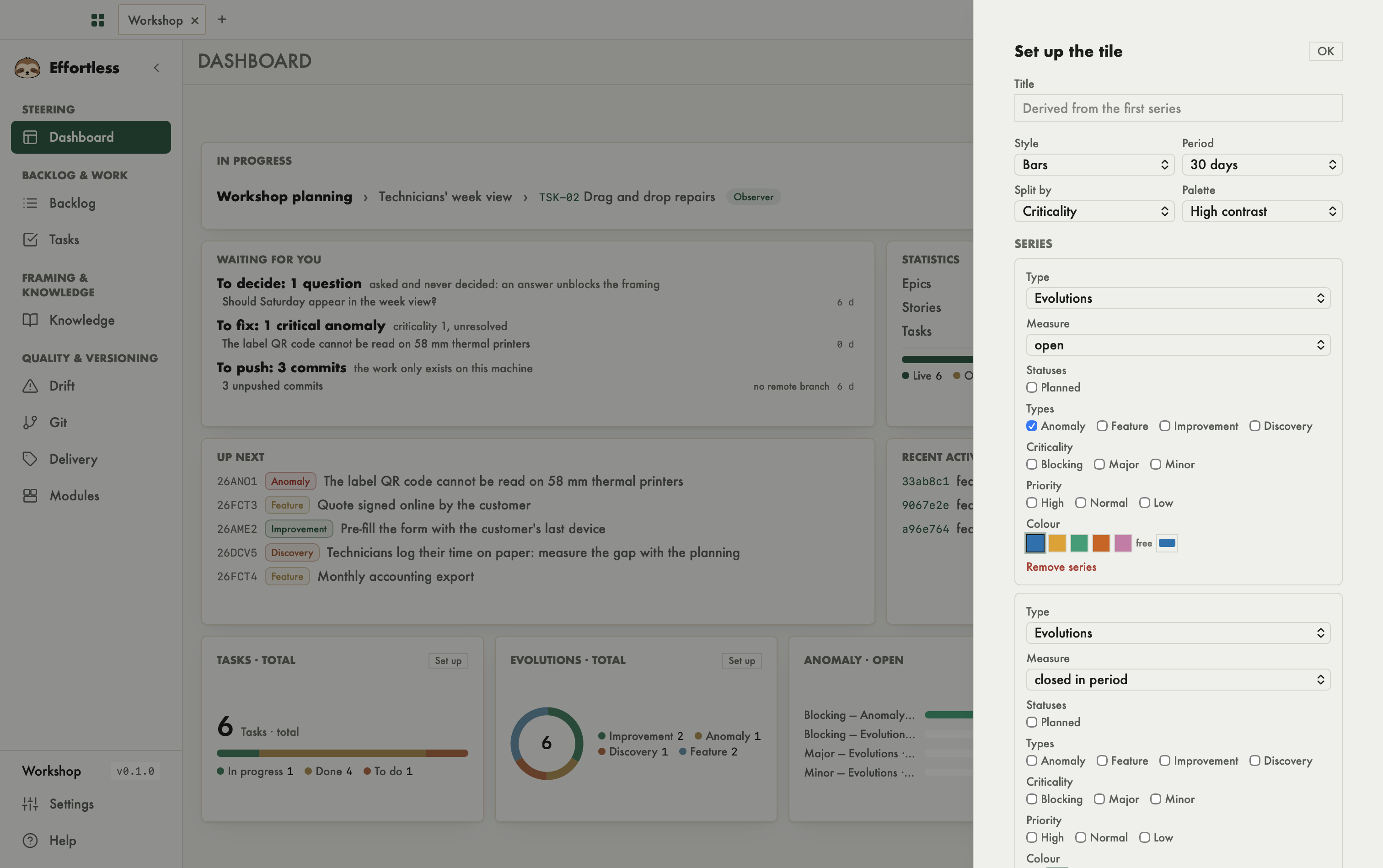
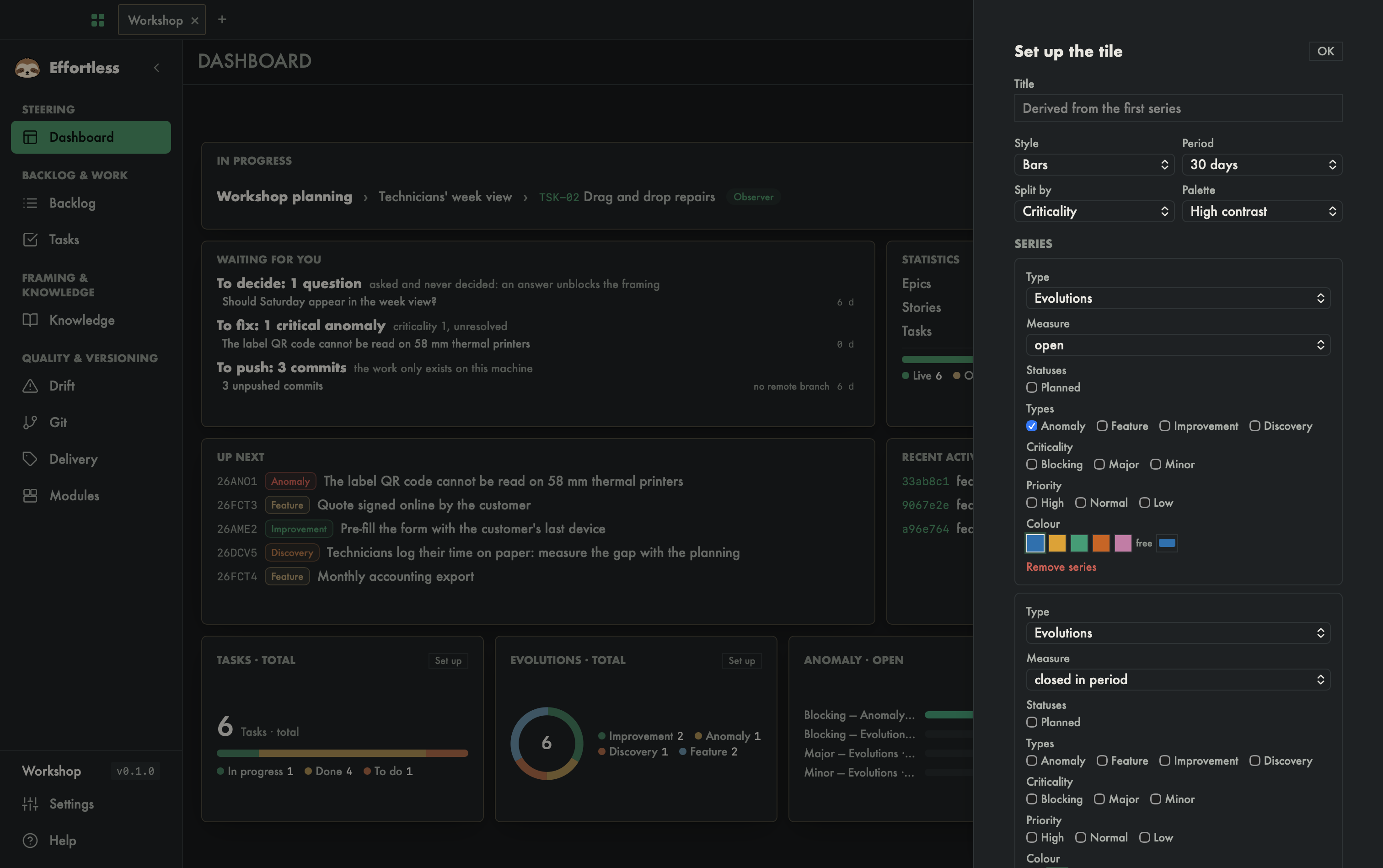
A tile shows the data you compose. Add as many as you like: Edit layout, Library…, then Add on Tile; the new tile lands in the first free spot and the screen scrolls to it. Its Set up button opens a panel:
- a title (otherwise derived from the first series);
- the style: Number, Ring, Bars or Trend (one line per series);
- the period for flows: 7, 30 or 90 days;
- Split by: no axis, status, type, criticality or priority;
- the palette: Effortless, Monochrome, High contrast, Pastel, or one of your own (see Profile and preferences);
- the series — as many as you like. Each picks its dataset (epics, stories, tasks, evolutions), its filters (statuses, types, criticality, priority), its measure and its colour:
- counts: total, open, closed, progress;
- flows over the period: created, closed, balance;
- ages and lead times: average age of open items, oldest open item, average lead time;
- for evolutions: average criticality and priority.
- Group colours: when an axis splits the tile, each group can get its own colour.
Add a series adds one, Remove series takes it away. A colour is taken from the tile's palette, or picked freely. Every setting applies at once; OK closes the panel, Save layout keeps the tile's place. If the filters keep nothing, the tile shows "No data for this type."
Customize the layout
Edit layout switches the dashboard to edit mode: move and resize cards, remove one with its Remove button (top right of the card), open the Library… ("Widget library") to Add or Remove widgets, then Save layout. The layout is saved for this project; Reset goes back to the default layout.
The library also keeps the former Phase, Current epic, Story & task, Tasks and Work mode cards. Two of them act:
- Phase: Details / Advance opens the "Lifecycle — phase" drawer, with the Required documents of the current phase and the Advance phase button when the story is eligible;
- Work mode: changes the project's mode, like the Project settings.
With an AI agent
effortless_attention returns exactly what this screen shows — the in-progress line, the items waiting, the statistics and the up-next queue — with a readable message. The agent and you see the same list, computed in the same place.