
Window, bars and tray
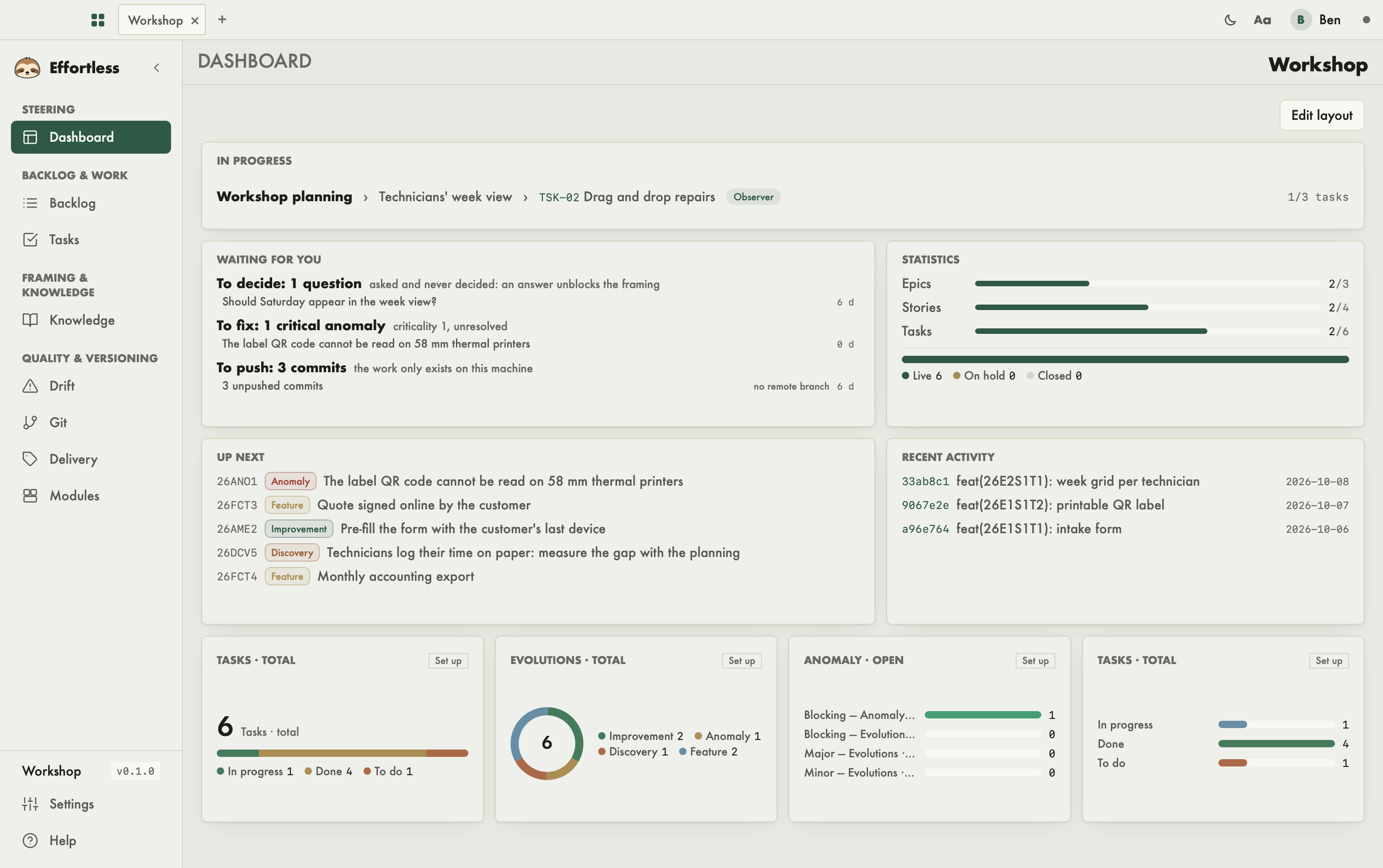
Whatever the screen, the Effortless window keeps the same frame: a top bar for tabs and reading settings, a sidebar to move around a workspace, and a tray icon that keeps the app running when the window is closed.
The top bar
From left to right:
- The grid icon ("Workspaces"): takes you back to the picker (Open a workspace).
- The tabs: one per open workspace, with its name. Click a tab to go back to it; its ✕ closes it. Closing the last tab takes you back to the picker.
- + ("New tab"): also takes you back to the picker. The tab is created when you open a project there; if the project is already open, its tab is reactivated.
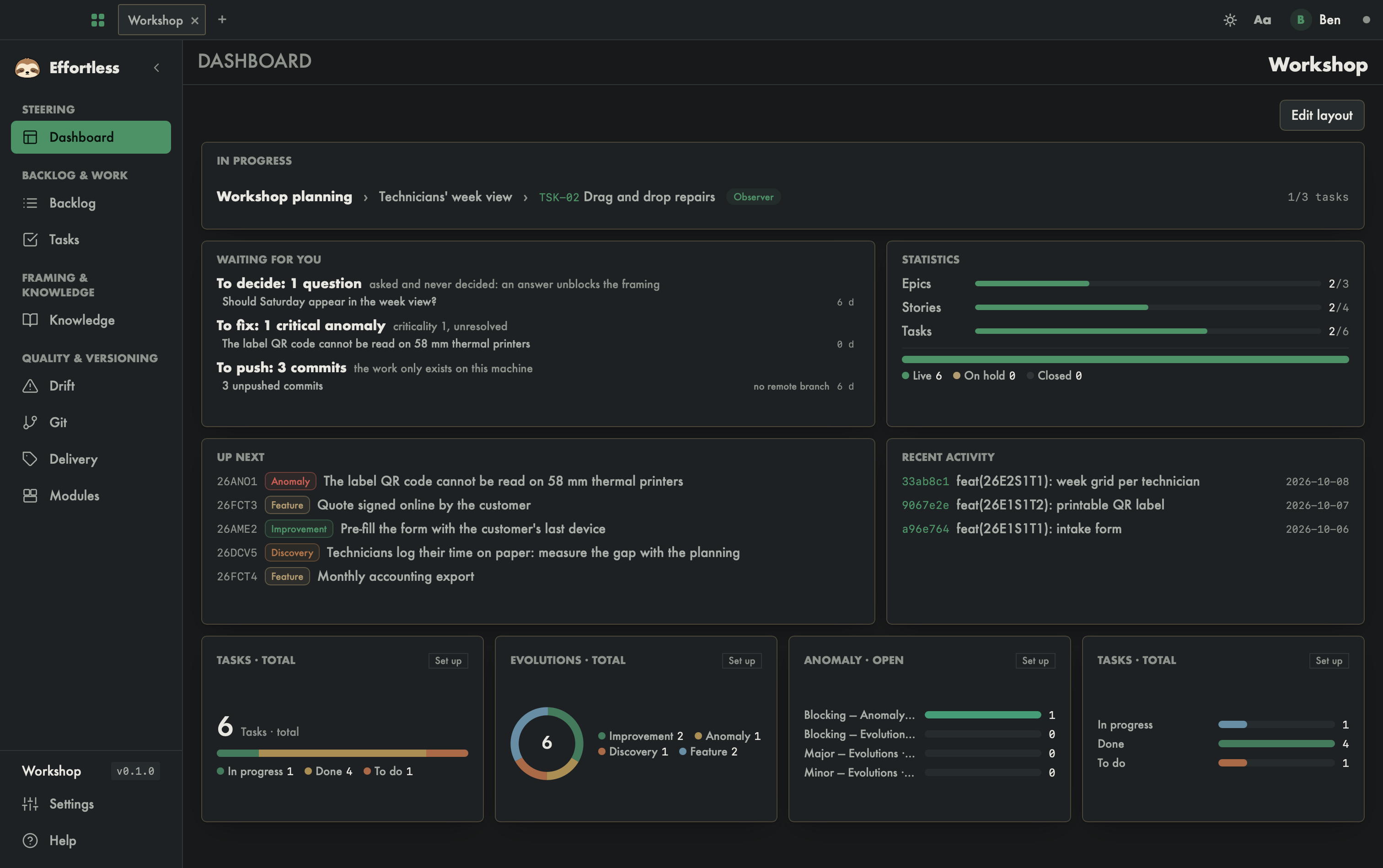
- The sun/moon button: switches between light and dark theme. The choice is saved in your profile; if you were on the System theme, it replaces it with an explicit theme.
- Aa ("Reading comfort"): a menu with three choices, Compact, Standard and Comfortable, which sets the size of elements and the density of the interface together.
- Your name and avatar: open the preferences. To leave them, click a tab or the grid icon.
- The freshness witness: a small dot. It tells when the app last received an update of the project ("Received 2 minutes ago", for instance). A click opens Data freshness, with a Refresh button that rereads the project state. If watching the folder stops, the witness says so in plain words.
- On Windows, the bar also holds the Minimize, Maximize and Close window buttons.
The sidebar
It only appears inside a workspace.
- At the top: the mascot and the Effortless name, with an arrow that collapses the bar into a rail of icons. When collapsed, click the mascot to expand it.
- The screens, by group: Steering (Dashboard), Backlog & work (Backlog, Tasks), Framing & knowledge (Knowledge), Quality & versioning (Drift, Git, Delivery, Modules).
- At the bottom: the workspace name and the project's version (for instance
v0.1.0, read fromeffortless.json— not the app's version), then Settings and Help.
Drag the right edge of the bar to change its width; with the keyboard, focus that edge and use the left and right arrows.
Above each screen, a header recalls the screen's name on the left and the project's name on the right.
Notifications
Small notifications appear at the bottom right of the window, then go away on their own; their cross closes them sooner. They tell you, for instance, that a new version is available, that development standards were updated at startup or when a project opened, or that a metadata auto-commit was made (see Git).
Keyboard shortcuts
| Action | macOS | Windows and Linux |
|---|---|---|
| Open preferences | ⌘ , | Ctrl+, |
| Close the current workspace tab | ⌘ W | Ctrl+W |
| New tab (the picker) | ⌘ N | Ctrl+N |
On macOS, New Tab and Close Tab are also in the app's File menu.
Closing the window and the tray
Closing the window does not quit Effortless: the window hides, and the app keeps running, with its icon in the menu bar (macOS) or the notification area (Windows).
Click the icon to open its menu:
- Open Effortless: shows the window again.
- MCP sessions: the list of running MCP sessions, one line per connected agent (project name and process number), or "No session". The list refreshes on its own every three seconds.
- Quit: really stops the app.
The tray menu, like the app menu on macOS, follows the language chosen in the preferences.
With an AI agent
An agent does not go through the window. Each connected agent does show up in Sessions MCP, as long as its session is open.