
Adopt an existing project
This assistant brings into Effortless a repository that already exists and has never been tracked by Effortless (a "brownfield" project). It lays the OPALE scaffold, groups the code and aligns the project with the current schema, in four steps.
Before you start, decide on the work mode and the code layout — especially if your repository must keep its structure or relies on shared sources: see Choosing your setup.
Start the adoption
In the picker, click Adopt an existing project and choose the project folder. The assistant then opens on that folder; its path is recalled under the title of each step.
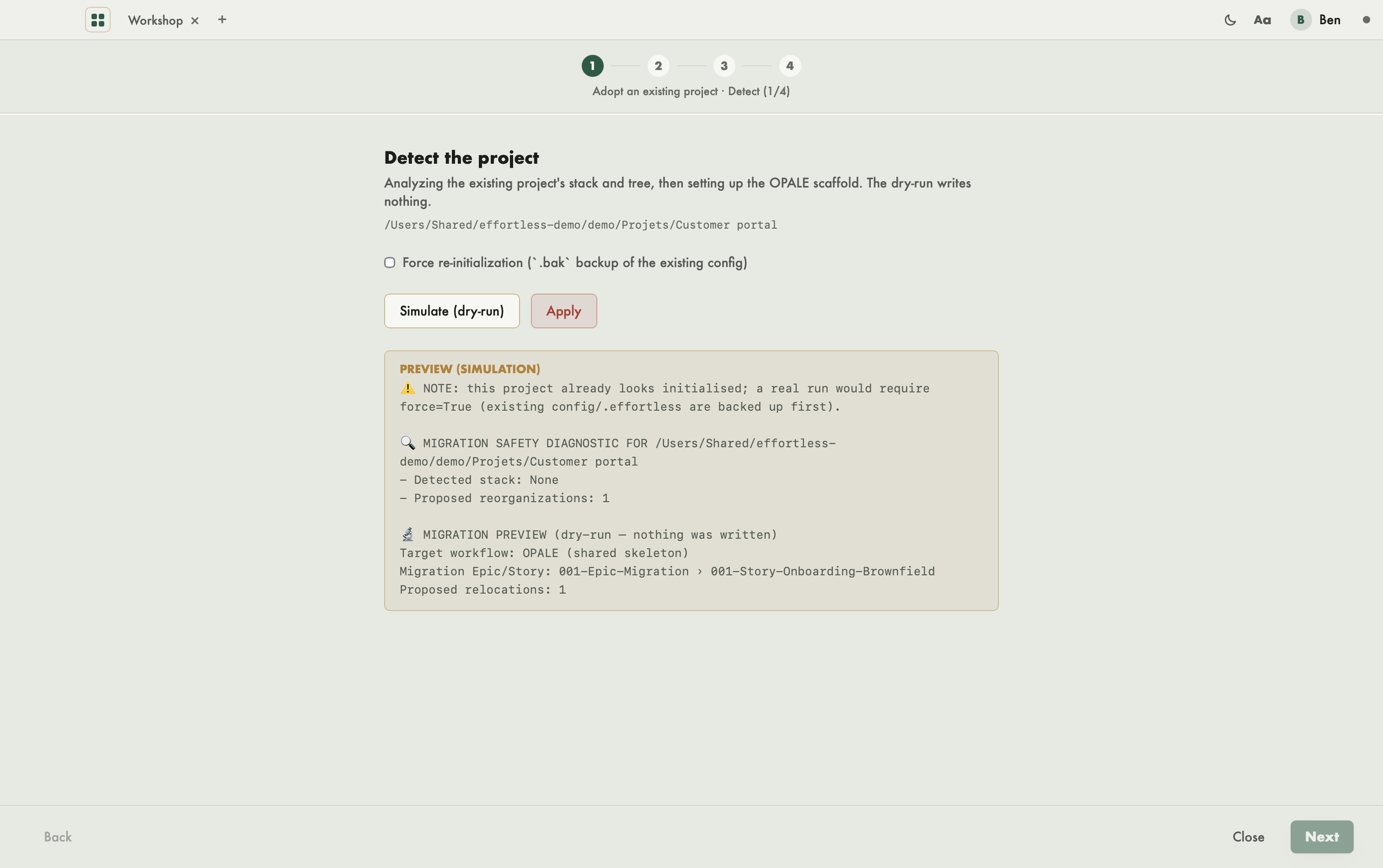
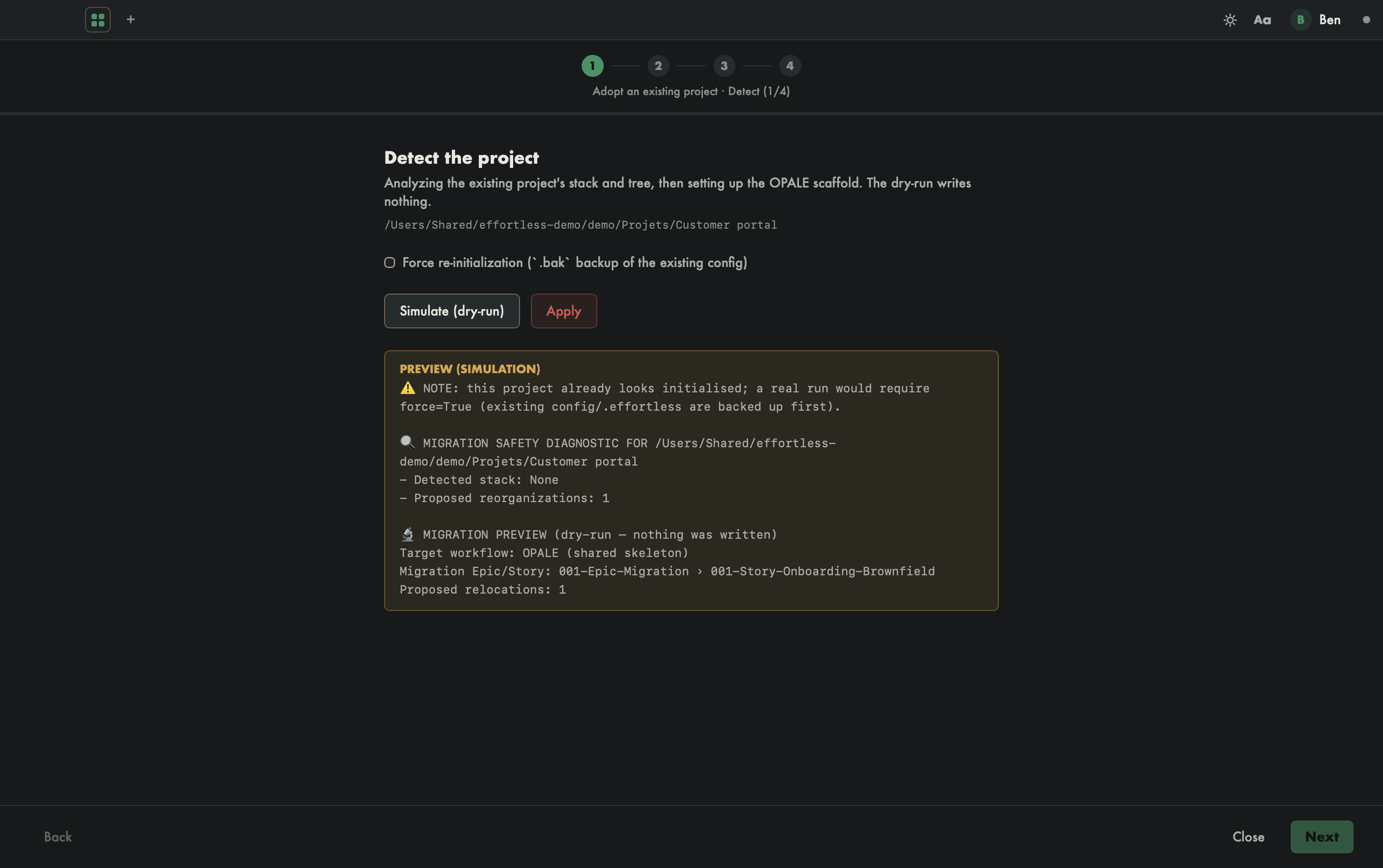
What you see
- At the top: four numbered steps and the line "Adopt an existing project · Detect (1/4)", then a progress bar.
- In the middle: the step's title and explanation, its settings, then two buttons: Simulate (dry-run) and Apply.
- At the bottom: Back on the left; Close and Next on the right, Finish on the last step.
Simulate, then apply
Each step runs twice:
- Simulate (dry-run) shows what would be done, without writing anything. The result shows in Preview (simulation).
- Apply really runs the step. It stays greyed out until the simulation has succeeded; the screen reminds you: "Simulate first to unlock execution." The result shows in Execution result, and the step is marked "Step applied ✓".
Next only enables once the step is applied: no step can be skipped.
The four steps
- Detect: analyzes the project's stack and tree, then sets up the OPALE scaffold. The "Force re-initialization" box is for a folder that already holds an Effortless configuration: it keeps a
.bakbackup before redoing it. - Plan: applies the relocation plan detected in the previous step. Read the simulation to see each move before running it.
- Group code: gathers the root code under
codebase/<stack>/. First fill in the Target stack identifier (for instanceapp,api,desktop): without it, the buttons stay greyed out. - Finalize: runs the migrations to align the project with Effortless's current schema.
Finish
On the fourth step, Finish opens the project in a tab. Close leaves the assistant at any time and takes you back to the picker; steps already applied stay applied.
Tip
Work on a clean, committed repository: the Group code step moves files.
With an AI agent
The same steps exist as MCP verbs, each with its simulation mode: effortless_migrate_init, effortless_migrate_apply, effortless_codebase_relocate and effortless_migrate.