
Profile and preferences
Preferences gather everything that applies to the whole application, whichever project is open: your identity, theme, language, connections to AI assistants, updates. Open them with ⌘ , (Ctrl+, on Windows and Linux) or by clicking your name at the top right of the window. To leave them, click a tab or the grid icon.
What you see
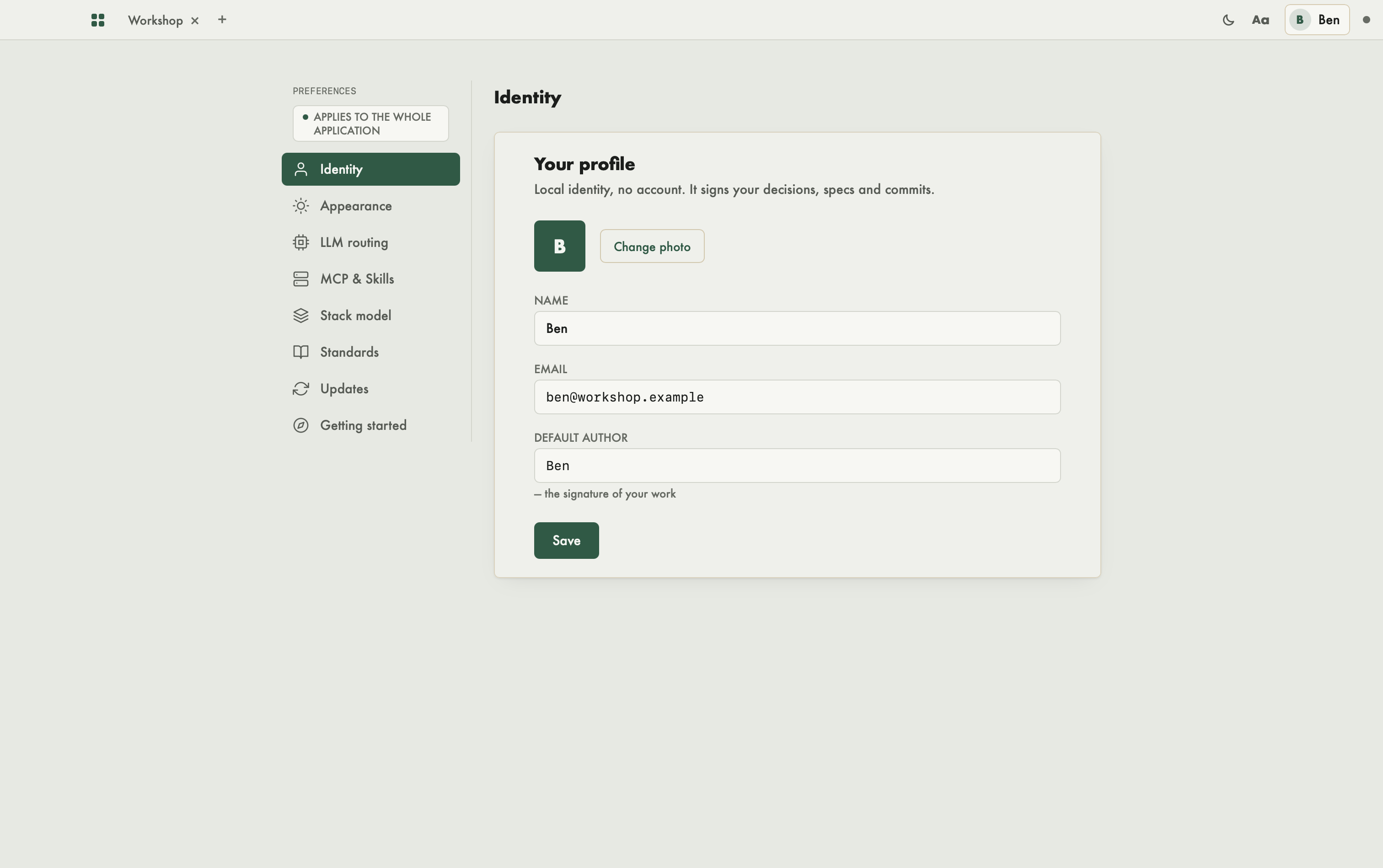
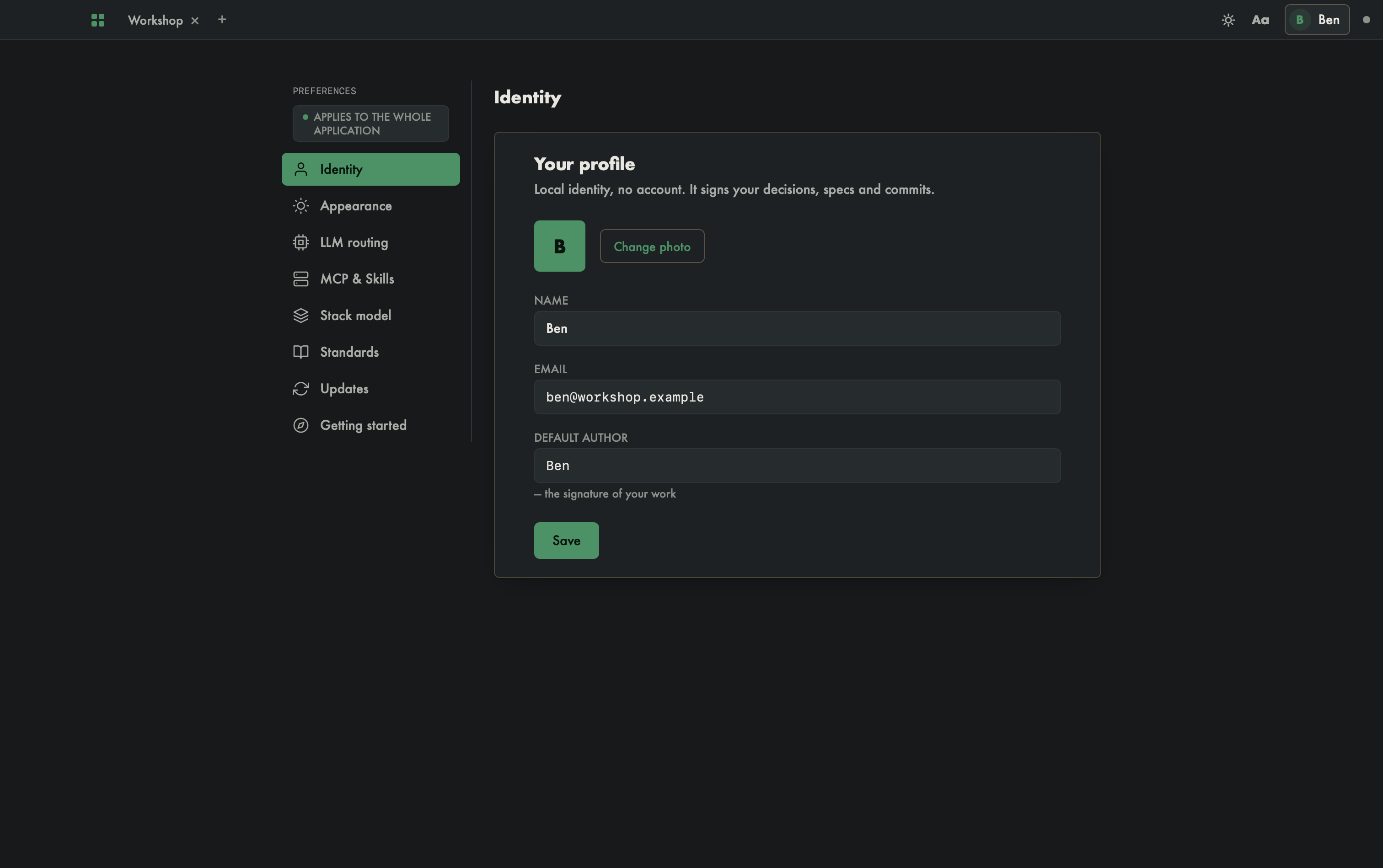
On the left, a rail of categories under the Preferences title and an Applies to the whole application badge. On the right, the content of the chosen category. The categories, top to bottom: Identity, Appearance, LLM routing, MCP & Skills, Stack model, Standards, Updates and Getting started.
Identity
This is a local identity, with no account. It signs your decisions, specs and commits.
- Change photo: pick an avatar image; Remove deletes it.
- Name (required), Email (checked when filled in) and Default author (required): the signature of your work.
- Save confirms everything; the screen confirms "Changes saved".
Appearance
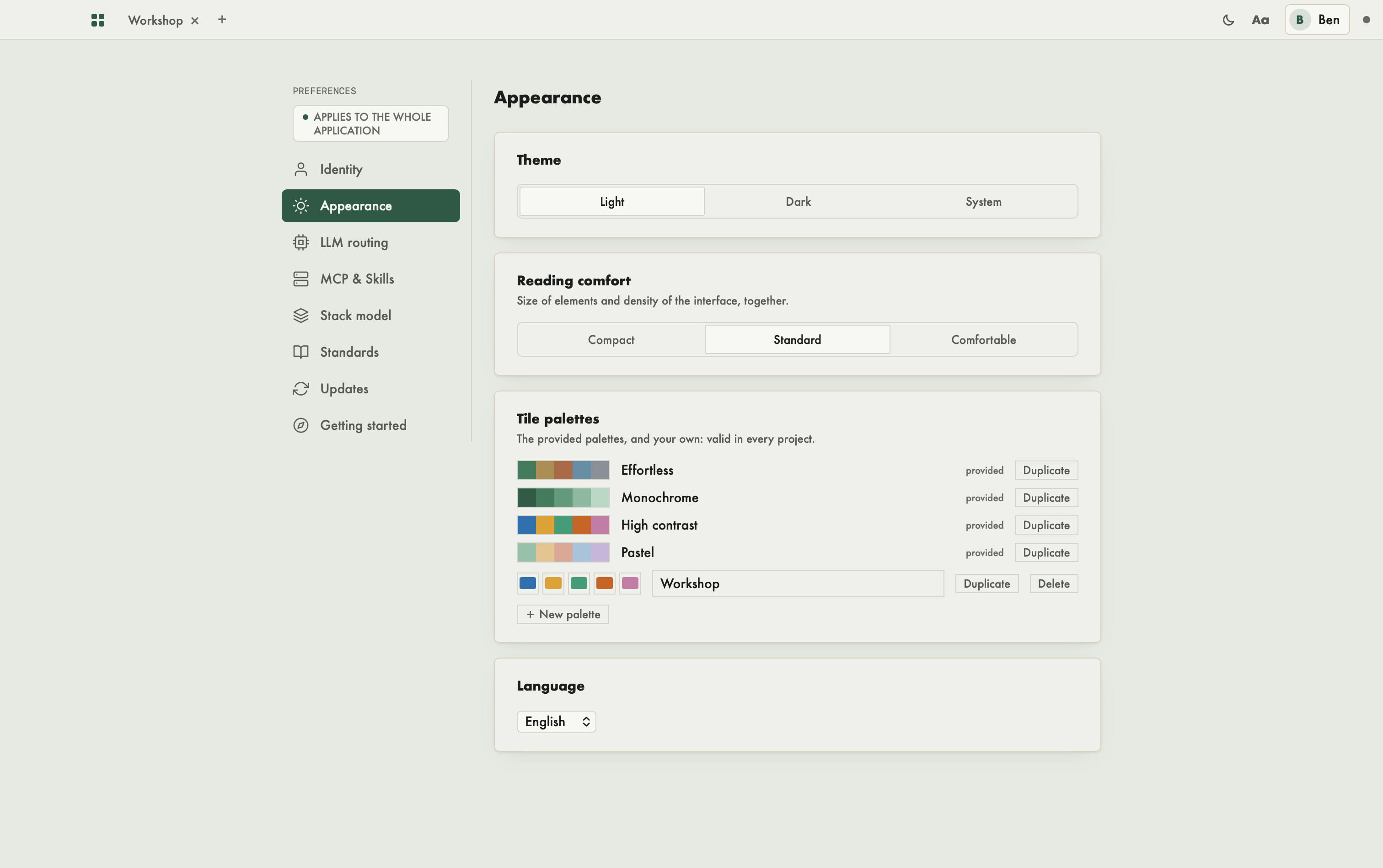
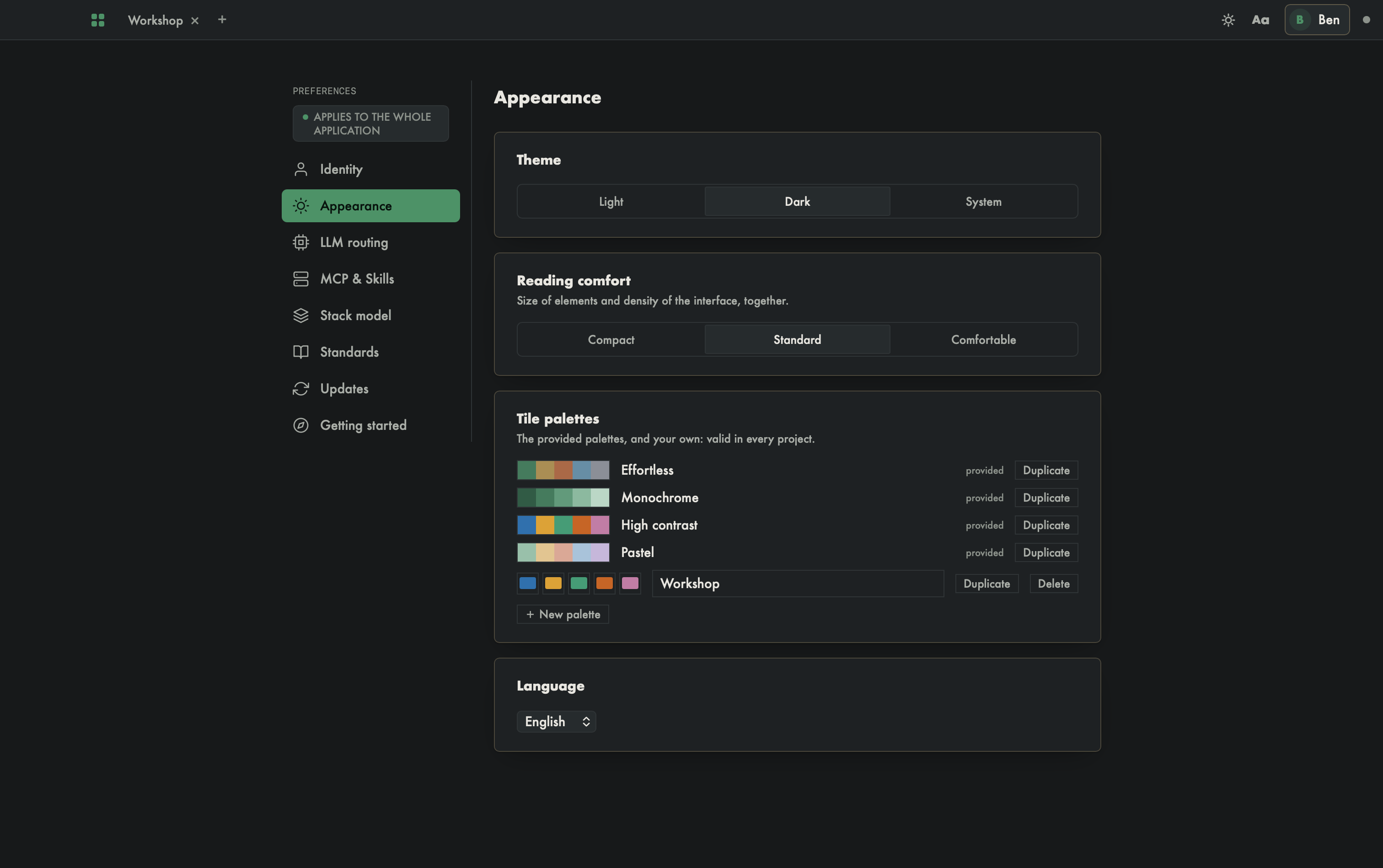
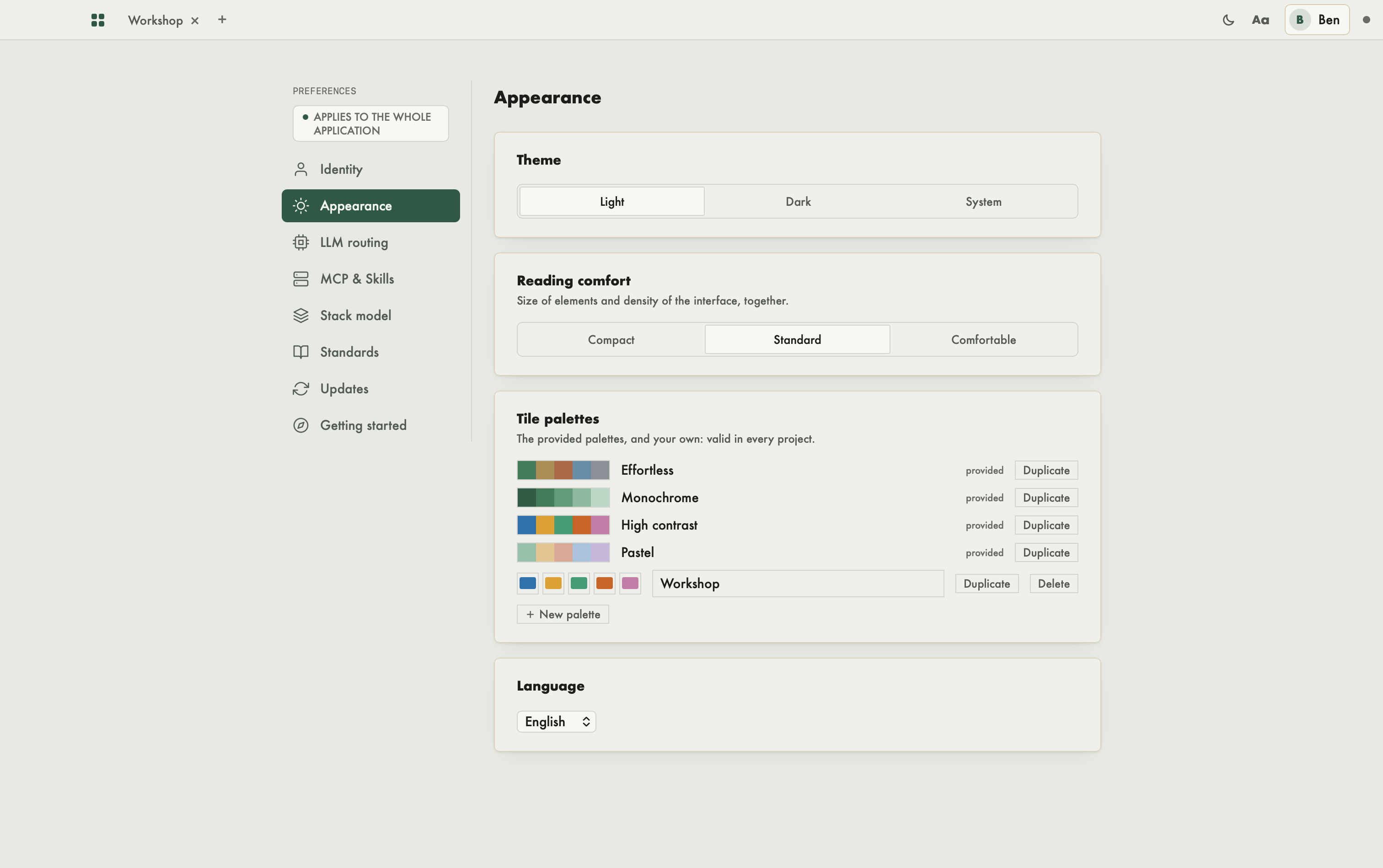
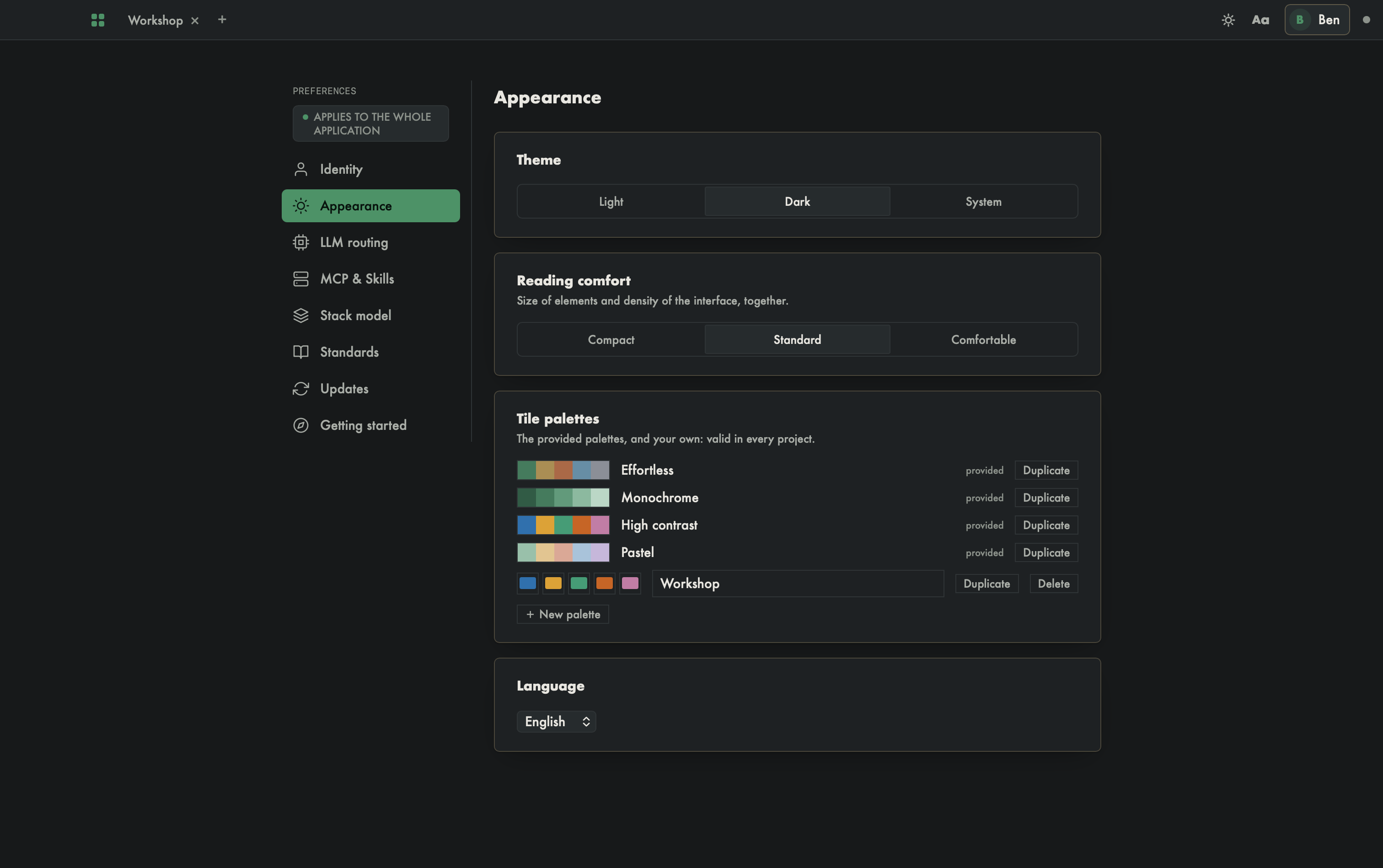
- Theme: Light, Dark or System (follows your computer's theme).
- Reading comfort: Compact, Standard or Comfortable — the size of elements and the density of the interface, together.
- Language: a drop-down list — Français, English, Español or Русский.
The change applies immediately. Theme and comfort can also be set from the top bar, without opening preferences: the sun/moon button switches between light and dark, and the Aa menu picks the reading comfort.
Tile palettes
The Tile palettes card lists the four provided palettes and your own. Duplicate copies a palette into a personal one; you choose its five colours and its name (Enter confirms), Delete removes it, New palette creates one. Your palettes apply to all your projects.
LLM routing
The global routing profile: a Matrix that pairs a model and an effort with each tier, plus a fallback model. Save keeps the profile; Save as preset turns it into a named preset. The Presets list shows the base presets and your own; Apply loads one (it still has to be saved). With no profile, the screen suggests applying a base preset and then saving.
It is a suggestion: Effortless calls no agent, the agent consults this profile.
MCP & Skills
Installs the Effortless server and its skills into your AI assistants in one move.
- A status card says whether the Effortless Binary is resolved or not found, and how many clients have Effortless registered.
- The list of assistants, under Applications, shows for each one whether it is Detected on your machine and its state: Ready, Partial or Nothing configured.
- Select the assistants (Select detected ticks the detected ones), then Deploy or Uninstall. A recap counts what was created, updated, left unchanged or in error. Refresh status rereads the state.
- The Server section holds the Command (the path to the executable; "Executable not found." when the app could not locate itself) and the Grant permissions (zero-prompt) box. Under Advanced: the Arguments, the Environment and the Exposed tools.
Stack model
Pick a model in Available models (the Project badge marks a model specific to the project). Its detail shows its build and cycle. Fill in the Stack identifier, the Norm source (Embedded (default) or Shared repo (git)) and the required Variables, then Create the stack.
Standards
The Repository address of a development-standards repository shared by all your projects (local folder or git URL; empty to remove it) and, optionally, the Branch or tag (git). Save keeps the source. Update all projects syncs them and gives the result ("2 project(s) updated, 0 failed", for instance).
Syncing also happens on its own when the app starts and when a project opens; a notification announces it when standards changed. A project's local standard is never modified.
Updates
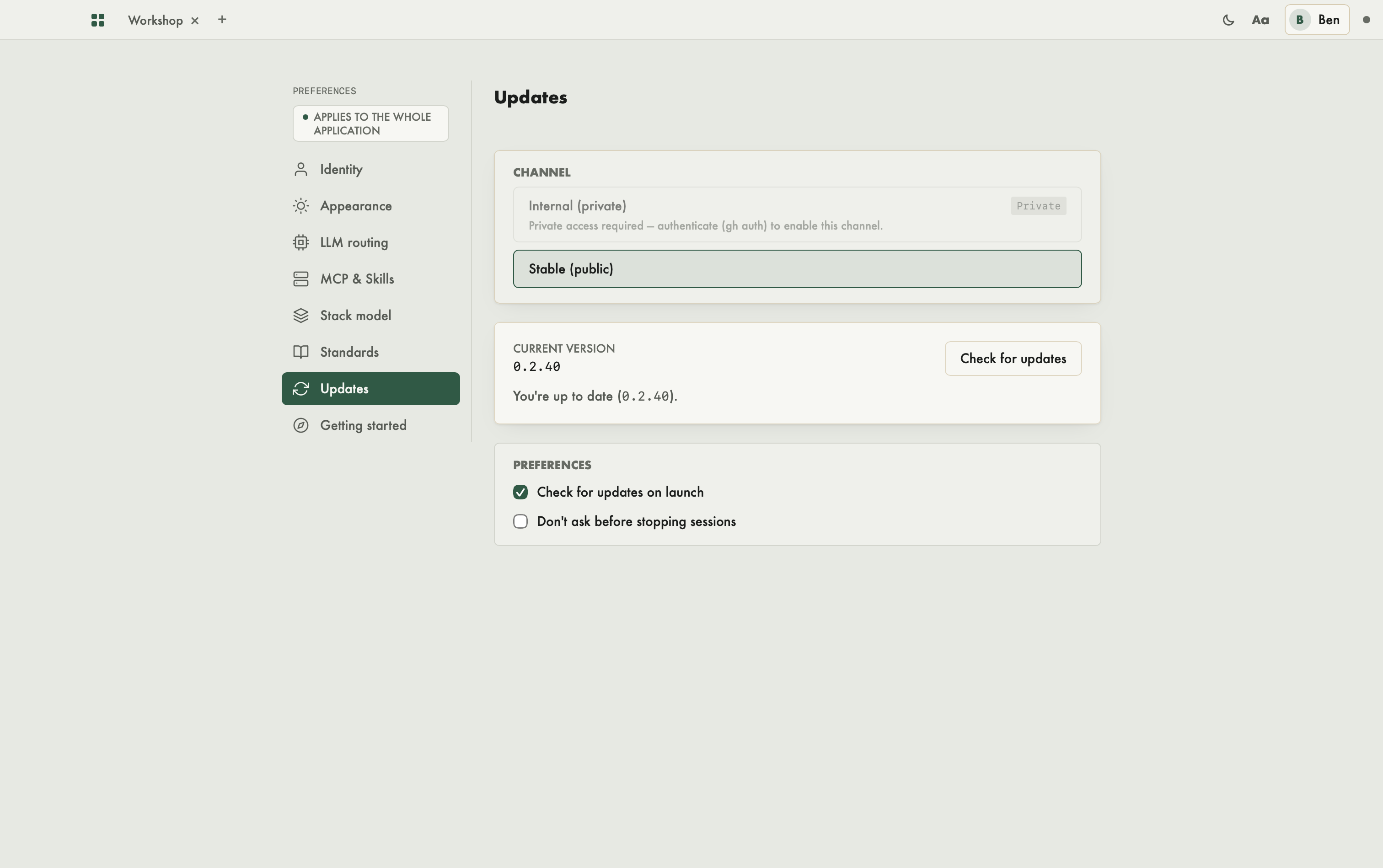
- Choose a Channel. A Private channel may require
ghauthentication; the screen says why it is unavailable. - The Current version is shown. Check for updates says "You're up to date" or "Update available:" with the version, its What's new, and the Update to … button.
- Before installing, Effortless must stop the running MCP sessions: a "Sessions to stop before updating" window lists them, and Stop everything and update starts the installation. Progress is shown (download, signature check, installation, restart).
Two options:
- Check for updates on launch: at every startup, Effortless checks the channel and, when a version is available, announces it with a notification. Nothing installs without your action: installing happens here. The panel also checks when it opens.
- Don't ask before stopping sessions: the confirmation window no longer shows.
If an older installation is detected, a "Legacy installation detected" banner offers Migrate to the compiled version.
Getting started
Replay the introduction replays the first launch (identity, deployment, workspace): see First launch.
With an AI agent
The MCP & Skills deployment exists precisely to connect the app to your agents. On the agent side, effortless_deploy does the same job, and effortless_ndd_source reads or sets the standards source.
For Claude Code, the deployment also installs the Effortless status line (~/.claude/effortless/statusline.mjs): folder, model, branch, share of context used — read from the model's real window size —, 5-hour and 7-day quotas, then, inside an Effortless project, the phase, the mode and the active story. If you already have your own status line, it is kept: the deployment report gives the line to set to adopt Effortless's.