
Tasks
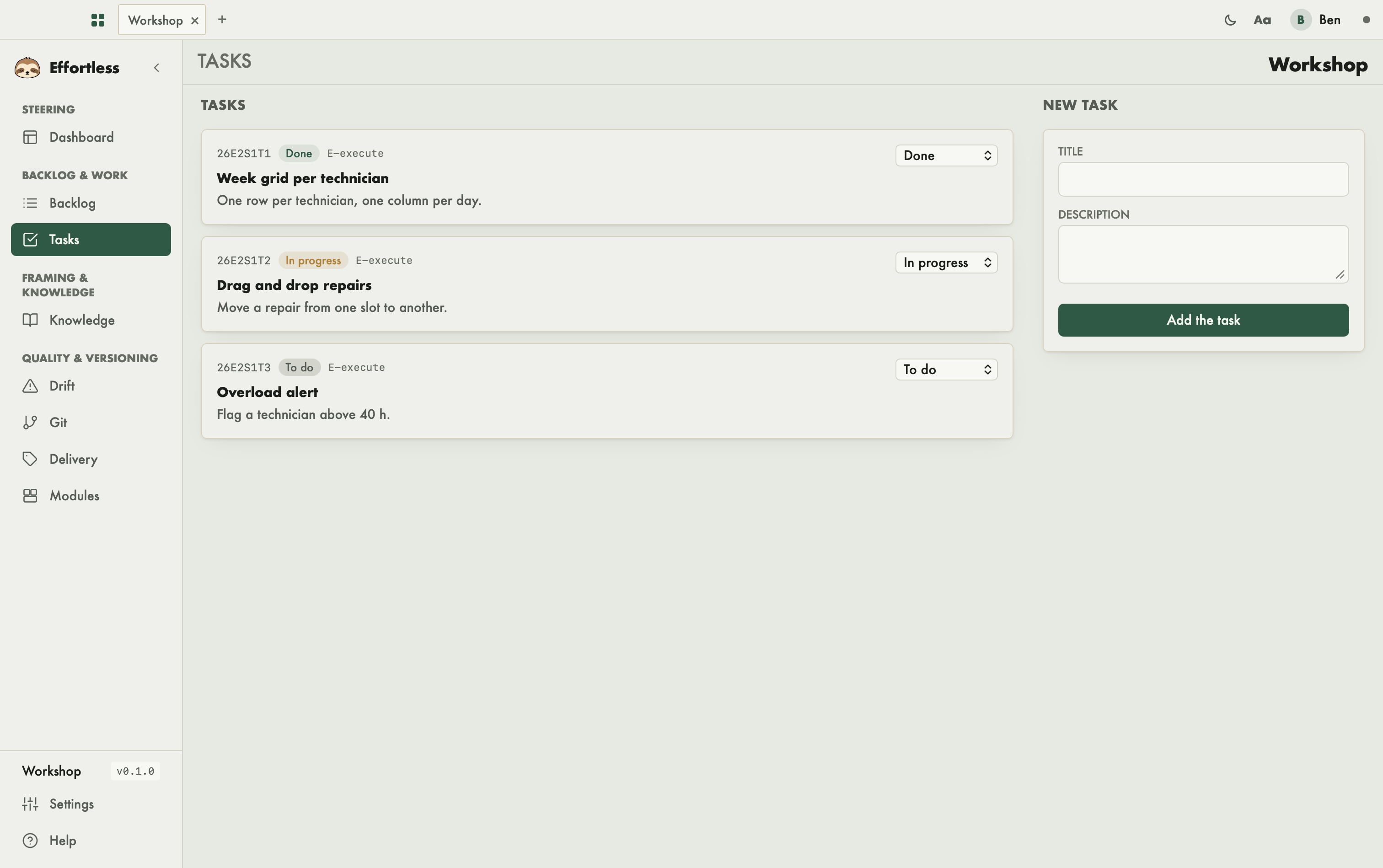
This screen lists the tasks of the active story and lets you add new ones. You come here to follow the progress of the current work and to change the state of a task.
What you see
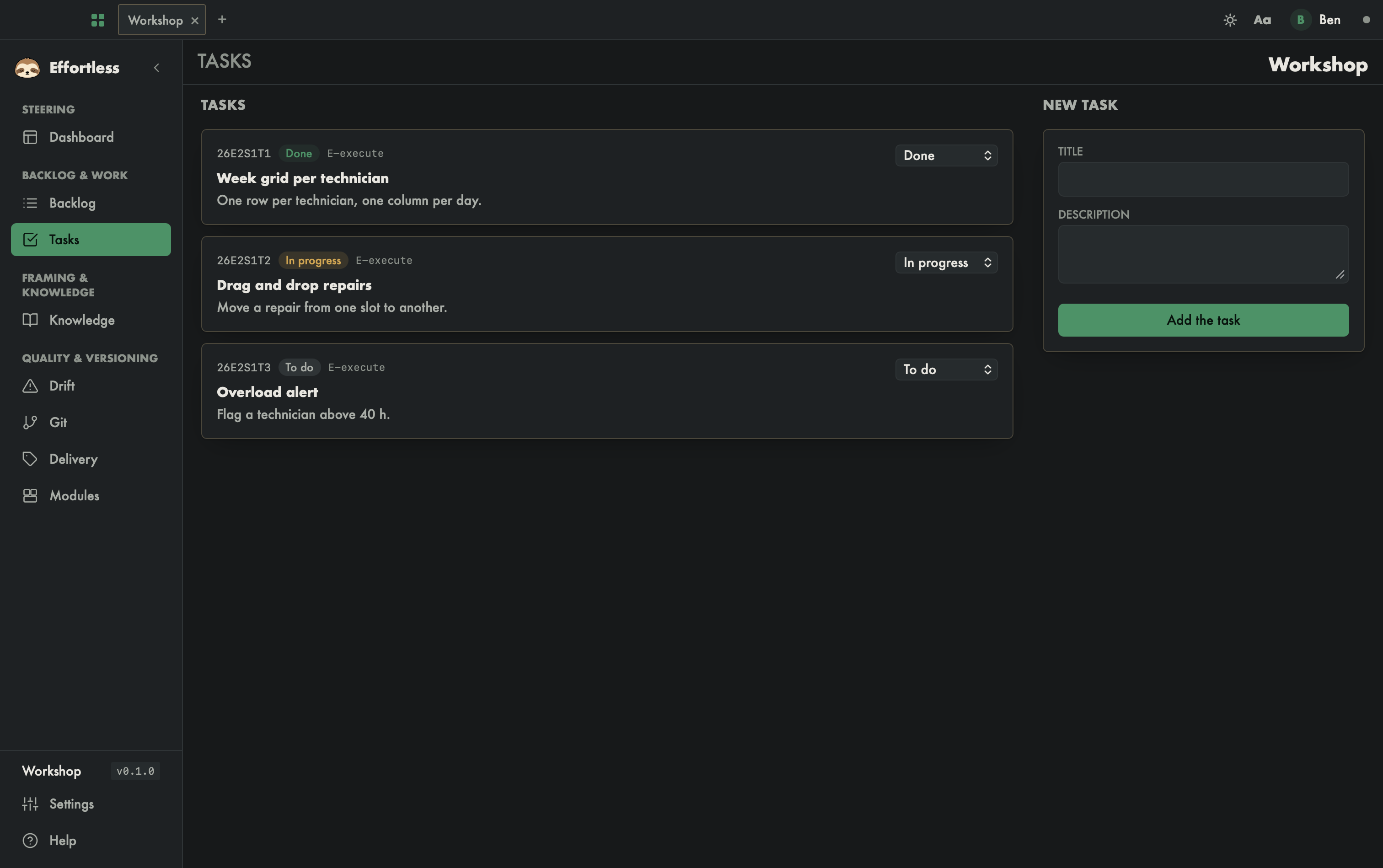
- Tasks (left column): one card per task of the active story.
- The task reference (for example
26E2S1T1), its state (To do, In progress or Done) and its OPALE phase (for exampleO-analyse). - The title in bold, then the description.
- A drop-down list to change the state.
- The task reference (for example
- New task (right column): the form to add a task, with the Title and Description fields.
If no story is active, the screen shows "No active story" and a Go to backlog button: activate a story from the Backlog first. If the story has no task yet, the list shows "No task for this story."
What you can do
Change the state of a task
Open the drop-down list on the right of the card and pick To do, In progress or Done. The change is saved immediately and the list reloads. Set to In progress the task you are coding on: as long as at least one task of the project is In progress, the Drift detector considers that there is an active task. It does not look at which one: keeping your task states accurate is up to you.
Add a task
- Type a Title. It is required: nothing is created without one.
- Optionally add a Description.
- Click Add the task.
The new task gets the story's current phase and appears in the list.
Tips
- A story can only be closed once all its tasks are Done.
- If metadata auto-commit is on (see Git), every addition or state change is committed automatically.
With an AI agent
An agent does the same through the MCP server: effortless_task_add creates a task, effortless_task_update changes its state, and effortless_story_items lists the tasks of a story. The screen simply shows the result of their work.